All alert and notification types
A comparison of every alert and notification in CostGlass, with channel setup and testing.
All alert and notification types
One table of everything CostGlass can tell you about, what triggers each message, where it goes and where to set it up.
- CostGlass has several alert types because they answer different questions: unusual days, rises versus last period, budget limits, service outages and more.
- Chat and paging channels are Slack, Microsoft Teams, PagerDuty and Jira. Email is available almost everywhere.
- Test sends of email go only to you, so a test button can never be used to send mail to someone else.
- Webhook addresses are checked against allow-lists and are never shown again after you save them.
- Not every alert type supports every channel. Use the table below.
The comparison table
| Alert | What triggers it | Channels | Who receives it | Where to set it up |
|---|---|---|---|---|
| Anomaly notifications (guide) | A scan finds an unusual day whose extra cost per day (dollars) or percentage is greater than a rule threshold. Scans run every 6 hours. | Email, Slack, Teams, PagerDuty, Jira. Optional daily digest. | Whoever you list on each rule. If you have no rules, all active users get an email. | Anomalies page, Anomaly Notification Rules by Threshold. |
| Cost alerts (guide) | Spend in the last complete day, week, month or quarter rose versus the one before by a percentage or amount. Checked every 6 hours. | Email, Slack, Teams, PagerDuty, Jira. No channel is allowed (recorded only). | Whoever you list. Email goes to active members of your organisation. | Cost Alerts page, New cost alert. |
| Budget alerts (guide) | A budget reaches 80% of its limit (spent or projected) or is exceeded. Raised when the Alert Rules page is loaded, once per budget. | Email to users; Slack, Teams, PagerDuty, email or Jira only if a budget rule exists with channels. | Active users in your organisation. | Budgets page for the budget itself. The alert history is on the Alert Rules page. |
| Alert Rules page | Shows budget and legacy anomaly alerts and the rules that route them. You can switch rules on or off, edit their channels, and test them. | Email, Slack, Teams, PagerDuty (Jira on budget rules). | As configured on each rule. | Plan & Control, Alert Rules. |
| Uptime alerts | A monitored service check comes back degraded or down. The rule for the service's environment (for example prod) decides whether degraded or down alerts are on. | Slack, Teams, PagerDuty, email. | Whoever you list on the environment category or on the service. | Uptime page: category policies per environment, and per-service alert channels. See Uptime & incidents. |
| Unit economics target alerts (guide) | A metric's cost per unit goes more than 5% over its target. One message when it crosses, a reminder at most weekly while it stays over. | Email only. | Owners and admins. | Unit Economics page: set a target and turn alerts on for the metric. |
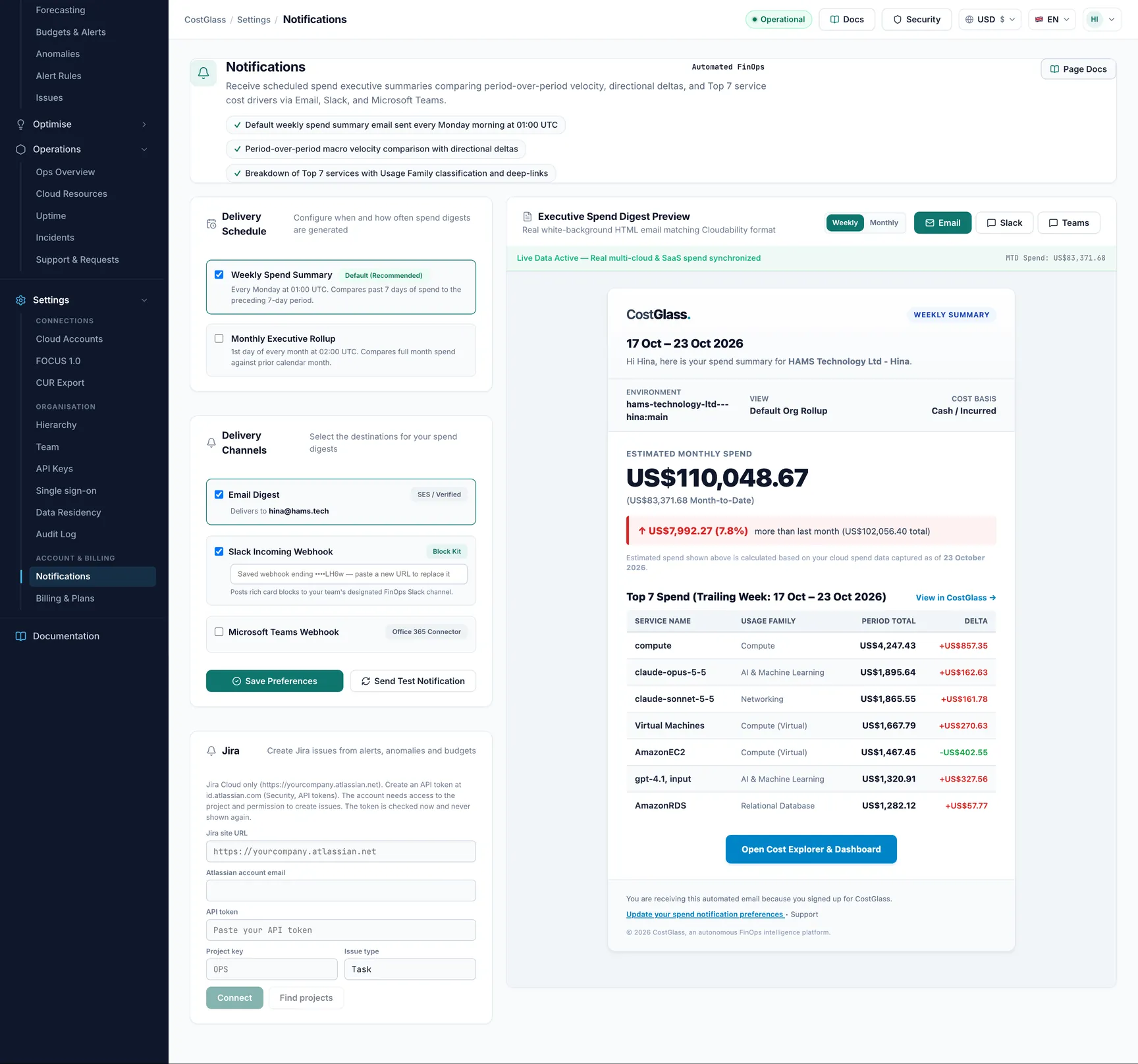
| Weekly spend summary | Sent on Mondays at 01:00 UTC. There is also a Monthly Executive Rollup option, off by default, sent on the 1st. | Email, Slack, Teams. | You choose on the page. It only reaches users who existed when the summary was due. | Settings, Notifications. See Notifications. |
| Issues (guide) | You are assigned to an issue, or an issue you follow gets a comment, is resolved or is reopened. | Email. | Assignees and subscribers, never the person who made the change. | Issues page. Use Subscribe to follow one. |
| Scheduled reports and views | A schedule you create on a saved Cost Explorer view or a saved report is due. | Email (with an attachment or a link) and Slack or Teams digest. | Active members of your organisation (within their access), or the chat channels you add. | The schedule dialog on saved views and reports. |
| DevOps request emails | A request is created, an engineer is assigned, or its status changes. | Email. | The HAMS engineers assigned to your organisation and operators are told of a new request; you get an acknowledgement and status updates. | DevOps, Requests. |
Choosing the right alert
| You want to know when | Use |
|---|---|
| One service cost far more than normal yesterday | Anomaly notification rules |
| Last week or last month was higher than the one before | Cost alerts |
| You are close to or over a spending limit | [object Object] (alerts appear on the Alert Rules page) |
| A website or API is down | Uptime alerts |
| Cost per customer, order or request is rising | Unit economics target alerts |
| A regular overview for managers | Weekly spend summary, or a scheduled report |
| A task to be owned and tracked | Issues |
Avoiding duplicates
One event can trigger several alert types, for example a large increase might be both an anomaly and a cost alert. If that is noisy, send anomalies to a chat channel and cost alerts to email, or raise the thresholds on one of them.
Setting up channels
Enter one or more addresses where the channel asks for them (up to 10). Some alert types send to your organisation's active users instead. Email is sent from the CostGlass mail service.
Slack
Microsoft Teams
Create a webhook or a Workflows (Power Automate) flow that posts to a channel and paste its address. CostGlass accepts addresses on *.webhook.office.com, outlook.office.com, *.logic.azure.com and *.api.powerplatform.com.
PagerDuty
Create an Events API v2 integration on a PagerDuty service and paste its 32-character integration key into Integration key (Events API v2). Anything that is not exactly 32 letters and digits is rejected.
Jira
Connect Jira once under Settings, Notifications, then choose Jira as a channel. No extra secret is needed on the alert. One Jira issue is created per event.
Testing safely
- An email test always goes to you, the signed-in person, whatever addresses are saved. The result says who it was sent to.
- Slack and Teams tests post a real message to the channel.
- A PagerDuty test creates a real incident that pages on-call. Resolve it afterwards.
- A Jira test creates a real, labelled test issue.
- Only owners and admins can send tests.
The Alert Rules page in detail
The Alert Rules page has four cards at the top (Active Alerts, Budget Threshold Warnings, Notification Rules and Connected Channels), then Configured Notification Rules,Active FinOps Alerts (tabs All, Budget Alerts and Cost Anomalies) and Alert & Notification History.
- Each rule has an on/off switch, a Channels button to edit where it goes, and a Test Alert button.
- Press Ack on an active alert to acknowledge it.
- Opening the page also checks your budgets, which is how budget alerts are raised.