Savings recommendations
How the Savings page finds, prices and tracks savings for every connected cloud and platform.
Savings recommendations
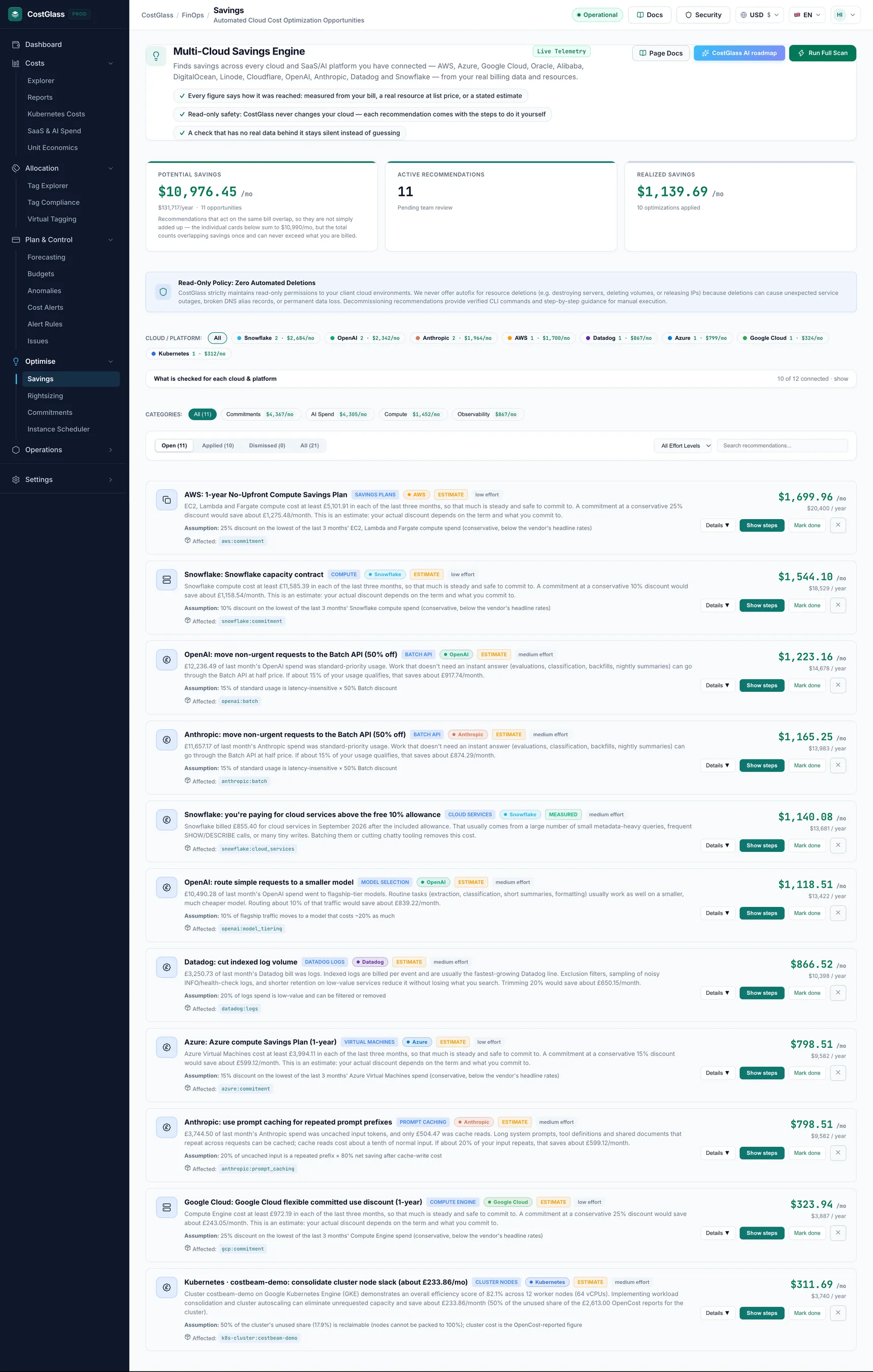
The Savings page checks every cloud and AI platform you have connected for waste and for cheaper ways to buy, tells you how each figure was worked out, and gives you the steps to act on it yourself.
- Every recommendation carries a coloured tag that says how its figure was reached: Measured, List price, Cloud estimate or Estimate.
- A check that has no real data behind it stays silent. CostGlass would rather show nothing than guess.
- Potential Savings is not a plain sum of the cards. Overlapping recommendations are counted once and the total can never exceed what you are billed.
- CostGlass never changes your cloud for you. Show steps tells you what to do in your own console, then you click Mark done.
- New checks need a few extra read-only permissions. Existing connections may need a one-off update (see "Enable the newer checks").
Before you begin
- At least one cloud or platform connected. See Connect your clouds.
- Some days of cost data. Checks that look at trends need several months of history (for example the commitment estimate needs three).
- For checks on real resources (unattached disks, idle load balancers), an account with live access. A billing-export-only AWS connection has cost data but no live inventory or CloudWatch metrics, so those checks cannot run.
How the page works
The page is called Multi-Cloud Savings Engine. When you first open it, CostGlass scans your connected accounts and stores the recommendations it finds. After that you can scan again at any time with Run Full Scan. A scan reads data CostGlass already holds (your billed costs, your discovered resources, and the recommendations your cloud has produced). Some checks also make a read-only call to the provider, for example listing DigitalOcean or Linode resources with the token you stored.
Nothing is ever deleted, stopped or resized by a scan. The one exception to CostGlass's read-only rule in the whole product is the Instance Scheduler, which is opt-in and separate.
How to read the page
The three headline cards
- Potential Savings
- The monthly figure, with the yearly equivalent and the number of open opportunities underneath. Overlaps are counted once (explained below).
- Active Recommendations
- How many recommendations are waiting for your team to review.
- Realized Savings
- The monthly saving of recommendations you have marked as done, and how many.
Cloud / platform chips
The row of chips under CLOUD / PLATFORM: filters the cards to one cloud or platform. Each chip shows how many recommendations it holds. All clears the filter.
What is checked for each cloud & platform
Click this panel to open it. It lists every connected (and not yet connected) cloud, in words, with what CostGlass looks for and any limitation. It is the best place to answer "why didn't I get a recommendation for X?". It is produced from the same code that runs the scan, so it is always accurate.
Categories, status tabs, effort and search
| Control | What it does |
|---|---|
| CATEGORIES: | Filters by type of saving, with a count on each chip. Click a chip again to clear it. |
| Open, Applied, Dismissed, All | Status tabs with counts. Open is the working list; Applied are items you marked done; Dismissed are ones you decided against. |
| All Effort Levels | Choose Low Effort, Medium Effort or High Effort to find quick wins first. |
| Search recommendations... | Searches titles and details. |
A recommendation card
Each card shows a title, the cloud, the monthly saving, the effort level and a coloured basis tag. Use Details to expand it and see the evidence, the assumption (if any) and the steps.
How each figure was reached (the basis tag)
This is the most important thing to understand on the page. Two recommendations with the same pound figure can be very different in how trustworthy they are, so every card says which kind it is. Hover over the tag to see the same explanation on screen.
| Tag | Meaning | How much to trust it |
|---|---|---|
| Measured | A real amount from your own billing data, for example the part of your Snowflake bill that was charged beyond the free allowance, or a service whose cost rose sharply and stayed up. | Highest. It is what you were actually billed. |
| List price | A real resource found in your account (for example an unattached disk), priced at the provider’s published rate. | High for existence, approximate for price. Your discounts and credits are not applied. |
| Cloud estimate | The cloud provider’s own estimate from its purchase or optimisation tool (for example an AWS Savings Plan purchase recommendation, Azure Advisor, Google Recommender). | Good, but it is the provider’s forecast for your usage, not a quote or a guarantee. |
| Estimate | A stated, conservative percentage applied to real eligible spend. The assumption is written on the card. | Lowest. Use it to prioritise, then confirm in your cloud console. |
What is checked, cloud by cloud
This table is taken from the checks the product runs today. The in-app panel What is checked for each cloud & platform is the live version.
| Cloud / platform | Checks | Limits |
|---|---|---|
| AWS | Unattached EBS volumes; gp2, io1 and io2 to gp3; unattached Elastic IPs; snapshots older than 90 days; idle load balancers; previous-generation instances; Graviton and AMD moves; RDS checks (Graviton, gp2 to gp3, Multi-AZ outside production); off-hours scheduling for non-production; idle EC2 and RDS and rightsizing from measured CloudWatch metrics; AWS Cost Optimization Hub recommendations (rightsizing, idle resources, Graviton, upgrades). From the usage types in your bill: idle NAT gateways, NAT data-processing charges, data transfer between zones and between regions, extended support fees, S3 storage classes and idle public IPv4 addresses. Savings Plan purchases (Compute, EC2 Instance, SageMaker) and Reserved Instance purchases (EC2, RDS, ElastiCache, OpenSearch, Redshift) from AWS’s own recommendations; sustained cost increases. | Needs the read-only permissions in the onboarding stack. Cost Optimization Hub must also be turned on once in your management account. The usage-type checks work with a billing-export-only connection; inventory and metric checks need live access. The old snapshot figure is an upper bound. |
| Azure | Azure Advisor cost recommendations; stopped-but-not-deallocated VMs; unattached managed disks; from the meters on your bill: Blob Storage tiering, bandwidth between availability zones and between regions, and extended support fees (PostgreSQL and MySQL, AKS long-term support); Savings Plan or Reservation purchases from Azure’s own recommendations; sustained cost increases. | Advisor needs Reader on the subscription. Reservation and savings plan recommendations need the Reservations read grant. The meter-based checks need nothing extra and begin after the next cost sync. |
| Google Cloud | Google Cloud Recommender: idle VMs, disks, IP addresses, custom images, reservations and GKE clusters; VM and managed-instance-group machine types; idle and over-sized Cloud SQL instances; committed-use recommendations. From the SKUs on your bill: Cloud Storage class tiering, inter-zone and inter-region data transfer. Also sustained cost increases (a labelled committed-use estimate until the first recommendation has synced). | Recommender results need the recommender.viewer role. Without it only cost-based checks run. CostGlass does not compute its own idle checks for Google Cloud. |
| Kubernetes | Under-used container requests and idle capacity; abandoned deployments; cluster node slack. | Priced from the cost OpenCost reports. Where only resource requests are known, the card is labelled an estimate and states the price assumed. |
| Oracle Cloud | Unattached block and boot volumes; stopped instances (only for what still bills); Oracle Cloud Advisor cost recommendations; sustained cost increases. | Needs the read-only resource-discovery policy; re-apply the Resource Manager stack once if you connected earlier. Cloud Advisor needs its own permission and Cloud Advisor enabled in your tenancy; CostGlass does not grant it yet, so until you do, the panel shows a note. Reserved IPs and commitment checks are not priced. |
| Alibaba Cloud | Unattached disks (priced from Alibaba’s price API); Subscription or Savings Plan for ECS (estimate); sustained cost increases. | Needs the read-only ECS and VPC policy; update the ROS stack once if you connected earlier. Stopped-instance and unassociated-EIP prices are not verified, so those only get a note. |
| DigitalOcean | Powered-off droplets, unattached volumes, snapshots older than 90 days, unassigned reserved IPs; sustained cost increases. | Read live from the DigitalOcean API with your stored token, for every connected account. |
| Linode (Akamai) | Powered-off Linodes, unattached volumes; sustained cost increases. | Read live from the Linode API with your stored token. |
| Cloudflare | Sustained cost increases only. | Cloudflare bills usage-based products, so there is no idle resource or commitment to find. |
| OpenAI | Batch API, model tiering; sustained cost increases. | Estimates, based on your real spend by model. |
| Anthropic | Batch API, prompt caching, model tiering; sustained cost increases. | Estimates, based on your real spend by model and token type. |
| Datadog | Log ingestion, custom metrics; sustained cost increases. | Based on your real spend by product. |
| Snowflake | Cloud services overage (measured), capacity contract; sustained cost increases. | Needs organisation-usage access to be granted by an ORGADMIN. |
What does 'sustained cost increase' mean?
It applies to every cloud. A service is flagged when each of the last two complete months was at least 30% above that service’s own three-month baseline, and the rise is at least about £50 (in the app’s currency unit). The saving shown is the increase itself, so this check is Measured. It is a prompt to investigate, not proof that something is wrong. A planned launch also looks like this.
Why Potential Savings is not the sum of the cards
Different recommendations can claim the same money. For example a Savings Plan, a rightsizing change and a schedule can all reduce the same virtual machines. If CostGlass simply added them up, the total could be larger than your bill, which is impossible.
So for each cloud CostGlass applies your open recommendations one after another to that cloud’s monthly bill. Each one takes its share of what is left. The result is always below the bill, a single recommendation keeps its own figure, small independent ones are almost unchanged, and the order does not matter. The bill used is the larger of your last complete month and the month so far.
Suppose a cloud’s monthly bill is 1,000 and two recommendations each claim 600. Added together they promise 1,200, more than the whole bill. Applied one after the other, the first removes 600 and the second can only remove 60% of what is left (240), so the total is 840. The page then shows 840 in Potential Savings and explains that the individual cards sum to more. (The numbers are only an illustration.)
Acting on a recommendation
Enable the newer checks (one-off, for existing connections)
The extra checks need extra read-only permissions. If you connected before they existed, the check finds nothing and the What is checked panel says why. New connections already include them.
| Cloud | What to do | Read-only? |
|---|---|---|
| AWS | Redeploy your onboarding stack, or update the StackSet if you use an AWS Organization. It adds ec2:DescribeAddresses, elasticloadbalancing:Describe*, the Cost Explorer coverage, utilisation and purchase-recommendation reads, and savingsplans:DescribeSavingsPlans. For rightsizing and Cost Optimization Hub, make sure the Rightsizing feature is selected (see the Rightsizing guide), then turn on Cost Optimization Hub once in the management account: Billing and Cost Management console → Cost Optimization Hub. Until it is on, the What is checked panel says so. | Yes |
| Google Cloud | Optional: grant roles/recommender.viewer on the project (the third command shown when you connect). | Yes |
| Oracle Cloud | Re-apply the Resource Manager stack. It adds five read-only policy statements. | Yes |
| Alibaba Cloud | Update the ROS stack. It adds ecs:Describe* and vpc:DescribeEipAddresses. | Yes |
| Azure | Nothing. The Reader role already covers Azure Advisor. | Yes |
See Manage connected accounts for where to re-run each connection.
Limits you should know about
- Idle-resource checks for Google Cloud, Oracle and Alibaba depend on what those clouds let us read; coverage is narrower than for AWS (see the table).
- Percentage estimates are conservative planning figures, not quotes. Your actual discount depends on your contract and usage.
- List-price figures do not include your negotiated discounts, credits or taxes.
- A resource with no billing line in the latest export may look unused when it is simply not in the export. Always confirm before deleting.
- The scan runs once a day, on your first visit and whenever you click Run Full Scan. Bill-based checks use the last complete month, so they change once a month.
- AWS commitment purchase recommendations are fetched about once a week, using at most 4 AWS Cost Explorer requests in your account (AWS bills $0.01 per request). They cover Compute Savings Plans and RDS Reserved Instances; other Reserved Instance types can be turned on by CostGlass on request.
- Kubernetes savings use OpenCost’s reported cost and are projections from a short window. See Kubernetes costs.