Managing connected accounts
The Cloud Accounts page: statuses, syncing, errors, naming, disconnecting, and the FOCUS 1.0 and CUR Export pages.
Managing connected accounts
See everything you have connected, check when it last synced, fix errors, rename, sync and disconnect.
- The Cloud Accounts tab lists every connection (clouds, AI and SaaS vendors, Kubernetes clusters) on one screen with a status and a last-synced time.
- Each cloud also has its own tab with its connect flow, status and extra settings.
- Disconnecting stops new data. Cost history already stored is kept (for AWS, some derived items are also deleted, see below).
- You can connect more than one account of most providers, within your plan limit.
- The FOCUS 1.0 and CUR Export pages show the data CostGlass actually holds, so you can check it.
The Cloud Accounts page
Settings → Cloud Accounts.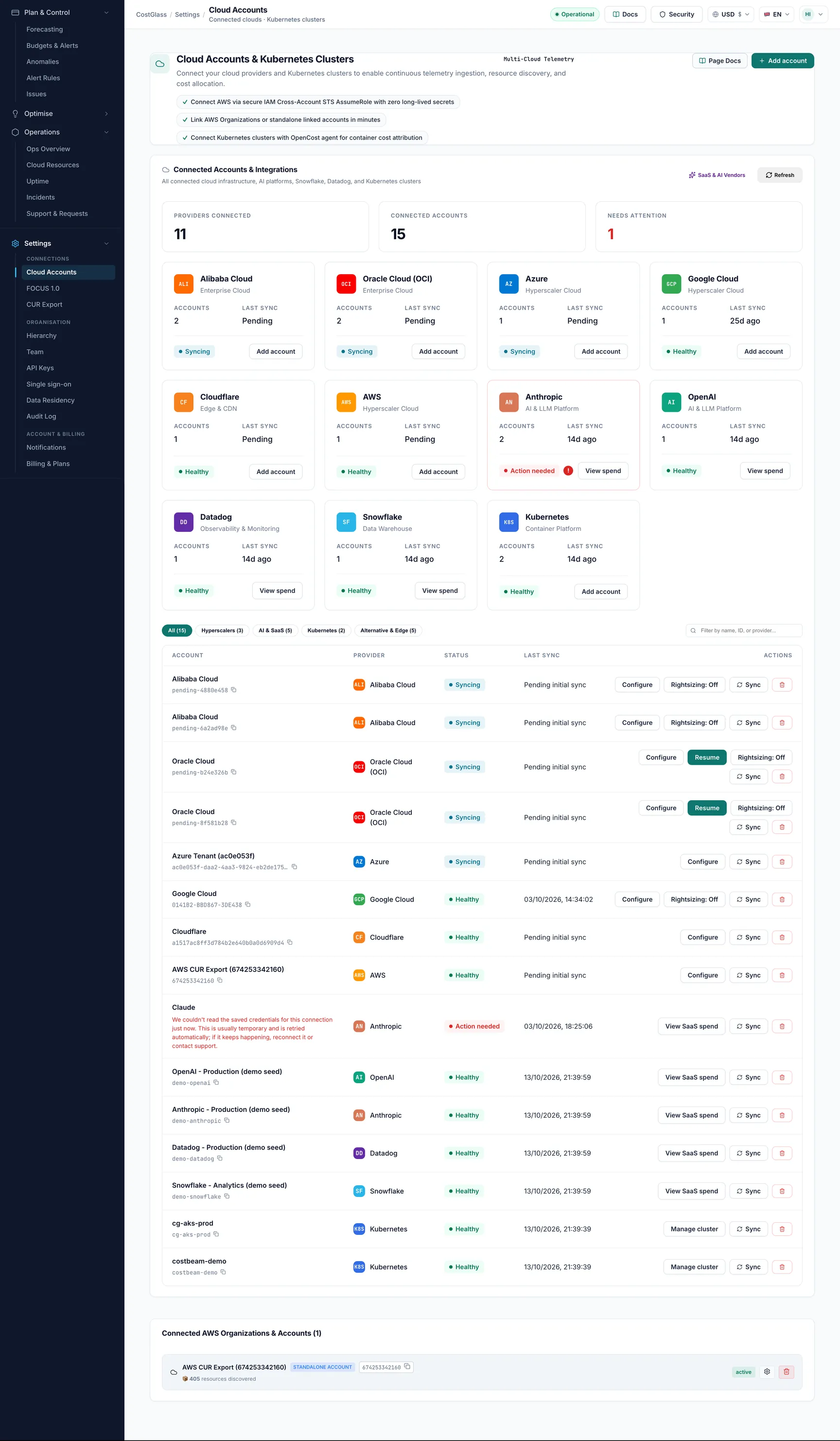
The row of tabs across the top is: Cloud Accounts (the overview), AWS, Azure, Google Cloud (GCP), Kubernetes, DigitalOcean, Linode, Cloudflare, Oracle Cloud and Alibaba Cloud. Each tab shows how many connections it holds.
The overview tab
- Connected Accounts & Integrations: summary chips (Total Connected, Hyperscalers, AI & SaaS, Kubernetes, Alternative & Edge).
- Filter pills: All, Hyperscalers, AI & SaaS, Kubernetes, Alternative & Edge, and a search box (Filter by name, ID, or provider...). Clear Filters resets them.
- One card per connection, then Connect a New Cloud Account or Platform (the wizard).
Reading a connection card
| Part of the card | What it tells you |
|---|---|
| Provider name and category | Which cloud or service the connection is. |
| Status pill | See the status table below. |
| Identifier with a copy icon | The account, project, tenant or tenancy ID. Click the icon to copy it. |
| Red banner | The last error from a sync, in the provider's own words. |
| Last synced | When data was last read, or "Pending initial sync" if it has not happened yet. |
| Configure / Manage Cluster / View SaaS Spend | Opens that provider's tab, the cluster, or the SaaS spend page. |
| Resume | Shown on an unfinished Oracle Cloud connection. Continues with the same key. |
| Sync | Asks for a refresh (see below). |
| Trash icon | Disconnects the connection after a confirmation. |
Statuses
| Status | Colour | Meaning | What to do |
|---|---|---|---|
| active or connected | Green | Access verified; data is being read. | Nothing. |
| pending or syncing | Amber | The connection was started but not finished, or a first sync is waiting. | Finish the setup (use Resume or the provider tab). AWS can legitimately sit here for up to 24 hours waiting for the first export. |
| error | Red | The last sync failed. The card shows the reason. | Read the banner. Typical causes: role deleted, token revoked, secret expired, permission removed. Fix at the provider, then sync. |
| disconnected | Red | The connection was removed. | Connect again if you want it back. |
Syncing
- Everything syncs automatically (every 6 hours for most sources, every 15 minutes for Kubernetes).
- The Sync button on the overview list starts a real sync for AI and SaaS connectors and for Cloudflare. For other clouds, use the Sync or Refresh Now control on that provider's own tab, or wait for the next scheduled run.
- AWS: Check delivery now in the wizard, or Sync Now on the CUR Export page, reads the export bucket immediately. A large first import continues in the background and reports
in_progress.
Several accounts per provider
| Provider | What can be repeated |
|---|---|
| AWS | Several Organizations or standalone accounts (run the wizard again with Integrate another). One Organization counts as one connection. |
| Azure | Several tenants, and several subscriptions with the service principal flow. |
| Google Cloud | Several projects. |
| DigitalOcean, Linode, Oracle Cloud, Alibaba Cloud | Several accounts, one token or tenancy each. A duplicate is refused. Each account has its own card and sync result, and one failing account does not stop the others. |
| Cloudflare | Several accounts; each Cloudflare account can be connected once. |
Every connection uses one slot of your plan limit. See the overview for the numbers.
Account names
- Give a connection a friendly name when you connect (for example the verify form's Name for this integration (optional)). Kubernetes clusters can be renamed with Rename in Connected Kubernetes Clusters. AWS accounts have a settings icon that opens Edit AWS Account (name, account ID, role ARN).
- On the AWS tab an Organization shows as Management Account with its member accounts underneath (expand with the arrow), a Standalone Account otherwise, plus tags for the features you chose.
- Billing exports carry only account numbers, not names. CostGlass shows real names when it can read them (for example from AWS Organizations through a live-capable connection). A connection that only reads the export bucket cannot, and shows the number. CostGlass never invents a name.
Disconnecting
What happens to your data:
- CostGlass stops reading from the account. The dialog says historical cost analytics already captured will remain preserved.
- AWS: the connection and its discovered resources are removed, together with anomalies, savings suggestions and older cost metrics tied to it. Cost history held in the main cost tables stays. If it was your last AWS connection, discovered AWS resources are cleared.
- Google Cloud: the connection and its account entries are removed; collected cost rows stay.
- Kubernetes: the cluster is removed. Remove the agent in your cluster as well.
- Stored data is also governed by your retention setting, see Data residency. An audit entry is written for removals.
The FOCUS 1.0 page
FinOps → FOCUS 1.0 shows your spend in the FOCUS 1.0 column layout: the same names for the same things across clouds. It is the quickest way to check what CostGlass holds, and to hand a neutral file to a data warehouse.
FOCUS 1.0 page.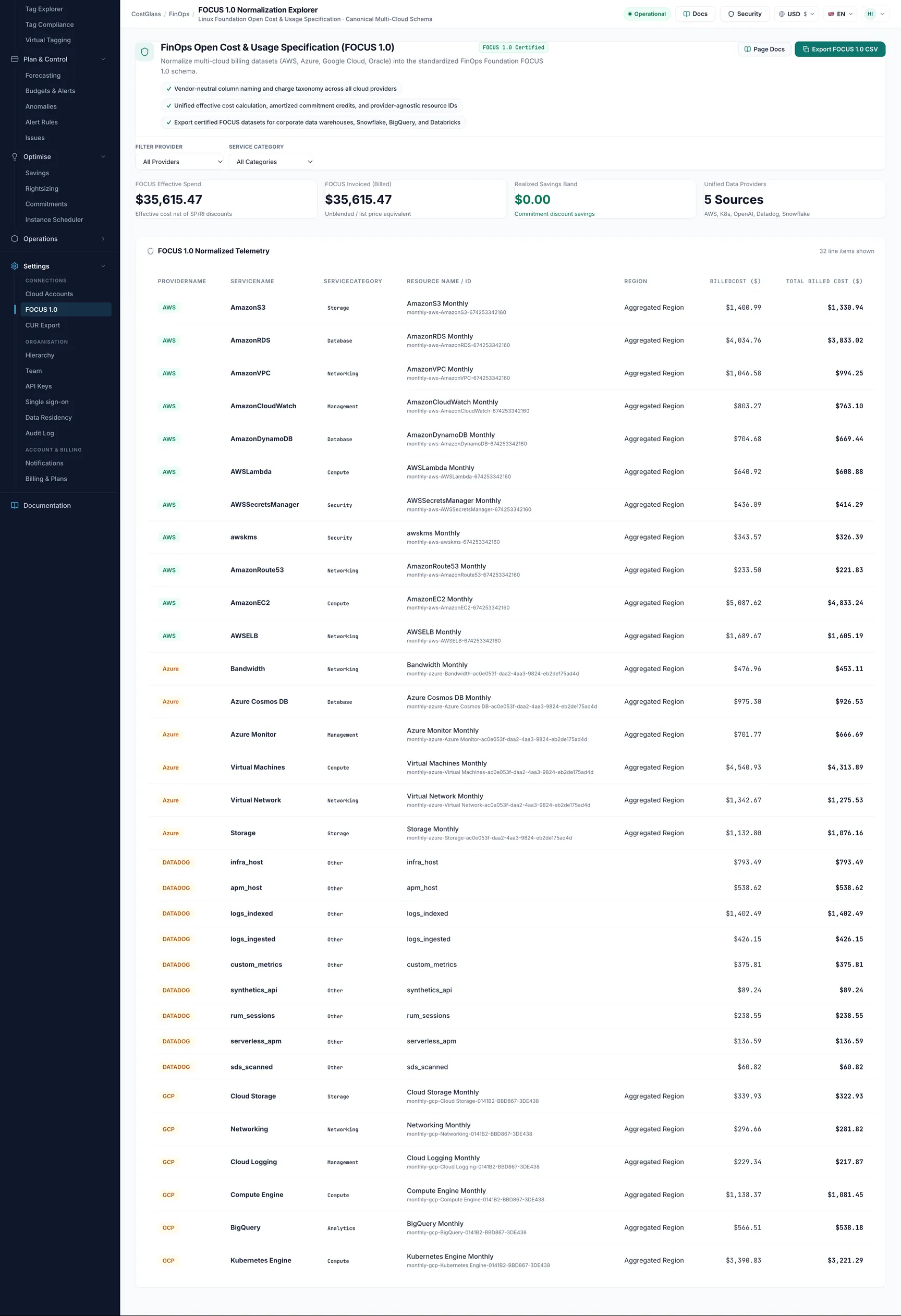
| Element | What it shows |
|---|---|
| Export FOCUS 1.0 CSV | Downloads the rows as a CSV file named costglass_focus_1.0_export_<date>.csv. |
| Provider filter | All Providers, AWS, Kubernetes (OpenCost), OpenAI, Datadog, Snowflake. The table also contains the other clouds you connected; these are the choices the dropdown offers today. |
| Service Category filter | Compute, Database, Storage, AI & Machine Learning, Observability, Analytics. |
| FOCUS Effective Spend | Cost after commitment discounts (savings plans, reservations). |
| FOCUS Invoiced (Billed) | The amount on the bill before those discounts. |
| Realized Savings Band | Billed minus effective: what commitments saved. |
| FOCUS 1.0 Normalized Telemetry | Provider, Service Name, Category, Resource Name / ID, Region, Billed Cost, Effective Cost. Shows up to 50 line items. |
The CUR Export page
FinOps → CUR Export is the AWS side: where the Cost and Usage export is read from, and a sample of what was read.
CUR Export page.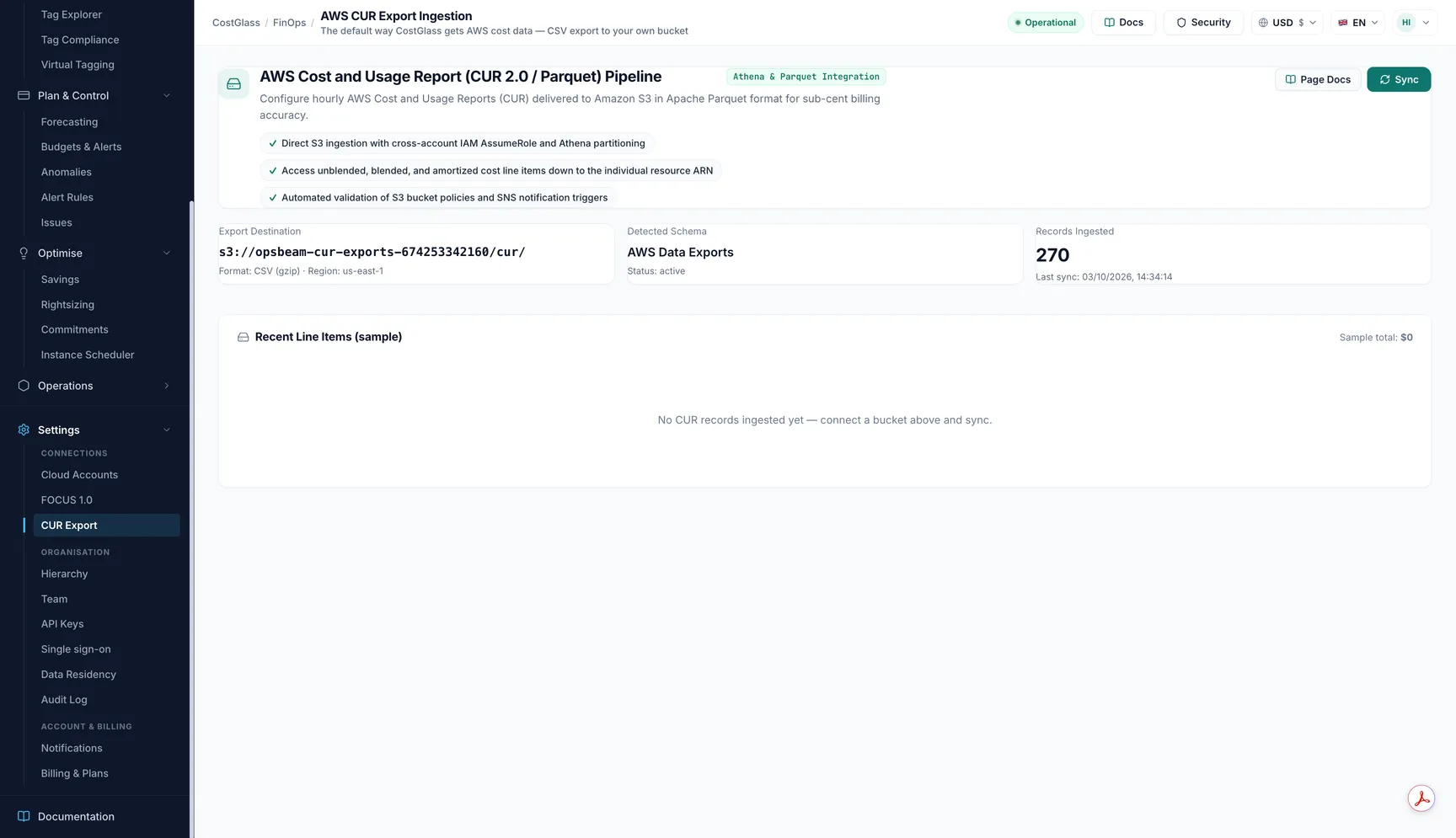
| Element | What it shows |
|---|---|
| Export Destination | s3://bucket/prefix, the format (CSV, gzip) and the region. |
| Detected Schema | Legacy CUR, AWS Data Exports, or Not yet detected, plus the status and any error. |
| Records Ingested | How many records were read, and the last sync time. |
| Sync Now | Reads new files from the bucket now. Enabled once connected. |
| Recent Line Items (sample) | Service, Region, Line Item Type, Resource ID and Unblended cost of a sample of rows, with a sample total. It is a sample for checking, not your full bill. |
If nothing is connected the page shows the older two-step form (Step 1 — Deploy the CloudFormation Stack and Step 2 — Connect). For new connections use the wizard on Cloud Accounts instead: Connect AWS.