Cost alerts
Alert when spend rises versus the previous day, week, month or quarter.
Cost alerts
Get told when spend goes up compared with the previous day, week, month or quarter, by a percentage or a fixed amount.
- A cost alert rule compares the last complete period (day, week, month or quarter) with the one before it and fires if spend went up by enough.
- Each service, account, cloud or region is judged separately, so one big mover is not hidden inside a flat total.
- Only increases alert. A part-finished period is never compared with a full one.
- Each increase alerts once and is kept in the Raised alerts list, even if the rule has no channel.
- Rules are checked every 6 hours. Up to 50 rules per organisation.
When to use cost alerts
| Tool | It answers | Compares with |
|---|---|---|
| Cost alerts | Did this service or account cost more last week or month than the one before? | The previous complete period. |
| Anomaly detection | Was a single day unusual for this service? | That service's own recent daily pattern. |
| Budgets | Am I heading past a limit I chose? | A fixed ceiling. |
They complement each other. Cost alerts are good for steady drift (a service creeping up month on month). Anomaly detection is good for sudden one-day jumps. Budgets are good for hard limits.
Create a cost alert
- You are an owner or admin.
- Cost data collected for at least two periods of the length you choose. See Connect your clouds.
| Field | What it does | Notes |
|---|---|---|
| Name | Label in the list and in messages. | Required, up to 255 characters. |
| Compare each completed period... | The length of period. | Weeks run Sunday to Saturday, all in UTC. |
| [object Object] / Amount ($) | Whether the threshold is a percentage rise or a dollar rise. | Thresholds are inclusive: 20% fires at exactly +20%. Amounts are in US dollars. |
| ...and at least this many USD | An extra dollar minimum for percent rules. | Both tests must pass. |
| Evaluate separately for each | The grouping, each group is judged on its own. | Default: each service of each cloud. |
| [object Object], Services, Accounts | Restrict what is counted. | Blank means all. |
| Channels | Where the message goes. | Email goes to active members of your organisation only. |
What fires, and when
- Complete periods only. A weekly rule compares the last finished Sunday-to-Saturday week with the week before it. A monthly rule compares the last finished calendar month with the one before. A rule never compares a part-finished month with a full one.
- Increases only. Falls, flat spend and changes under one cent never alert.
- Percent rules need a baseline. If a group spent nothing in the earlier period, a percentage is undefined, so a percent rule cannot fire for something brand new. An amount rule can.
- Once per event. Each (rule, group, period) alerts once, even though checks run every 6 hours.
- Late data. Day-over-day rules also re-check the last 3 days, so a late data revision can raise an alert after the day it relates to. Other intervals check the latest period.
- Many at once. If a rule finds more than 5 new events in one period, they are sent as one summary message instead of one each.
- Monthly-only clouds. A cloud that reports only monthly totals can be used by month-over-month and quarter-over-quarter rules only. A cloud with no spend in the earlier period is skipped, with the reason shown in the preview.
- Gross usage. Credit rows are excluded, so a credit ending is not read as an increase.
- Kubernetes. OpenCost figures divide up costs the cloud has already billed, so they are included only if your rule names Kubernetes as a cloud.
- "Week over week, +20% and at least $50, per service." Last week a service cost 400 and the week before 300: +33% and +100, so it fires. A tiny service going from 10 to 20 is +100% but only +10, so it does not.
- "Month over month, +$500, per account." One account rose from 2,000 to 2,700 between two months: +700, so it fires. A brand-new account with 600 in its first month also fires, because an amount rule has no baseline problem.
- "Day over day, +50%, Region." Yesterday one region cost 50% more than the day before. It fires once for that day.
The rules list and Raised alerts
The Alert rules card lists each rule with its comparison, threshold, grouping, scope and channels, and how many alerts it has raised. Use the switch to enable or disable a rule, and Preview, Send test, Edit and Delete.Check now at the top of the page runs your rules immediately instead of waiting for the next 6-hour check.
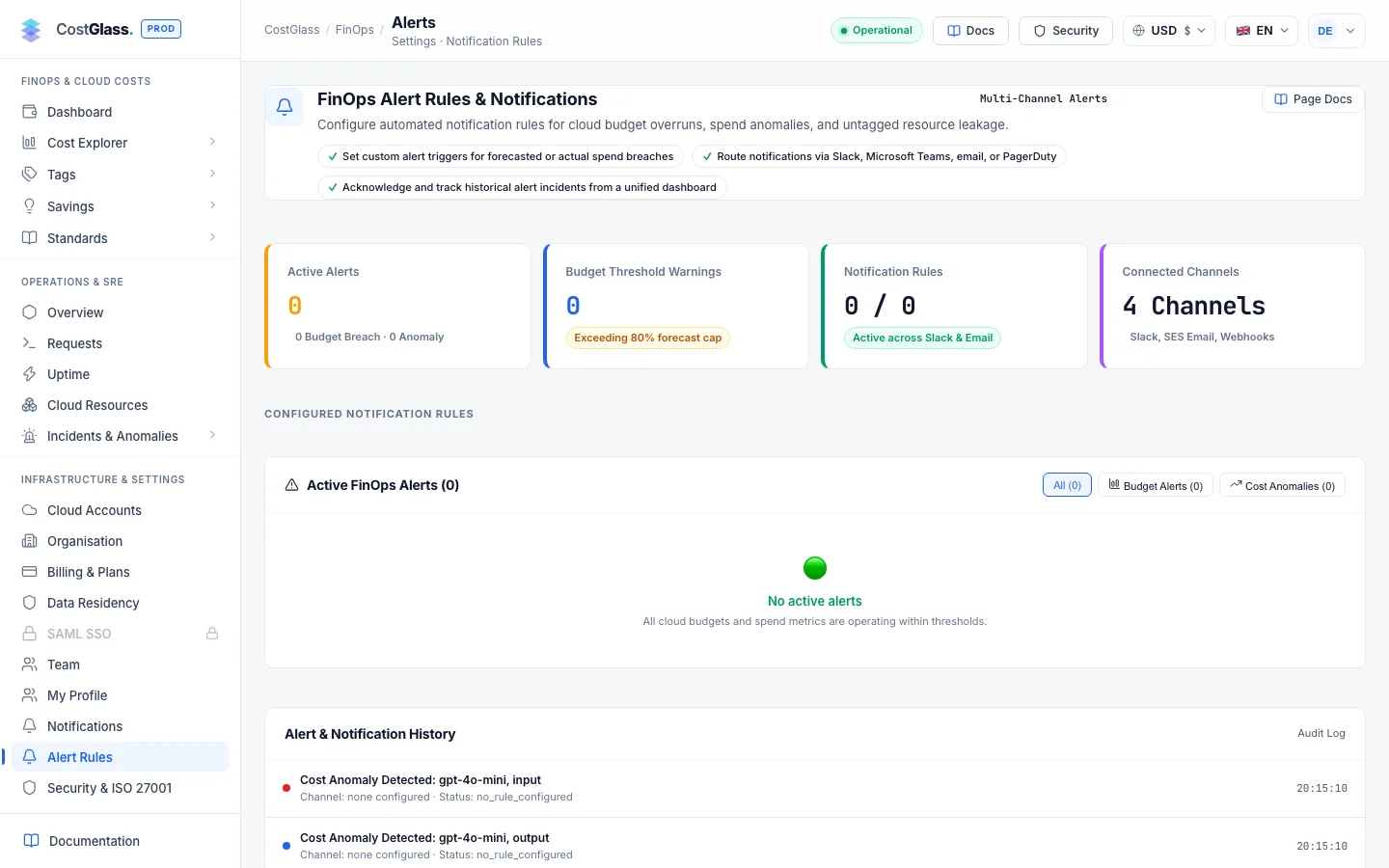
Raised alerts is the history, with a Rule filter. A status shows how delivery went: Sent, Partly sent, Failed, Recorded only (no channel) or Pending. Every event also adds an annotation to your cost charts.
Tips
- Start with one weekly percent rule (for example +20% and at least a dollar amount that matters to you) grouped by service.
- Add a monthly amount rule grouped by account so a new or growing account is noticed.
- Use the dollar minimum on percent rules, otherwise small services produce noise.
- Send the first week of alerts to email only. Move to chat once you are happy with the volume.