Commitments: Savings Plans & Reserved Instances
Track coverage, utilisation, expiry and purchase recommendations for Savings Plans, Reservations and committed use discounts.
Commitments: Savings Plans & Reserved Instances
Cloud providers give a discount if you promise to spend a set amount for one or three years. This page shows how much of your spend is covered by such promises, how well you are using them, and when they expire.
- Coverage = how much of your eligible spend is discounted by a commitment. Low coverage means money left on the table.
- Utilisation = how much of what you committed to you actually used. Low utilisation means you over-committed and are paying for nothing.
- The verdict banner puts over-commitment first, because unused commitment is money already spent.
- CostGlass never buys a commitment. You buy in the AWS, Azure or Google Cloud console.
- AWS has the full picture. Azure and Google Cloud show coverage, with less detail (see Limits).
Terms in plain words
- On-demand
- The normal list price you pay when you have no commitment. It is the most flexible and the most expensive.
- Commitment
- A promise to the cloud provider to use (and pay for) a certain amount for a fixed term, in return for a lower price. You pay it whether you use it or not.
- Savings Plan (AWS)
- You commit to a number of pounds or dollars per hour of compute. Any matching usage up to that amount is charged at the discounted rate.
- Reserved Instance / Reservation
- A commitment to a specific kind of resource (for example a particular instance family in a region) for one or three years. AWS calls them Reserved Instances; Azure calls them Reservations.
- Committed use discount (Google Cloud)
- Google Cloud’s version of the same idea.
- Coverage
- The share of eligible spend that was charged at a commitment rate instead of on-demand.
- Utilisation
- The share of your commitment that your usage actually consumed. 100% means none was wasted.
- Break-even
- For options with an upfront payment, the month from which the commitment has cost less than staying on-demand would have.
Before you begin
- A Growth plan or above. If the menu item is greyed out, upgrade from the Billing & Plans page.
- At least one of AWS, Azure or Google Cloud connected with live access.
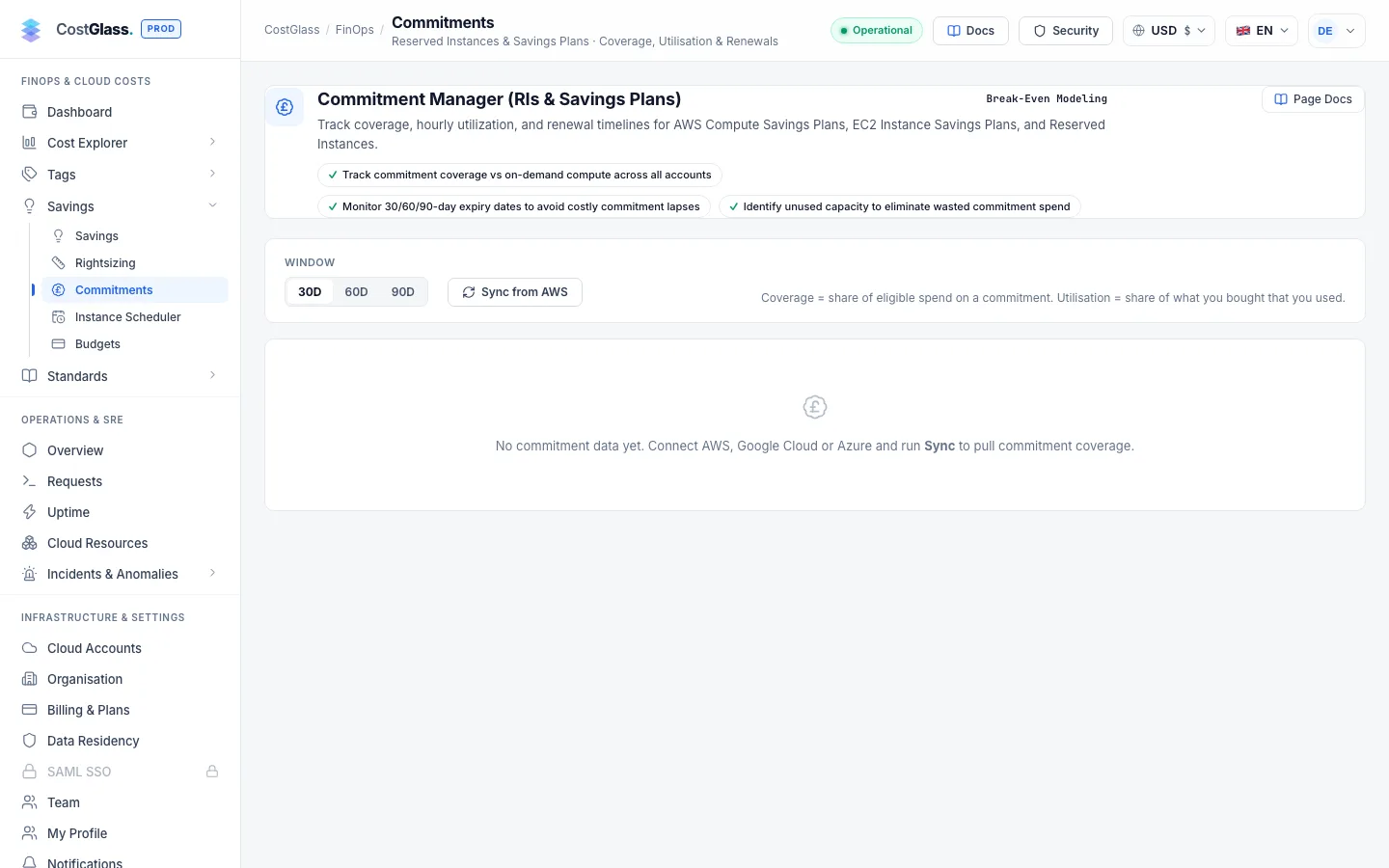
- Click Sync Commitments once after connecting. Commitment data is also refreshed automatically every day.
- Rightsize first. Committing to servers that are about to shrink locks in a bill you were about to reduce (see the Savings playbook).
How to read the page
Toolbar
| Control | What it does |
|---|---|
| Cloud Platform | Choose All Clouds (Portfolio), AWS, Azure or Google Cloud. Numbers are never blended into one misleading percentage per cloud; the portfolio view is a combined summary and the per-cloud views are separate. |
| Lookback Window | 30D, 60D or 90D: how many days the figures are based on. |
| Sync Commitments | Fetches your latest inventory, coverage and recommendations from every connected cloud now. |
The toolbar also reminds you of the target: coverage between 70% and 85%, with about 15% headroom kept on-demand.
Verdict banner
| Verdict | Meaning | What to do |
|---|---|---|
| Over-Committed | AWS utilisation is below 95%. You are paying for commitment you do not use. This is checked first. | Do not buy more. Find the workloads that shrank or moved region. |
| Under-Committed | Coverage is below 70%. | Look at the recommendations below, after rightsizing. |
| Healthy Portfolio | Coverage is at or above target (and, for AWS, utilisation is healthy). | Watch the expiry calendar so coverage does not lapse. |
The four cards
- Commitment Coverage
- Coverage percentage, with the amounts covered and on-demand underneath. Green at 70% or more, amber below.
- Realized Savings vs On-Demand
- What your commitments saved compared with on-demand prices, per month and per year.
- Uncovered On-Demand Opportunity
- An estimate of monthly savings if you reached the target coverage. For AWS this uses an assumed Savings Plan discount of about 27%, so it is a planning figure, not a quote.
- Active Commitments & Expiry
- How many commitments are active and how many expire within 90 days.
Trajectory chart
Multi-Cloud Commitment Coverage Trajectory shows coverage over the chosen window. Switch between Coverage (%) (with a dashed 70% target line) and Spend (covered spend against on-demand spend). If there is not enough history it asks you to synchronise first.
Purchase recommendations
Automated Commitment Recommendations (AWS, Azure & Google Cloud) is ranked by monthly saving.
| Column | Meaning |
|---|---|
| Platform | Which cloud made the recommendation. |
| Plan & Service | The type of commitment and what it covers. |
| Payment Option | No Upfront, Partial Upfront or All Upfront (explained below). |
| Hourly Commit | The hourly amount you would commit to. |
| Upfront | The amount paid on day one (a dash means none). |
| Monthly Saving | The estimated monthly saving. |
| Annual Saving | Monthly saving times twelve. |
| Discount % | The estimated discount. |
| Break-Even | Upfront cost divided by monthly saving, or Immediate if nothing is paid upfront. |
Inventory
Active & Expiring Commitments Inventory lists each commitment: platform, name and ID, type, service, monthly commitment, state, expiry date and days remaining. Use Filter commitments… to search and Include retired to show expired ones. A commitment expiring within 90 days is highlighted in amber.
Renewal radar
Commitment Renewal Radar & Automated Alerts lists commitments expiring within 90 days, with a Model in Simulator button that scrolls to the simulator for sizing a replacement and Preview Emailthat sends a sample reminder to your own inbox. CostGlass runs a daily job that sends renewal reminders at 60, 30 and 7 days before expiry. When a commitment expires, matching usage falls back to on-demand rates.
The simulator (what-if)
The Interactive Commitment Purchase Simulator & ROI Modeler lets you try a scenario before you decide. It starts from your real figures (Baseline On-Demand, Eligible Spend, Current Coverage) and then asks for three choices.
| Setting | What it does | Options |
|---|---|---|
| Target Coverage Slider | The coverage you want to reach. Buttons set it quickly. | Conservative (65%), Sweet Spot (75%), Aggressive (85%) |
| Commitment Term | One or three years. | 1-Year, 3-Year |
| Payment Option | How you pay. | No Upfront, Partial Upfront, All Upfront |
It then shows Projected Coverage, Additional Monthly Savings, Annual Run-Rate Savings and a Break-Even Horizon.
Deciding term and payment option
How to buy one
CostGlass is read-only and does not purchase anything. After deciding:
Scope and limits
- AWS: full coverage and utilisation (Savings Plans and Reserved Instances), inventory with expiry, and purchase recommendations.
- Google Cloud: coverage, resource-based commitment inventory and recommendations. Google’s inventory returns no dollar value, so CostGlass does not compute a utilisation percentage for it.
- Azure: coverage. Reservation inventory and utilisation need a separate tenant-level consent step and are not available yet, so the verdict is coverage-only.
- Coverage and utilisation are never averaged across clouds into one percentage.
- Commitments are priced in each cloud’s own currency and converted for display.
- Some cost figures are estimates built on assumed discount rates (stated above).
- Reaching Commitments needs a Growth plan or above.