Budgets
Create spending limits for a cloud, account, service or team, and see how CostGlass budgets differ from native AWS, Azure and Google budgets.
Budgets
Set a monthly spending limit for a cloud, an account, a service or a team, and see at a glance whether you are on track.
- A budget is a limit you choose for a period of spend. CostGlass compares real billed spend with the limit and shows whether you are on track, at risk or over.
- Budgets you create in CostGlass are CostGlass budgets. They work across every connected cloud, AI vendor and Kubernetes cluster, and can be scoped to one account, one service or one virtual-tag value.
- CostGlass can also copy your AWS Budgets into the page. Azure and Google Cloud budgets that you made in those consoles are not read by CostGlass.
- A budget turns "at risk" when the month-end forecast passes 100%, or spend so far passes 80%, and "exceeded" when spend reaches the limit.
- Budget alerts today fire on fixed 80% and 100% rules (see "Alerts that budgets produce" below), not on the percentages you tick when you create a budget.
CostGlass budgets and native cloud budgets
Every cloud has its own budgeting tool: AWS Budgets, Azure Cost Management budgets and Google Cloud billing budgets. These are native cloud budgets. CostGlass has its own budgets too. It is worth knowing how they differ.
Which should I use?
| You want to | Use |
|---|---|
| One view across several clouds, AI vendors or Kubernetes | CostGlass budgets |
| A budget for one account, one service, or one team (virtual-tag value) | CostGlass budgets |
| A budget that notifies the people already set up in AWS Budgets, or that triggers AWS actions | Keep the native AWS budget, and let CostGlass copy it for visibility |
| Alerts in Azure or Google Cloud itself | Keep the native Azure or Google budget, and add a matching CostGlass budget to see it next to everything else |
| Spend to be stopped automatically | Neither. CostGlass budgets only report. Use the cloud's own budget actions or policies for enforcement. |
Create a CostGlass budget
- At least one cloud, AI vendor or cluster connected, with spend collected. Choices in the form come from your own data.
Every field
| Field | What it does | Default / options |
|---|---|---|
| Budget Name | The label on the card. | Required. |
| Monthly Limit | The ceiling. Stored in the product's fixed-rate unit, so it stays consistent with the spend it is compared with, and shown in your display currency. | A positive number. |
| Billing Period | Monthly, Quarterly or Annual. | Monthly. Today spend is always measured over the current calendar month whichever period you choose (see below). |
| Cloud Provider | Which provider's spend the budget watches. | AWS. Also Azure, GCP, OCI, Alibaba, DigitalOcean, Linode, Cloudflare, OpenAI, Anthropic, Datadog, Snowflake and Kubernetes (OpenCost). |
| Budget Scope | Whole provider, or one account, subscription, project, workspace or cluster. | The whole provider. |
| Target Service Scope | All services, or a single service (a namespace for Kubernetes). | All services. |
| [object Object] / Tag value | Restrict to one virtual-tag value. | Not scoped. |
| Alert Thresholds (% of Limit) | Percentages saved on the budget and shown on its card. | 50%, 80%, 100%. |
Reading the page
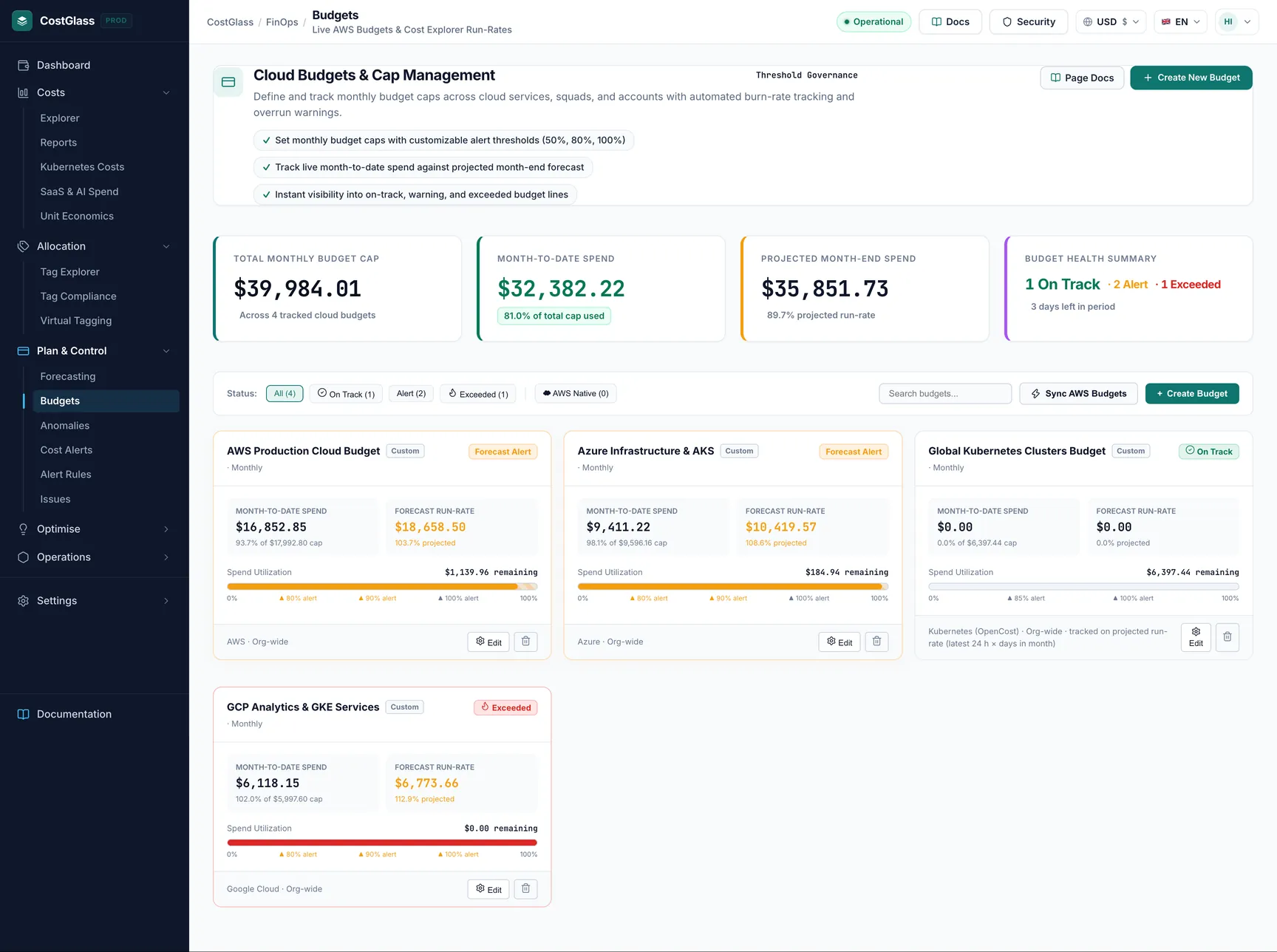
The four summary cards
| Card | Meaning |
|---|---|
| Total Monthly Budget Cap | All your budget limits added together. |
| Month-to-Date Spend | What those budgets have used so far this month. |
| Projected Month-End Spend | Spend so far divided by days elapsed, multiplied by days in the month. A simple straight-line projection. |
| Budget Health Summary | How many budgets are On Track, in Alert and Exceeded. |
Adding limits together is only meaningful if your budgets do not overlap. Two budgets that cover the same spend will be counted twice.
Filters
Use the buttons All, On Track, Alert and Exceeded to filter by health, the source buttons to switch between all budgets, AWS Native and custom ones, and Search budgets... to find one by name.
A budget card
- The name, a Custom or AWS Native tag, the service, the period and the account scope if there is one.
- The limit, the spent amount and percentage, and the projected month-end amount and percentage.
- A progress bar. One mark shows spend so far and another the projection, turning amber when the projection passes the limit.
- The alert percentages you ticked.
- A note when something needs explaining, for example that a virtual tag was deleted.
Health: how a status is decided
| Status | When |
|---|---|
| On Track | Spend so far is under 80% of the limit and the projection does not pass 100%. |
| Alert | Spend so far is at least 80% of the limit, or the projection is over 100%. |
| Exceeded | Spend so far has reached the limit. |
A budget with a limit of 1,000 shows 450 spent on day 10 of a 30-day month. The projection is 450 divided by 10, times 30, which is 1,350, or 135%. The card says Alert even though only 45% has been used: at this pace you will pass the limit before the month ends. Check which service is driving the spend in Cost Explorer, and use Forecasting to see if the full forecast agrees.
Kubernetes budgets are run-rate budgets
OpenCost reports a short recent window and replaces it each time, so CostGlass has no month-to-date total for a cluster. A Kubernetes budget is therefore judged on the projected monthly run-rate only: the card shows spent as zero, is marked as run-rate, and turns Exceeded when the projected month is at or over the limit and Alert at 80% or more. A run-rate taken from the latest window is a projection, not a measurement, so expect it to move as workloads change. See Kubernetes costs.
Budgets for one team: virtual-tag budgets
A virtual tag is a rule-based label CostGlass applies to your billed cost, for example "Team" with values "Payments" and "Search". A budget scoped to a tag value counts only the spend those rules allocate to that value, within the provider, account and service you also chose. If the tag is later deleted or deactivated, the budget shows zero spend with a note saying so, rather than guessing.
Alerts that budgets produce
Budget alerts are raised by the same checker that powers the Alert Rules page. This is what it does today:
- When it runs. Each time the Alert Rules page (or its data) is loaded. There is no separate schedule for budget alerts, so a budget that crosses a line overnight is raised when someone next opens that page.
- What triggers it. A budget whose spend so far is at least 80% of the limit, whose projection is at least 80% of the limit, or whose spend has reached the limit. The severity is critical if exceeded, high if the projection is over 100%, otherwise warning.
- Once per budget. The same alert title is not recorded twice for a budget, so each budget raises one alert and then stays quiet.
- Where it goes. An alert is recorded in the alert history, and an email goes to the active users of your organisation. If an alert rule of type budget forecast with channels (Slack, Teams, PagerDuty, email or Jira) exists, the alert is also sent to those channels. It also adds an annotation and an issue for the team, once per budget per month.
- The percentages you tick. They are saved and shown on the card, but the alert checker uses the fixed 80% and 100% rules above. Ticking 50% or 90% does not add alerts yet.
See All alert and notification types for the full comparison.
Good practice
- Start with one budget per cloud or per environment, then add team or service budgets where you need accountability.
- Avoid overlapping budgets if you rely on the total cap card.
- Use the forecast to pick a realistic limit, and review it quarterly.
- Pair a budget with a cost alert so you hear about a rise, not only about a limit.