Cloud Resources
The multi-cloud inventory: filters, search, categories, estimated cost, terminated resources and CSV or Excel export.
Cloud Resources
One searchable inventory of what CostGlass found running in your connected clouds and Kubernetes clusters, with estimated cost and export.
- The inventory lists resources such as servers, databases, storage, load balancers and functions across clouds, with a cloud badge, account, region and state.
- Discovery exists for AWS, Azure, Google Cloud, Oracle Cloud, Alibaba Cloud and Kubernetes clusters. DigitalOcean, Linode, Cloudflare and SaaS vendors do not appear here.
- Est. Cost/mo is an estimate from list prices, not your bill. Usage-based items show Usage-based instead of a number.
- For AWS connections that only read the Cost and Usage Report, the inventory is built from billing lines, so it shows what was billed, not live state.
- Export downloads every resource matching your filters as CSV or Excel.
What the inventory is
The page is titled Multi-Cloud Resource Inventory. It is stored in CostGlass and refreshed in the background, so opening it is fast and does not call your clouds. The number in the badge is the count of discovered assets, and the header shows Last Sync when known.
Cloud Resources with presets, filters and the results table.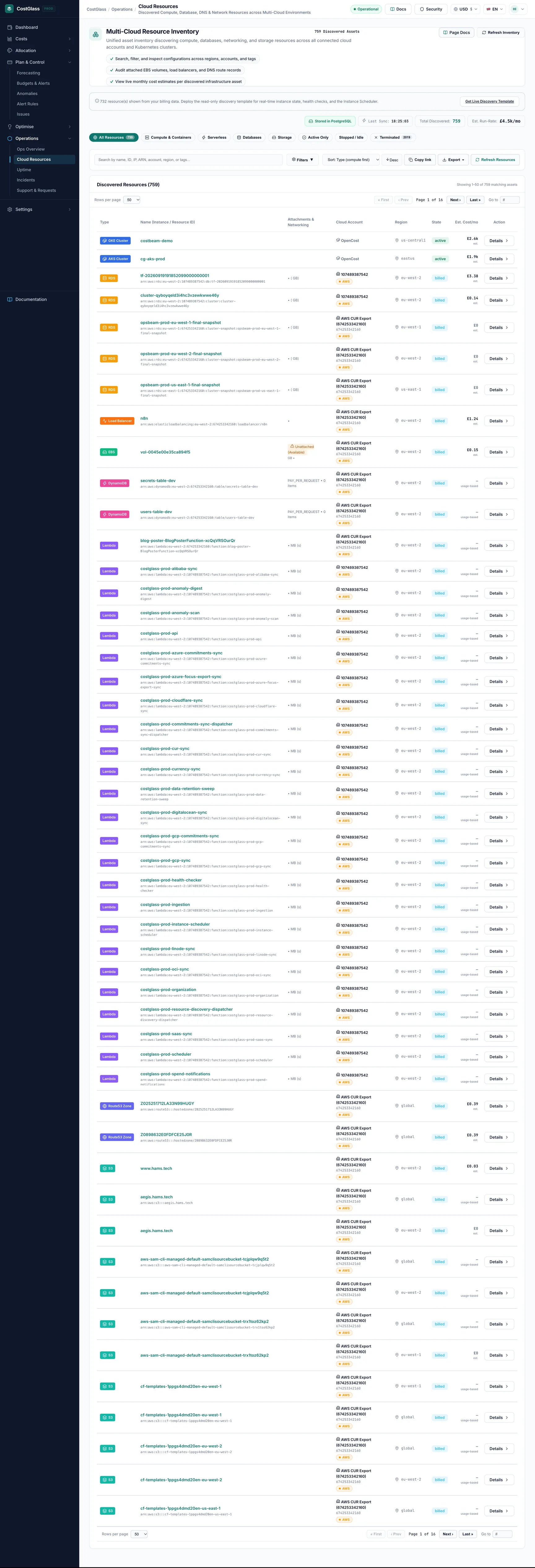
| Cloud | How resources are found |
|---|---|
| AWS | Live discovery when you deployed the discovery-capable template, plus resources recognised from Cost and Usage Report billing lines. |
| Azure | Azure Resource Graph across the subscriptions CostGlass can see. |
| Google Cloud | Cloud Asset Inventory for the connected project, collected about every six hours. |
| Oracle Cloud, Alibaba Cloud | Their inventory APIs, once the read-only inventory permissions are in your stack. Older connections must re-apply the stack. |
| Kubernetes | Clusters reported by the CostGlass agent appear as resources with a cluster cost breakdown. |
When the page is empty: discovery guidance
An empty inventory shows a card explaining why instead of a blank page.
| Title you see | What it means and what to do |
|---|---|
| No AWS account connected | Nothing is connected that can be inventoried. Connect a cloud. |
| No resources synced from billing data yet | An AWS connection that only reads the Cost and Usage Report has not produced resources yet. This can take minutes after connecting, or up to 24 hours if the first export file has not been delivered. A button offers the read-only discovery template if you want live state. |
| No resources found yet | The connection has discovery access but nothing was found yet. Wait a few minutes after first connecting. |
| No Google Cloud resources found yet | Check that the Cloud Asset API is enabled in the project and the grants from the connection step were applied. Only that project is inventoried. |
| Oracle Cloud: re-apply the stack to list resources / Alibaba Cloud: update the template to list resources | The connection pre-dates the inventory permissions. Re-download the stack or template from Cloud Accounts and apply it again. |
When resources came only from billing data, a banner says so and offers Get Live Discovery Template for real-time instance state, health checks and the Instance Scheduler.
Categories, types and presets
Each cloud has its own names (an AWS EC2 instance, an Azure Virtual Machine). To compare across clouds CostGlass also assigns a category: Compute, Containers, Serverless, Database, Storage, Networking, Security, Integration, Management or Other. A type CostGlass does not recognise is put in Other, never guessed.
Quick presets sit above the filters:
| Preset | Shows |
|---|---|
| All Resources | Everything not terminated. |
| Compute & Containers | Servers, scale sets, Kubernetes and similar, in any cloud. |
| Serverless | Functions and similar. |
| Databases | Managed databases and caches. |
| Storage | Disks, buckets and file systems. |
| Active Only | Resources in a running or available state. |
| Stopped / Idle | Stopped or idle resources: candidates for cleanup. |
| Terminated | Resources no longer detected (see below), with a count. |
Search, filters, sorting and paging
- Search box (Search by name, ID, IP, ARN, account, region, or tags...) matches names, IDs, IPs, ARNs, accounts, regions and tag values.
- Filter chips with counts: Cloud Provider, Category, Resource Type, the account or subscription, Regions and states. Click to toggle; several can be on. Selected filters appear as removable chips, and Reset All clears them.
- Tag filter: choose a tag key (Any Tag Key) and optionally a value.
- Sort: Type (compute first), Est. Monthly Cost, Discovered Time, Resource Name, Resource Type, Account, Region or State, with Asc/Desc.
- Paging: pick rows per page, then First, Prev, Next, Last or type a page number. Paging happens on the server, so every resource can be reached however many you have.
- Copy link copies a link to the exact view, filters included.
The results table has the columns Type, Name (Instance / Resource ID), Attachments & Networking, Cloud Account, Region, State, Est. Cost/mo and an action to open the detail page. Account names come from your connection, billing data or (where available) AWS Organizations. If no name is known, only the id is shown, never an invented name.
What Est. Cost/mo means
Kubernetes clusters use measured allocations from the agent where available. Azure and other clouds without a pricing table show no estimate yet.
The detail view
Click a row to open it. The header cards show account, region, Current State, Last Discovered and Est. Monthly Cost with its basis (for example list price or Free managed control plane). Use ← Back to Resources to return to your filters. EC2 shows attachments such as volumes and IPs; Kubernetes clusters show Cost Over Time (period buttons 1 Month to 1 Year or Custom) and a Cluster Cost Breakdown. Cluster history shows only the data actually kept, so it may be a single current point.
Terminated resources, billing-derived inventory and free-tier items
- Terminated means no longer detected in the latest discovery or billing data. The detail view says No longer detected as of a date. Terminated resources are hidden by default and shown under the Terminated preset.
- For billing-derived inventory, terminated means not seen in billing, which is not always the same as deleted.
- Free-tier resources that bill $0 are still listed if a billing line names them, so a function that never costs anything still appears.
- When you import billing periods one after another, import the oldest first; importing an earlier month after a later one can mark resources seen only later as terminated (cost history is unaffected).
Exporting to CSV or Excel
resources-YYYY-MM-DD-filtered. Excel has a frozen, filterable header and an About this export sheet listing time, scope, filters and any truncation.| Column | Meaning |
|---|---|
| Cloud, Category, Resource Type | Provider, cloud-neutral category and the cloud's own type name. |
| Name, Resource ID, ARN | Identifiers. |
| Account, Account ID, Region, State | Where it lives and its state. |
| Est. Monthly Cost (currency) | The estimate in your selected currency; blank when unpriced, never 0. |
| Cost Basis, Instance Type | How the estimate was made, and the size. |
| Created In Cloud, First Seen, Last Seen | Dates. |
| Tags | key=value pairs separated by semicolons. |