Connect Google Cloud
Enable the FOCUS BigQuery export, run the IAM grants CostGlass prints, verify, and a Terraform version.
Connect Google Cloud
Turn on Google's FOCUS billing export to BigQuery, then give CostGlass's service account read access to it. No stack to deploy and no key file to create.
- You enable the FOCUS export in your Cloud Billing console. Google lists it as a Preview feature.
- You run a handful of read-only IAM grant commands that CostGlass prints for your project. No key file is created.
- BigQuery queries run in your own project, so Google bills the (usually small) query cost to you, not to CostGlass.
- CostGlass reads up to 13 months on the first sync, then only the last 35 days on each 6-hourly sync to keep your query cost low.
- A billing account in a currency CostGlass cannot convert is reported as unsupported rather than guessed.
- Your Cloud Billing account ID, in the format XXXXXX-XXXXXX-XXXXXX.
- A project to host the export, and a data location for it (for example us or eu).
- Cloud Shell, or any terminal with gcloud and bq signed in to the right account.
- Permission to edit the billing export settings and to grant IAM roles.
Step 1: turn on the FOCUS export
FOCUS (FinOps Open Cost and Usage Specification) is an open, vendor-neutral format for billing data. Google can write it into BigQuery for you.
Step 2: tell CostGlass where it is
Cloud Accounts → Google Cloud: three fields and an optional scheduler checkbox.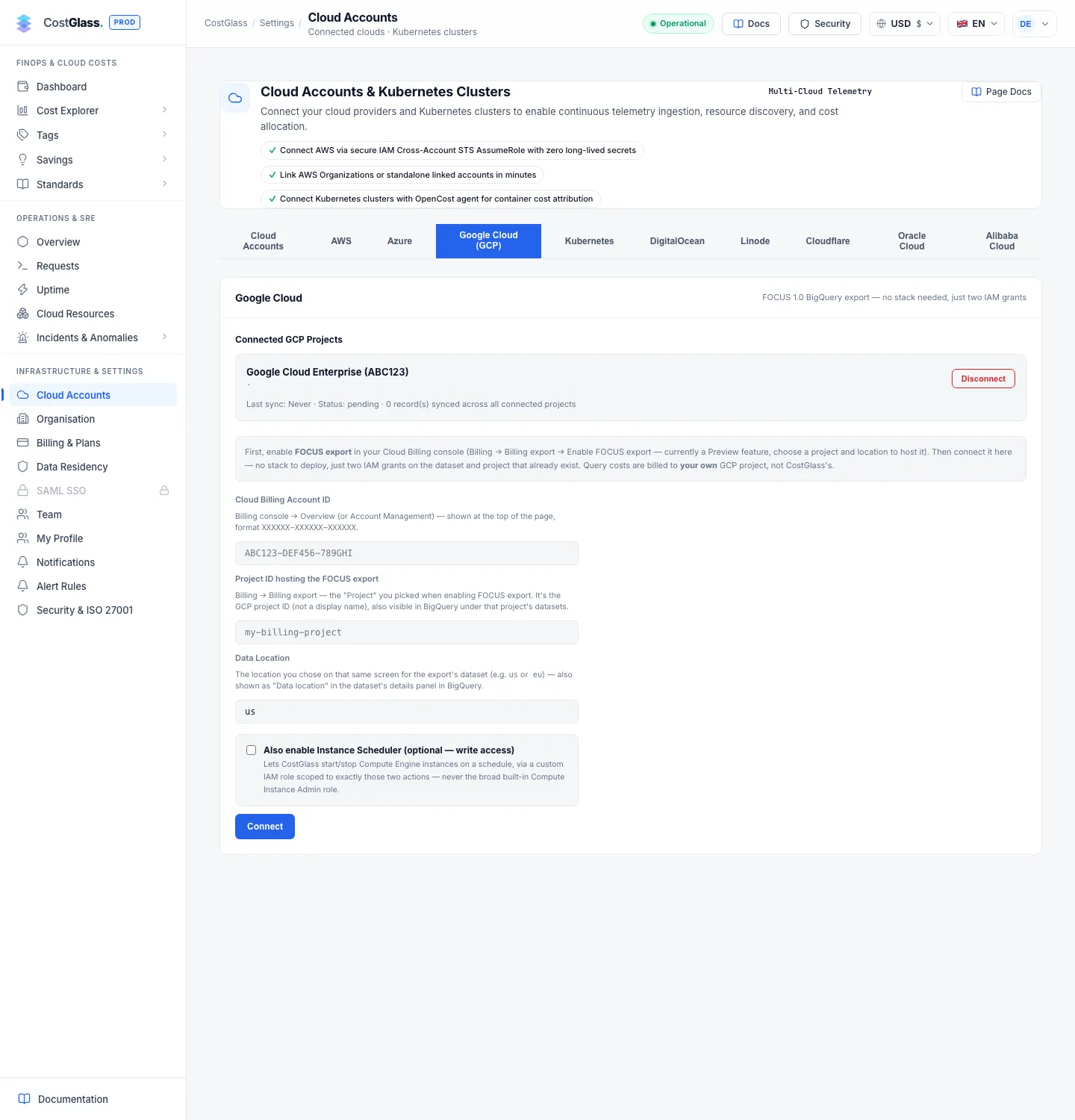
| Field | What to enter | Default |
|---|---|---|
| Cloud Billing Account ID * | Shown at the top of Billing → Overview. Format XXXXXX-XXXXXX-XXXXXX. | None |
| Project ID Hosting the FOCUS Export * | The project you picked when enabling the export. The project ID, not its display name. | None |
| Data Location | The location you chose for the export dataset, for example us or eu. | us |
| Also enable Instance Scheduler (optional — write access) | Adds a custom role limited to starting and stopping Compute Engine instances. | Off |
CostGlass works out the dataset and table names from the billing account ID and location, so you never type them.
Step 3: run the IAM commands
Under Run the Google Cloud CLI grant commands CostGlass shows the commands filled in with your project and CostGlass's service account. Run them in Cloud Shell, then click I've run them — Verify & Connect. The commands look like this (placeholders in capitals):
| Grant | Why | Required? |
|---|---|---|
| bigquery.dataViewer on the dataset | Read the FOCUS table | Yes |
| bigquery.jobUser on the project | Run queries in your project (billed to you) | Yes |
| Cloud Asset API, cloudasset.viewer, serviceusage.serviceUsageConsumer | Read-only resource inventory (VMs, disks, GKE, Cloud SQL, buckets, forwarding rules). The API is free. | Shown as part of the connection |
| recommender.viewer | Google's own cost recommendations on the Savings page | Optional |
| Instance Scheduler custom role | compute.instances.start, stop, get, list | Optional, write |
compute.viewer on the project and billing.viewer on the billing account, that are used for commitment tracking. The screen does not list them today. The Terraform below has them as an option.On verify, CostGlass runs a small query against the FOCUS table before activating. On success a message shows the first sync's record count. Then a resource inventory pass runs; if that part fails, the cost data is unaffected and the inventory is retried every 6 hours.
Terraform equivalent
Click Next: Grant IAM Roles → first, so CostGlass shows the service account e-mail (the value after serviceAccount: in the commands). Enabling the FOCUS export itself has no Terraform resource; do that in the console. The rest can be code:
Variables: project_id, billing_account_id, costglass_service_account are required; dataset_location defaults to us. If your dataset name differs from the one CostGlass shows, set dataset_id. After applying, click I've run them — Verify & Connect.
Who pays, how often it syncs, and limits
- Query cost: every query runs as your project, so BigQuery processing is billed on your Google bill. The first sync reads 13 months; after that every 6 hours reads only the last 35 days.
- Currency: amounts are converted to the display currencies at live exchange rates. A billing currency with no available rate is stored as unsupported and shown with a status message.
- Several projects: you can connect more than one project (each counts toward your plan limit).
- Not covered: the older detailed-usage export format.
After connecting, the Google Cloud tab shows Connected Google Cloud Projects with last sync, status and records synced, plus Disconnect.