Connecting your clouds: overview
Every cloud and service you can connect, how each one connects, what access it needs, how long data takes and your plan limits.
Connecting your clouds: overview
CostGlass reads cost and usage data from the clouds and services you connect. This page lists every source, how each one connects, what access you give, and how long data takes to appear.
- Thirteen kinds of source can be connected: AWS, Azure, Google Cloud, Oracle Cloud, Alibaba Cloud, DigitalOcean, Linode, Cloudflare, Kubernetes, OpenAI, Anthropic, Datadog and Snowflake.
- Almost everything is read-only. The only write access CostGlass ever asks for is the optional Instance Scheduler (start and stop of virtual machines).
- Your cloud credentials are never typed into CostGlass for the big three: AWS uses a role you create, Azure uses admin consent, Google Cloud uses IAM grants.
- Most sources sync every 6 hours. Kubernetes pushes every 15 minutes.
- Your plan sets how many cloud connections you can have: Free 1, Starter 3, Growth 10, Scale 25, Enterprise unlimited.
- Someone in your team who can create IAM roles, or the equivalent, in the cloud you are connecting (the individual guides say exactly which permission).
- A CostGlass login. Owners and Admins should connect clouds.
- For billing data, the cloud account that pays the bill (for AWS, the management or payer account).
Every source at a glance
The table shows the method each source uses, the access you grant, and when you can expect data. "Sync" means how often CostGlass reads new data after the first load.
| Source | How it connects | Access you grant | First data | Sync |
|---|---|---|---|---|
| AWS | CloudFormation stack from the wizard (or Terraform) | A role CostGlass assumes, plus an S3 bucket that receives your Cost and Usage export. Read-only, except optional Instance Scheduler. | Up to 24 hours (AWS delivers the first export) | Every 6 hours |
| Azure | Microsoft admin consent, then two role assignments | Reader and Cost Management Reader on a subscription or management group. Optional VM scheduler role. | After the next sync following Verify | Every 6 hours |
| Google Cloud | FOCUS billing export in BigQuery plus IAM grants | BigQuery Data Viewer on the export dataset, BigQuery Job User and inventory roles on the project | At Verify, if Google has already delivered data | Every 6 hours |
| Oracle Cloud | Resource Manager stack creating an API user | A read-only user, group and policy in your tenancy | Up to 24 hours on a new tenancy | Every 6 hours |
| Alibaba Cloud | ROS template plus a Bill Subscription to your own OSS bucket | A read-only RAM role that can read that bucket | Up to a day | Every 6 hours |
| DigitalOcean | Personal access token | Read-only token (billing) | At connect | Every 6 hours |
| Linode (Akamai) | Personal access token | Account: Read Only | At connect | Every 6 hours |
| Cloudflare | Account API token plus Account ID | Account · Billing · Read | At connect | Every 6 hours |
| Kubernetes | Helm install of OpenCost plus a CostGlass agent manifest | The cluster pushes out to CostGlass. A read-only role for pods, nodes and volumes is optional. | Within 15 minutes | Every 15 minutes |
| OpenAI, Anthropic, Datadog, Snowflake | Admin API keys (Snowflake uses a key pair) | Read access to cost and usage reports | At connect | Every 6 hours |
Which method should I choose?
Only AWS offers more than one way in. For the rest, use the single method shown above.
| Your situation | Use | Why |
|---|---|---|
| You use the AWS console and want the quickest route | AWS wizard (CloudFormation) | CostGlass builds the template for you with your unique External ID already inside. |
| Your team manages AWS with Terraform and reviews every change | AWS with Terraform | The same resources as code. You must keep it in step with the wizard yourself. |
| You have an AWS Organization with many accounts | AWS wizard, account type "AWS Organization" | Deploy once in the management account. Member accounts receive the role automatically. |
| You have one standalone AWS account | AWS wizard, account type "Single account" | One stack in that account. |
| Azure with several subscriptions | Azure admin consent, role at management group scope | One grant covers every subscription underneath. |
| Azure and your security team forbids third-party applications in Entra | Azure "bring your own service principal" | You create the principal and secret yourself. One subscription only. |
The Cloud Integration Wizard
The wizard is the guided screen for adding a cloud. You see it in two places: on Settings → Cloud Accounts in the section Connect a New Cloud Account or Platform, and on the Cloud Connection Wizard screen shown after sign-up when nothing is connected yet. Both use the same component and give the same AWS template.
Settings → Cloud Accounts. Connected accounts are at the top; the wizard is below them.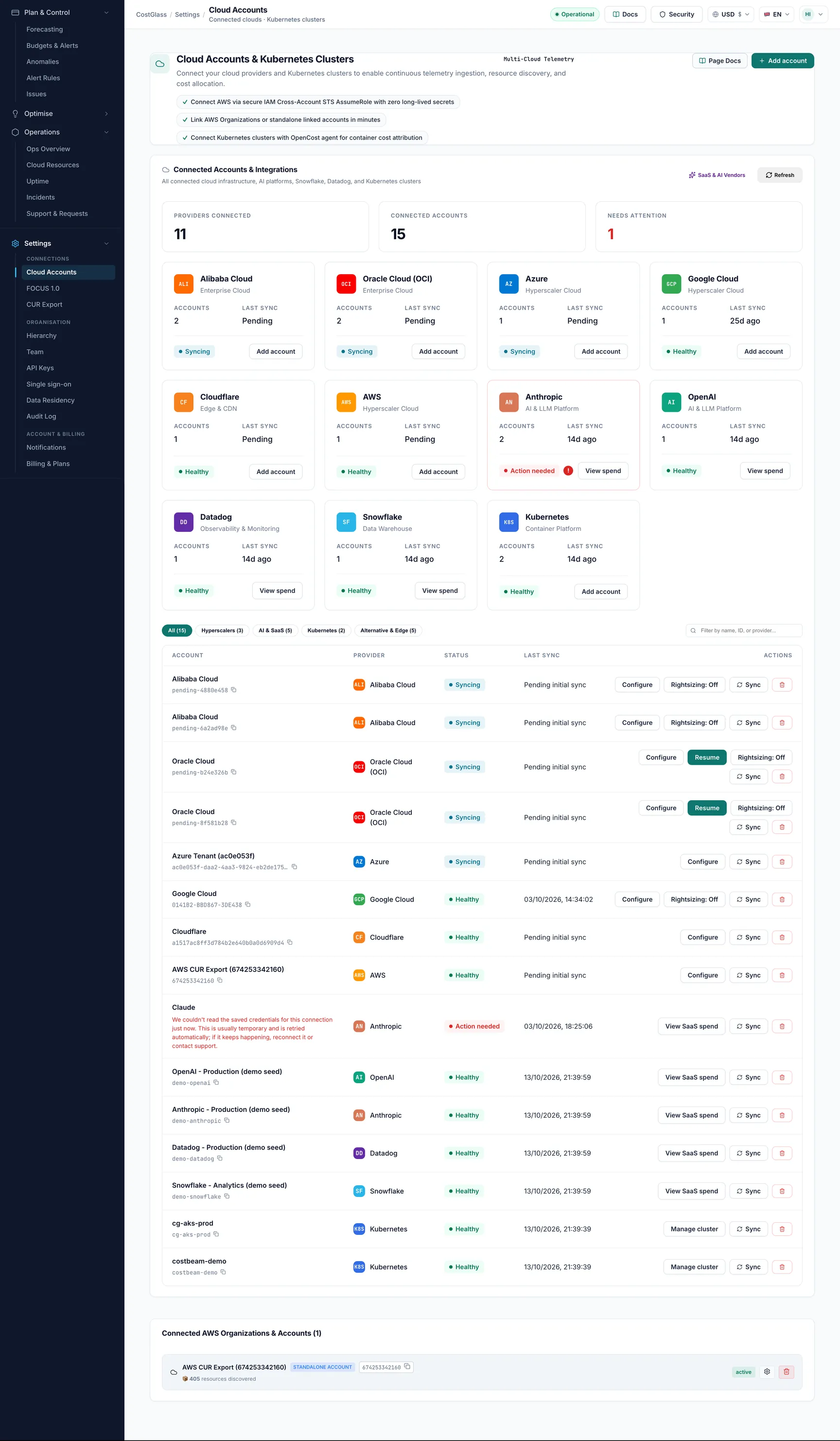
The wizard has five steps, shown as chips along the top: Cloud, Features, Deploy, Verify, Connected.
A meter at the top right of the wizard shows your usage, for example "2 of 3 connections used · Starter plan".
Plan limits on connections
| Plan | Cloud connections |
|---|---|
| Free | 1 |
| Starter | 3 |
| Growth | 10 |
| Scale | 25 |
| Enterprise | Unlimited |
- A connection is one row in Cloud Accounts. An AWS Organization counts as one connection however many member accounts it has.
- A connection you started but have not finished (status pending) counts until you finish or remove it. Resuming a pending AWS setup does not use extra quota.
- When you are at the limit, connecting shows You have reached your plan's connection limit with a See plans and upgrade button.
- The limit is checked when cloud connections are created. OpenAI, Anthropic, Datadog and Snowflake connectors and Kubernetes agents are not part of that check today.
How long until I see data?
- Token-based sources (DigitalOcean, Linode, Cloudflare, AI and SaaS) start syncing at once. Cloudflare may show no spend, see its guide.
- AWS shows data only after AWS delivers the first export, up to 24 hours. Meanwhile the dashboard offers Fetch data now, a one-off pull from Cost Explorer. AWS charges $0.01 per request and the button tells you the cost first.
- Azure fills in on the next 6-hourly sync after you click verify.
- Kubernetes reports within 15 minutes of applying the manifest.