Connect OpenAI, Anthropic, Datadog and Snowflake
Connect AI and software vendors with admin keys or a Snowflake key pair so their spend sits beside your cloud costs.
Connect OpenAI, Anthropic, Datadog and Snowflake
Bring AI and software-vendor spend into the same view as your cloud bills, by pasting a read-only key (or, for Snowflake, registering a key pair) for each vendor.
- All four connect from one dialog: SaaS & AI Spend → Connect Provider. Pick the vendor, give the connector a name and supply its credentials.
- Every credential is checked against the vendor before it is stored. A wrong key is rejected on the spot with the vendor's own message, not discovered six hours later.
- OpenAI and Anthropic need an Admin key (a normal project or workspace key is not enough). Datadog needs an API key and an application key. Snowflake uses a key pair that CostGlass generates, plus an organisation administrator.
- Spend is read every six hours. OpenAI, Anthropic and Snowflake are daily; Datadog is monthly.
- Personal ChatGPT and Claude subscriptions cannot be connected, because they have no cost report.
Where it fits
Cloud bills are only part of modern spend. Language-model usage and monitoring or data-warehouse tools often arrive as separate invoices with little breakdown. Connecting them puts their spend into the same cost data as your clouds, so it shows up in Cost Explorer, Reports and the dashboard. The page itself is described in SaaS and AI spend.
| Vendor | What you provide | Data granularity | Source |
|---|---|---|---|
| OpenAI | An Admin API key (starts sk-admin-) | Daily, per project and line item | OpenAI's organisation Costs API |
| Anthropic | An Admin key (starts sk-ant-admin01-) | Daily, per workspace, model and token type | Anthropic's organisation Cost Report API |
| Datadog | API key + Application key + site | Monthly (current and previous month), per product | Datadog's Estimated Cost API |
| Snowflake | A key pair you register, plus account identifier and username | Daily, in real currency | SNOWFLAKE.ORGANIZATION_USAGE.USAGE_IN_CURRENCY_DAILY |
The connect dialog
Go to SaaS & AI Spend and click Connect Provider. The dialog is called Connect SaaS / LLM Provider.
| Field | What to enter |
|---|---|
| Provider | OpenAI (Admin API), Anthropic Claude (Admin API), DeepSeek (Direct API), Datadog (Estimated Cost API) or Snowflake (ORGANIZATION_USAGE). |
| Connector Name | Any name you like, for example "Production OpenAI". Names are unique per vendor within your organisation: reusing one replaces that connector's credentials. |
| API key field | Its label changes with the vendor: OpenAI Admin API Key, Anthropic Admin Key or Datadog API Key. |
| Datadog Application Key | Datadog only. |
| Datadog Site | Datadog only. Choose the site you sign in to. |
Click Connect & Sync. It shows Verifying & Connecting… while CostGlass makes one small real call to the vendor. Only if that succeeds is the credential saved (in CostGlass's encrypted secrets store), a connector card created and a first sync run. Snowflake has its own two-step flow, described below.
OpenAI
- An OpenAI organisation owner (only owners can create Admin keys).
- An OpenAI Admin API key, which starts with sk-admin-. A regular project key is rejected with a message telling you which kind of key is needed.
costglass-readonly. Copy it straight away.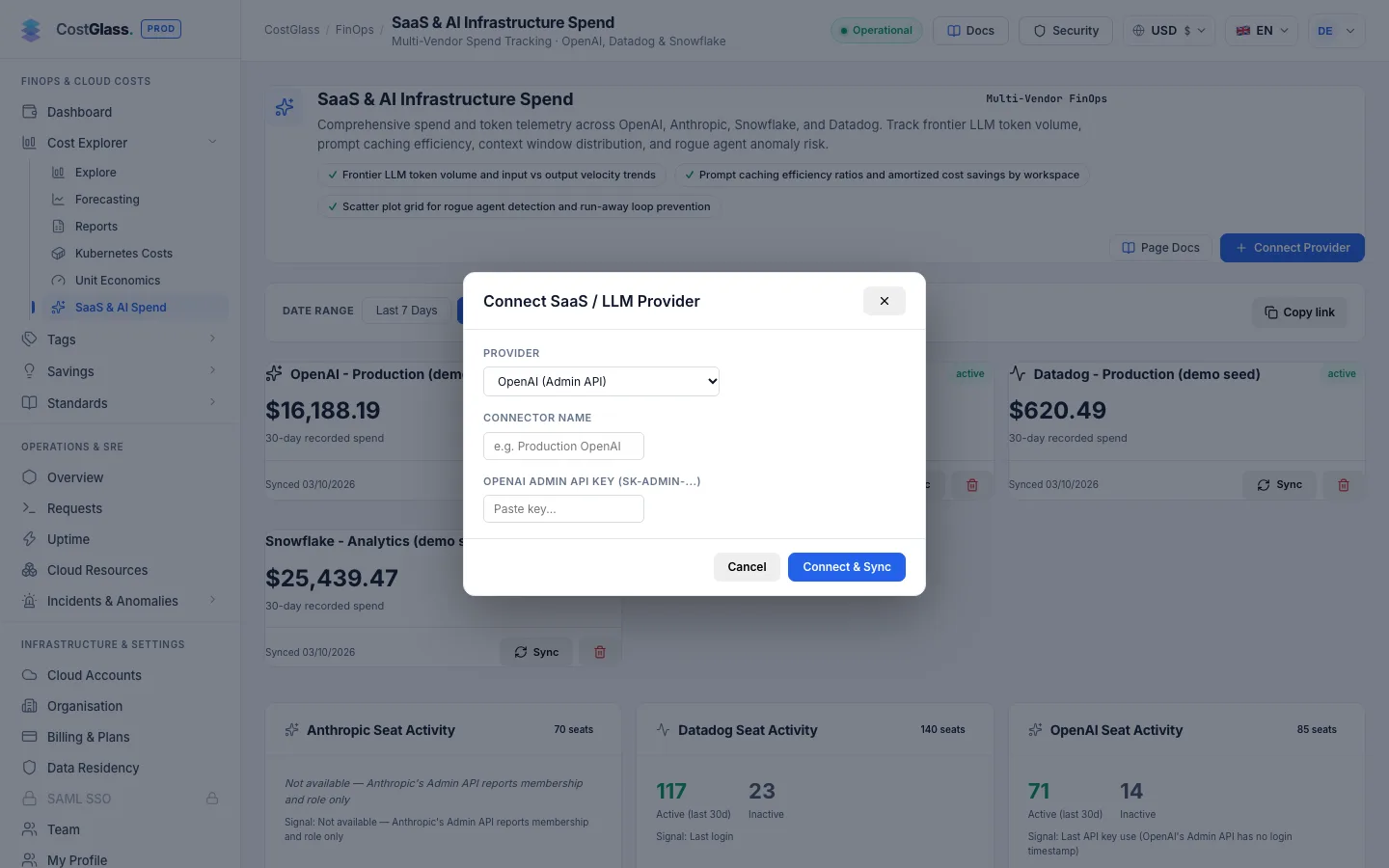
CostGlass reads OpenAI's organisation cost report in daily buckets, grouped by line item and project. Amounts are real dollars as OpenAI reports them. Each sync reads roughly the last 35 days. Token volumes and the share of requests sent through the Batch API appear beside the dollars.
Anthropic
- An Anthropic organisation admin.
- An Admin key, which starts with sk-ant-admin01-. Admin keys exist only for organisation accounts. An individual (personal) account cannot create one, so it cannot be connected.
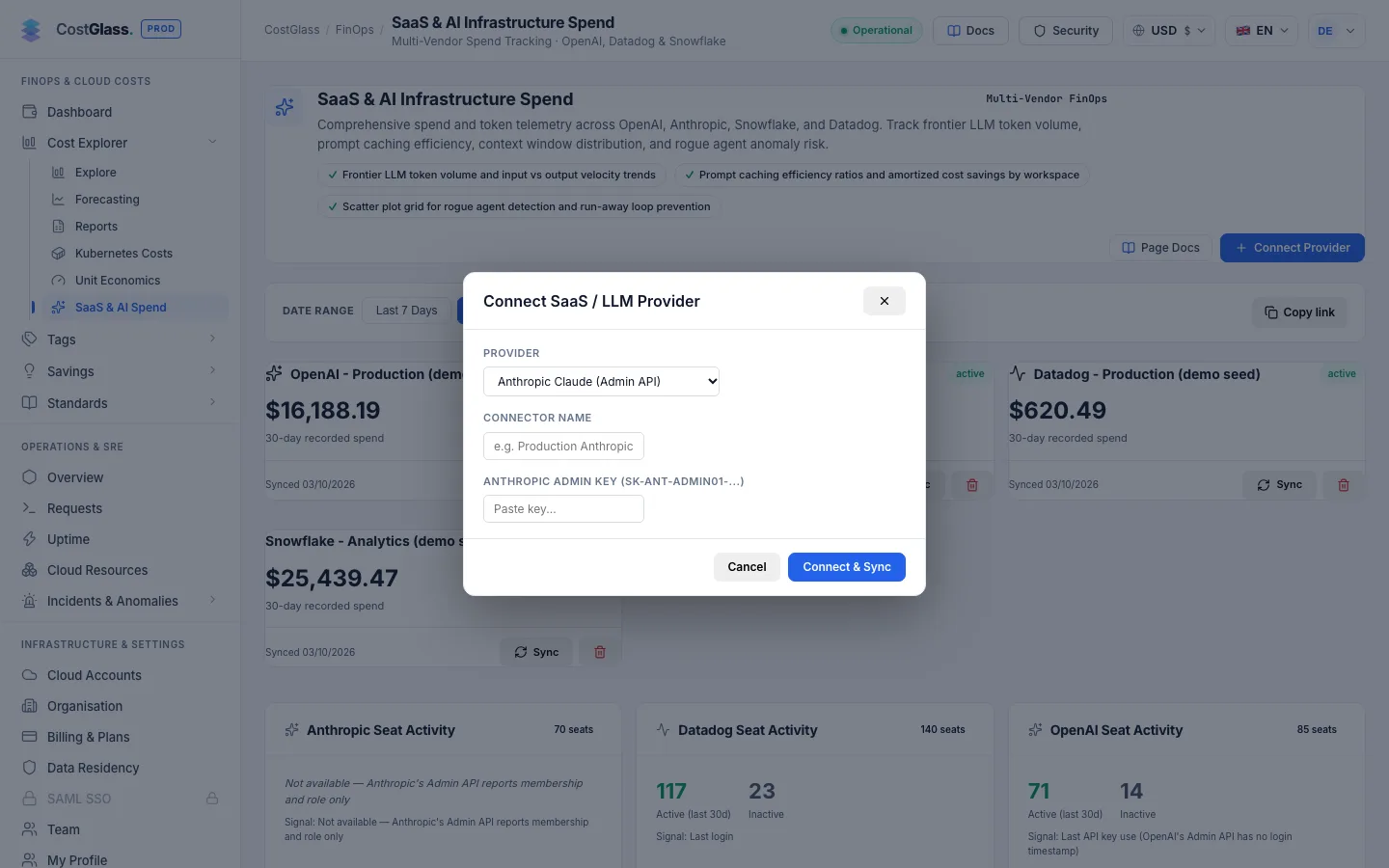
CostGlass reads Anthropic's cost report in daily buckets, grouped by description and workspace. Cost is shown per workspace, model and token type (uncached input, cache reads, cache writes and output), so you can see how well prompt caching is working. A brand-new organisation with no usage shows nothing yet.
Datadog
- A Datadog administrator who can create API and application keys.
- A Datadog API key.
- A Datadog application key with the usage_read scope.
- Your Datadog site, for example datadoghq.com or datadoghq.eu.
costglass-finops-readonly and grant it only the usage_read scope. Do not use a key that belongs to a person: when they leave, your billing data would quietly stop.datadoghq.com, datadoghq.eu or us3.datadoghq.com. Keys do not work across sites.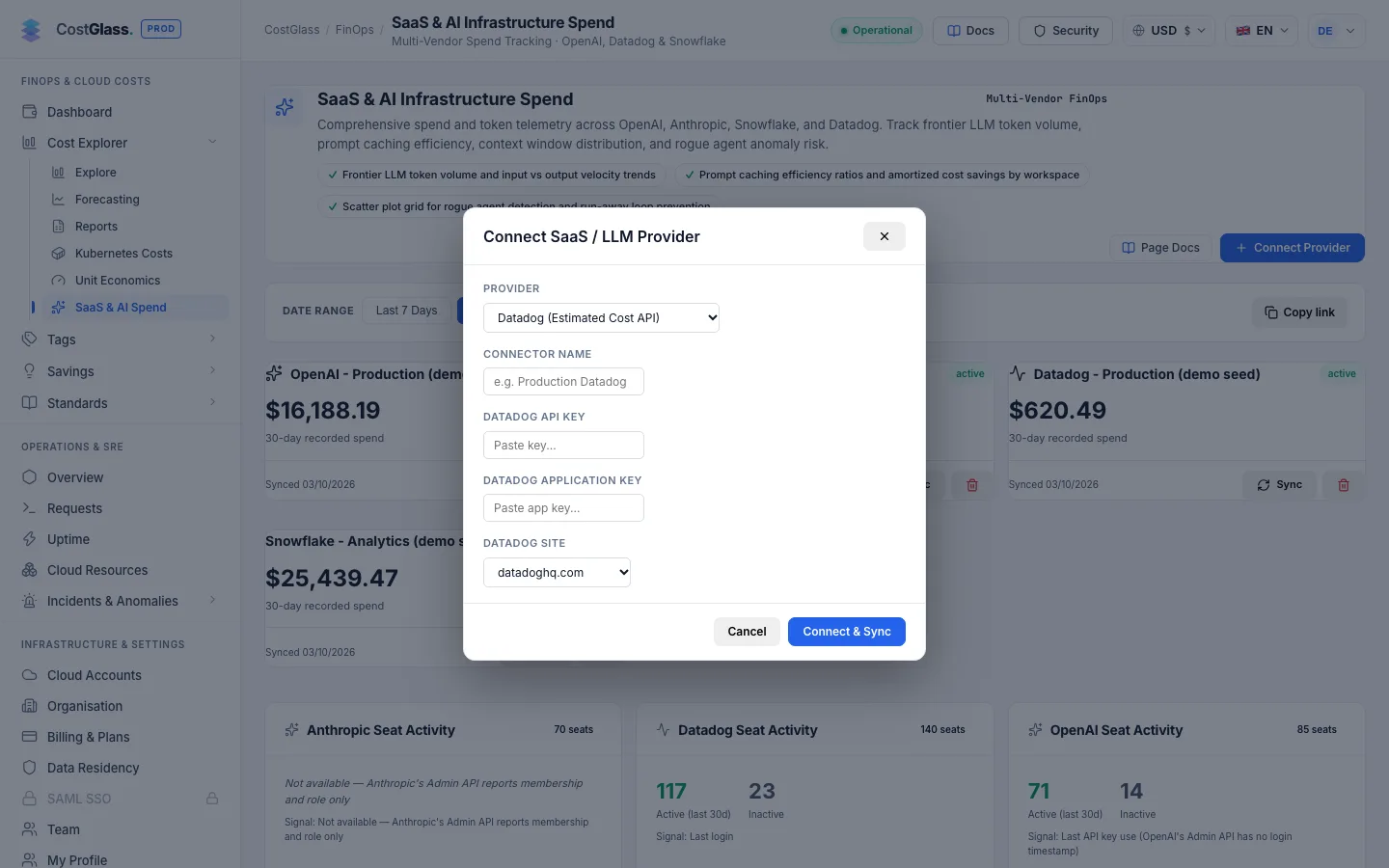
The site choices are:
datadoghq.com, datadoghq.eu, us3.datadoghq.com, us5.datadoghq.com, ap1.datadoghq.com, ap2.datadoghq.com and ddog-gov.com.
What Datadog gives CostGlass
- Estimated cost per product (hosts, logs, custom metrics and so on) for the current and previous calendar month only. Datadog does not provide older history through this API.
- One figure per product per month, so there are no daily Datadog numbers and no daily anomaly detection for it.
- Datadog's own figures can lag by up to 72 hours and are estimates until the month closes.
usage_read scope, or the wrong site is selected. CostGlass shows the message when you connect.Snowflake
Snowflake does not use a pasted password. CostGlass generates an RSA key pair for the connection, keeps the private key in its encrypted vault and gives you the public key to register on a Snowflake user. CostGlass then signs in with that key.
- Someone who can alter a Snowflake user (a user administrator) to register the public key.
- Your account identifier, for example xy12345.eu-west-1, and the username CostGlass will connect as.
- Access to SNOWFLAKE.ORGANIZATION_USAGE for that user. An organisation administrator (ORGADMIN) has to grant it. This is the step most people miss.
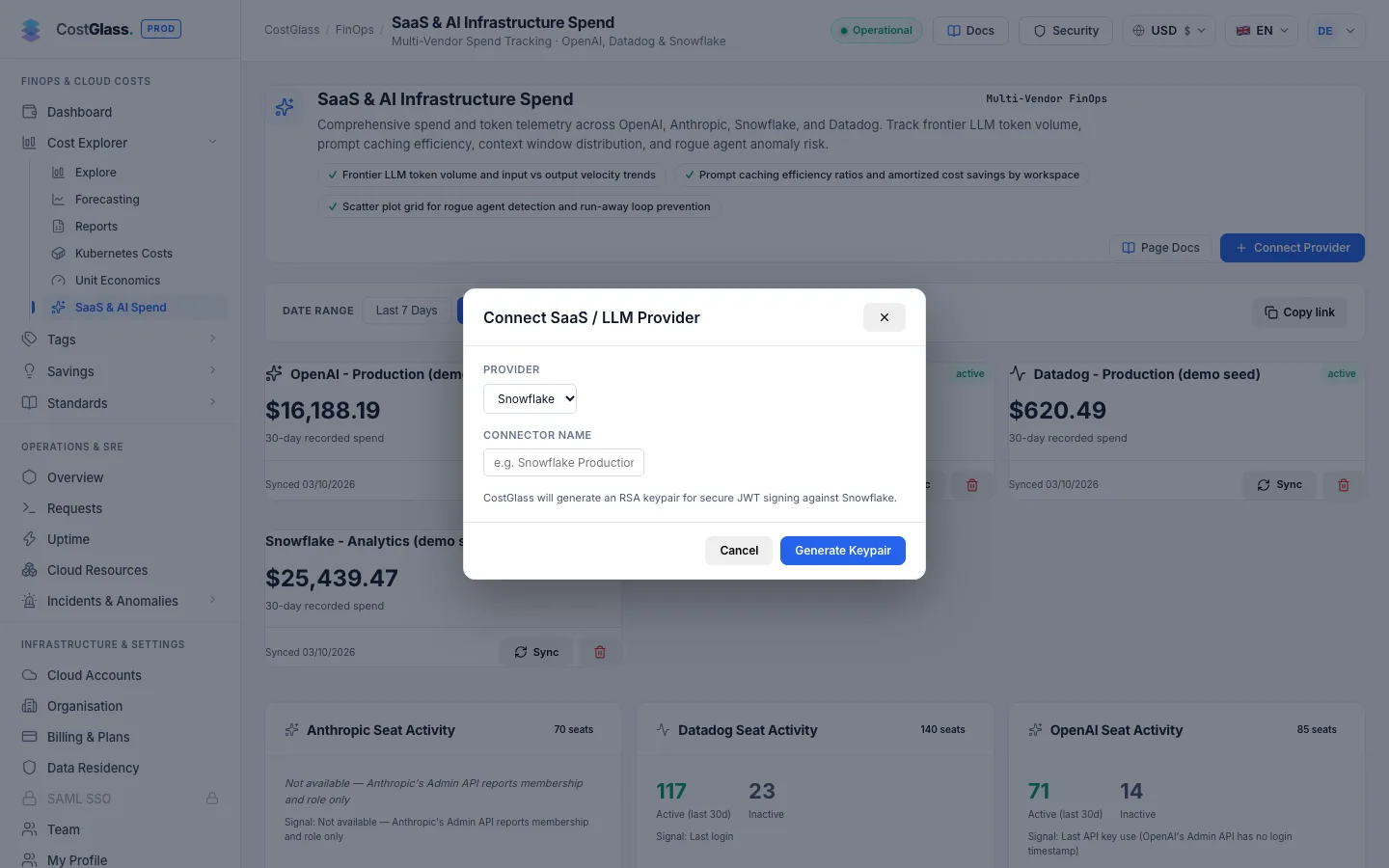
The ORGADMIN requirement
CostGlass reads real currency amounts from SNOWFLAKE.ORGANIZATION_USAGE.USAGE_IN_CURRENCY_DAILY, because credits alone cannot be priced reliably. Ordinary roles cannot see this view. An ORGADMIN must grant the connecting user's role access to it. If access is missing, verification or the sync stops with a message that names this requirement. CostGlass never swaps in a different view or a made-up number instead.
The connect form uses the user's default role. If you need a specific role or warehouse, make it that user's default in Snowflake before you verify.
Snowflake data is daily and each sync reads roughly the last 35 days. Registering the public key and the ORGADMIN grant are the only changes made in your Snowflake account, and both are yours to make.
After you connect
- Each connected vendor appears as a card with its status (active, pending or error), the 30-day recorded spend, the time of the last sync and any error message.
- CostGlass syncs every six hours. Click Sync on a card to sync that vendor now.
- The trash icon removes the connector after you confirm. Its stored credentials are deleted; cost already collected is kept.
- Spend is stored alongside your cloud costs, so you can filter by these vendors in Cost Explorer and Reports. Budgets, anomaly detection (for daily vendors) and savings checks (for example moving eligible OpenAI work to Batch, or prompt caching for Anthropic) cover them too.
- Seat activity and token detail appear where the vendor exposes them. Where it does not, the page says so rather than showing a guess.
Limits worth knowing
| Limit | Detail |
|---|---|
| Personal subscriptions | A Claude.ai or ChatGPT plan (Pro, Max, Plus and similar) is not API usage and has no cost report. CostGlass reads the organisation-level Admin cost reports, and Anthropic issues Admin keys only to organisation accounts. Connect the API organisation you build with instead. |
| Admin keys only | OpenAI and Anthropic normal keys cannot read organisation cost. They are rejected at connect time. |
| Datadog history | Current and previous month only, monthly granularity, up to 72 hours late. |
| Snowflake permission | Needs an ORGADMIN grant on ORGANIZATION_USAGE. |
| Currency | These vendors bill in dollars as reported. Figures are shown in your chosen display currency using the usual rates. |
| Live-vendor testing | These connectors were built against each vendor's documentation. If your first sync fails with something unexpected, tell CostGlass support. |