Instance Scheduler
Start and stop non-production servers on a weekly schedule to stop paying for idle hours.
Instance Scheduler
Switch non-production servers off at night and at weekends, and back on in the morning, so you stop paying for hours nobody uses them.
- It is the only CostGlass feature that changes your cloud. It is opt-in, and it can only start and stop things.
- A job that runs every 30 minutes compares every scheduled server with its schedule and starts or stops it to match.
- Works on virtual machines, scaling groups and managed databases on AWS, Azure, Google Cloud, Oracle Cloud and Alibaba Cloud (databases: AWS RDS, Azure PostgreSQL and MySQL Flexible Server, Google Cloud SQL).
- An Auto Scaling group is scaled to 0 and back, not stopped. A server that belongs to a group must be scheduled through its group.
- Tag your dev and test resources and a tag policy schedules them for you. A schedule you make by hand always wins over a policy.
- Stopping a database ends its compute charge only. Storage and backups keep billing. Do not schedule anything that holds data only in memory unless a restart is safe.
Why use it
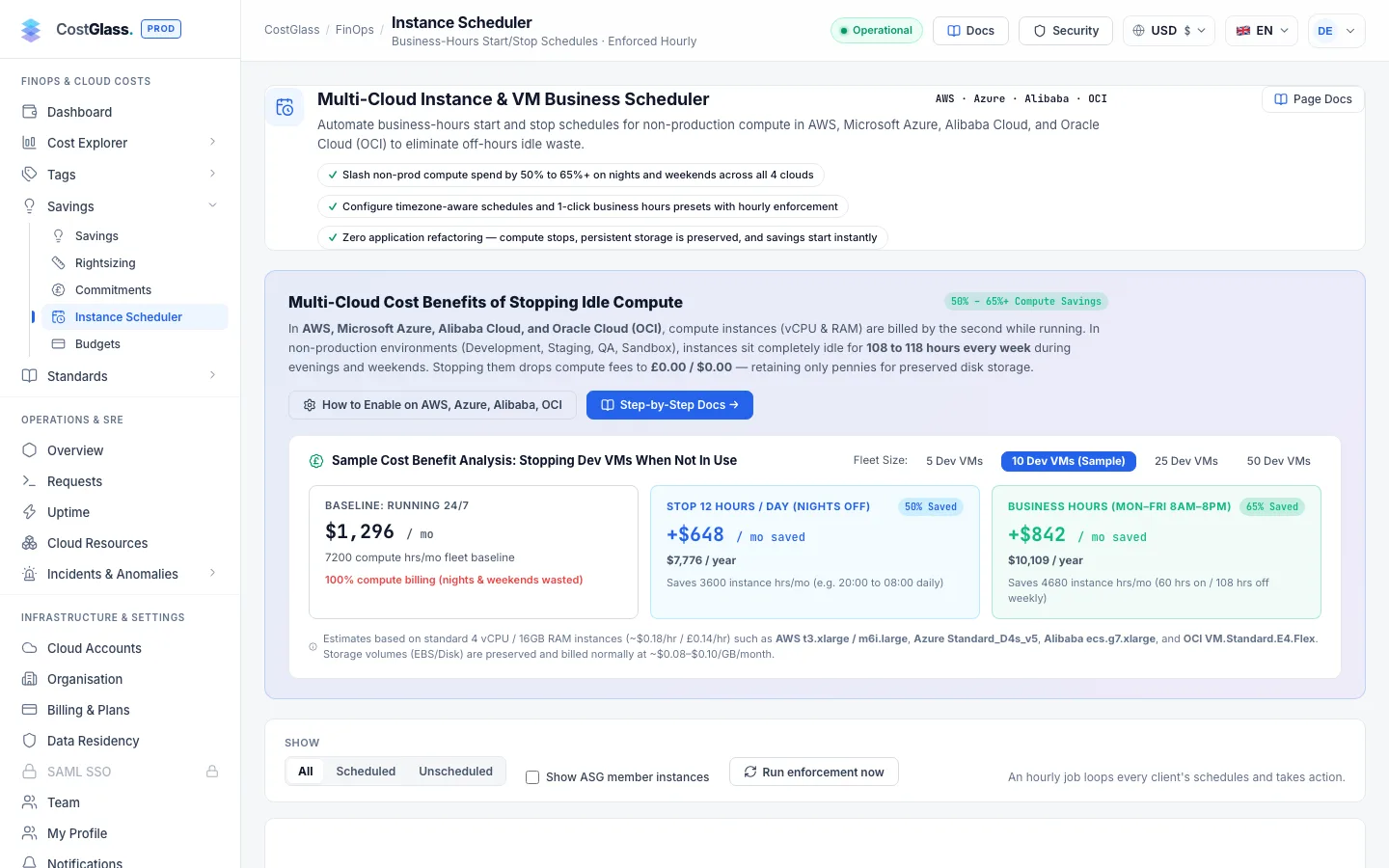
Development, test and staging servers are often used only during working hours, yet they run (and are billed) all 168 hours of the week. A server that runs Monday to Friday, 08:00 to 19:00 runs 55 of those hours, so about two thirds of its compute cost is avoidable. The page shows the saving for your own servers and does not rely on a general claim.
The one write permission, and how to switch it off
| Cloud | What is granted | How |
|---|---|---|
| AWS | ec2:StartInstances and ec2:StopInstances on instances, rds:StartDBInstance and rds:StopDBInstance on RDS instances, and autoscaling:UpdateAutoScalingGroup on Auto Scaling groups. Nothing else. | Part of the CostGlass role created by the onboarding template. It is controlled by the EnableInstanceScheduler parameter, which defaults to true. In the connection wizard it appears as the Instance Scheduler feature. |
| Azure | A custom role with virtualMachines read, start and deallocate actions, scale-set read and write, and read, start and stop on PostgreSQL and MySQL Flexible Servers. | The page includes the role definition in a setup guide that you copy into the Azure portal. |
| Google Cloud | Permission to start and stop instances, resize managed instance groups, and change a Cloud SQL instance’s activation policy. Never create or delete. | See the setup guide on the page. |
Turn it off (AWS)
Redeploy your CostGlass stack with EnableInstanceScheduler set to false (or untick Instance Scheduler in the connection wizard and deploy the new template). The role then has no write permission at all, and scheduling stops working. No other change is needed. Existing schedules remain in CostGlass but cannot act.
Create a schedule
- The scheduler permission enabled for the account (previous section).
- Your servers discovered by CostGlass (see Cloud resources). If none are found, the page says so.
- A non-production server where a stop is safe.
A schedule is a named set of hours, such as “Weekdays 08:00-19:00”. You make it once and apply it to any number of servers, directly or through a tag policy. Changing the schedule changes everything that follows it.
Switch a schedule off on its card to pause every server that follows it, and switch it on to resume. Servers are left running while it is paused. To stop scheduling one server, open it and choose Remove schedule; the server is left in whatever state it is in.
What happens next
A job runs every 30 minutes. For every enabled schedule it works out, using the time zone, whether the server should be running or stopped right now, compares that with the real state, and starts or stops it if they differ. Because it checks the desired state every 30 minutes rather than firing at an exact minute, a missed run corrects itself on the next one. The practical effect: a start or stop happens within 30 minutes after the time you set.
Start now and Stop now
In the editor, Start now and Stop now act immediately (once). For an Azure VM the stop button is Deallocate now; for an Auto Scaling group they are Scale up and Scale to 0. A short message tells you the outcome. If the target is already in the requested state the action is recorded as skipped.
Run enforcement now
The play button at the top of the page runs a pass straight away instead of waiting for the next check. A message reports how many were started and stopped.
Different kinds of target
| Target | Stop does | Start does |
|---|---|---|
| EC2 instance | Stops the instance. | Starts the instance. |
| Auto Scaling group | Remembers the group’s minimum and desired capacity, then sets them to 0 (shown as Scaled to 0). The group’s own scaling cannot fight the schedule. | Restores the remembered values (shown as Scaled up). |
| Azure VM | Calls Deallocate, not a plain stop, so compute billing really stops. A plain-stopped Azure VM stays allocated and keeps billing. | Starts the VM. |
| Google Cloud instance | Stops the instance. | Starts the instance. |
| Oracle Cloud instance | Soft stop. Standard and flexible VM shapes stop billing for compute; bare-metal, dense-I/O and GPU shapes keep their compute charge, so no saving is shown for them. | Starts the instance. |
| Alibaba ECS instance | Stops in economical mode (StopCharging), so a pay-as-you-go VPC instance stops billing for compute. Subscription (PrePaid) instances are not offered because they are billed either way. | Starts the instance. |
| AWS RDS database | Calls stop-db-instance. Compute stops billing; storage and backups do not. RDS starts a stopped database again after 7 days, so every check re-reads the live state and stops it again. | Calls start-db-instance. |
| Azure PostgreSQL or MySQL Flexible Server | Stops the server (compute billing stops; storage does not). Azure PostgreSQL also restarts after 7 days and is stopped again at the next check. | Starts the server. |
| Google Cloud SQL instance | Sets the activation policy to NEVER. The Google console may still show the instance as runnable; CostGlass reads the policy. | Sets the activation policy to ALWAYS. |
| Scaling group (Auto Scaling group, VM Scale Set, managed instance group, instance pool, Alibaba scaling group) | Remembers the size, holds the group’s own autoscaler off, and scales the group to 0. | Restores the size, then puts the autoscaler back as it was. |
Databases that are not offered
Some databases cannot be stopped by the provider, or are risky to stop, so they are listed with the reason and no schedule: Aurora and other cluster members, RDS read replicas and databases that have replicas, RDS for SQL Server in Multi-AZ, Azure servers with high availability or replication, and Cloud SQL read replicas. The saving shown for a database is its compute share only, and is blank where CostGlass has no list price for the size.
Servers that belong to a group
A server that belongs to an Auto Scaling group, VM Scale Set, managed instance group, instance pool or Alibaba scaling group cannot be scheduled on its own: the group would start a replacement for the one you stopped, so nothing would be saved. By default these are hidden. If you try to save a schedule for one, CostGlass refuses (a 409 conflict) and moves you to the group instead. Group members are hidden from the list; open the group to see its behaviour. Every check compares the live group with the schedule, so if something adds servers back during off hours they are removed again at the next check.
Nodes of managed Kubernetes clusters (AKS, GKE, OKE, ACK) are not offered either, because the cluster autoscaler replaces them. CostGlass recognises Azure and Google nodes from the labels those services set. For Oracle and Alibaba it relies on tags the services add to nodes, which is not a documented guarantee, so check the target list before scheduling a cluster account.
How to read the page
Cards
- Scheduled
- Targets with a schedule, out of everything schedulable, split into those scheduled through tags and those scheduled directly.
- Running now
- Targets running at this moment, with an estimate of what they cost per day at current usage.
- Projected saving
- An estimate: the on-demand cost of the scheduled servers multiplied by the share of the week they will be off. It is projected, not measured, and is based on CostGlass’s list-price estimate.
- Not scheduled
- Schedulable targets with no schedule that do not look like production.
Tabs
| Tab | What it shows |
|---|---|
| Instances | Every discovered target with its cloud, state, tags, schedule, hourly cost and monthly saving. Search and filter by cloud, state and schedule. Click a row to set its schedule, stop dates or start and stop it now. Group members are hidden because the group is what you schedule. |
| Schedules | One card per schedule with its week grid, how many servers follow it, hours off per week and monthly saving, and a switch to pause it. The scheduler activity feed sits beside it. |
| Tag policies | The ordered list of rules that apply a schedule by tag. |
Buttons at the top
The bell opens Shutdown warnings, the play button runs a scheduler check now, and the information button opens this guide.
Scheduler activity
The feed lists what the scheduler did most recently: which server, started or stopped, by a schedule or by hand, and whether it failed. Hover an entry for the detail. A failure is usually a missing permission. Entries recorded as simulated mean no real action was taken, which happens for demonstration accounts and for connections with no credentials.
Schedule by tag
A tag policy says “everything tagged env=dev follows Weekdays 08:00-19:00”. Open the Tag policies tab and choose New tag policy: name it, pick the tag key and whether the value must equal or start with your text (leave the value empty to match any value), choose the schedule and the clouds. The preview lists exactly what it would schedule and what it would skip, with the reason. Saving creates ordinary schedules for the matching resources, so they appear in the list marked with the policy name and behave like any other schedule.
| Tag on the resource | Meaning |
|---|---|
cg-schedule-timezone=Europe/London | Timezone of the schedule a policy creates for this resource. Without it the schedule’s own timezone applies. |
cg-stop-from=2026-12-12 and cg-stop-to=2027-01-05 | Stays stopped from the first day to the last day, both included, then the weekly schedule resumes (or, with no weekly schedule, it simply runs again). Both tags are required, in YYYY-MM-DD form. These work with or without a policy. |
- Order matters. Policies are numbered; if several match a resource, the first one wins. Use the arrows to move a policy up or down.
- Tag keys and values are not case sensitive. A bad value (a date that is not a date, an unknown timezone, only one of the two date tags) is ignored and flagged on the page, so a typo never schedules the wrong thing.
- New and re-tagged resources are picked up on the next check after discovery. A resource that loses its tag is released, and started again first if the scheduler had stopped it.
- A schedule you made by hand on a resource always wins; a policy never changes it (a tag stop window is still added to it).
- Pausing a schedule pauses the policies that use it, and the policy shows Schedule paused. A schedule that a policy or server uses cannot be deleted.
- Resources that cannot be scheduled (group members, Kubernetes nodes, databases the provider cannot stop, connections without the scheduler permission) are skipped, and the preview says why.
- Exclude from policy on a resource stops the policy managing it. Deleting a policy removes its schedules and starts anything it had stopped.
- Saving a policy changes nothing in your cloud by itself. The next scheduler check does, and it stops anything outside the window at that moment.
Stop dates and public holidays
Besides its weekly schedule, a VM, scaling group or database can have any number of stop dates: whole days it stays stopped, such as a year-end shutdown or the public holidays of the office’s country. Open the resource, then Open calendarunder the schedule. Click the first and last day, add an optional label, and Add dates; Save stop dates stores them.
- The days are in the schedule’s timezone, first and last day included. On those days the target is stopped whatever the weekly schedule says; on every other day the weekly schedule applies.
- A target with no weekly schedule can have stop dates only: it runs outside them and is stopped inside them.
- The calendar suggests the public holidays of the country the timezone belongs to (for example Europe/London → United Kingdom, England). Change the country or region, tick the holidays you want, or add all the upcoming ones. A holiday that falls on a day the weekly schedule is already off changes nothing.
- Dates that come from
cg-stop-from/cg-stop-totags show as “from tags” and cannot be edited in the calendar; change the tag instead. - Stop dates that have passed are removed automatically. Holiday data comes from an open-source holiday library and can differ from your company’s own calendar, so check the list before saving.
- Stop dates stop the target at the first scheduler check on the first day (which may be a few minutes after midnight) and start it again at the check after the last day ends, if the weekly schedule says it should be running.
Resources that look like production
A resource whose name contains the word prod, prd, production or live (as a word, so “web-prd-01” counts but “product-catalog” does not), or whose env / environment / stage tag says so, is marked PROD? in red in the list. Before you create or change a schedule or add stop dates for one, a red notice names it and you must tick a box accepting responsibility; the save is refused without it, and the audit log records that you accepted.
- A tag policy that would cover such resources shows the same notice with their names in the preview. Once you accept it, the policy includes production-looking resources; until then it skips them and says why.
- Pausing a policy or removing stop dates needs no acceptance.
- This is a name and tag check, not a guarantee. A production resource with an unrelated name is not flagged, so you stay responsible for what you schedule. Resources scheduled by
cg-stop-from/cg-stop-totags are not checked, because setting the tag in your cloud is the explicit action.
Shutdown warnings and delay links
The scheduler can warn you before it stops something. Under Shutdown warnings (the bell at the top of the Instance Scheduler page), switch warnings on, add one or more email, Slack or Microsoft Teams channels, and choose how far ahead to warn. Each warning names the resource, the stop time in its own timezone, the rule behind it and who created it, with buttons to delay the shutdown by 1 hour, 2 hours, 3 hours or for the rest of the day.
- A button opens a confirmation page and changes nothing until you press confirm there (mail scanners and chat apps open links automatically, so a click alone never applies a delay).
- A delay counts from the planned stop time; “for the day” runs to midnight in the schedule’s timezone. The normal schedule resumes afterwards, and you get another warning before the new stop.
- Warnings are checked each time the scheduler runs (every 30 minutes), so one arrives up to 30 minutes or more ahead, never later than the stop. Choose a longer lead time to be warned earlier.
- The person who created each schedule can also be emailed. For tag policies that is the person who created the policy.
- If many resources stop at once, the first ten get their own warning with delay links; the rest are listed in one summary that links to the page, where you can delay each of them.
- A delay is refused if the target has already stopped. Starting it again is done from the page after signing in.
- Links are signed and expire two hours after the stop time. Anyone who receives a warning can use its links, so every delay is recorded in the audit log as made through a notification link, with the new end time, rather than under a person’s name.
Who created a schedule (audit trail)
Every change is written to the audit log under Settings → Audit log with the person who made it: schedules created, changed, removed or excluded from a policy, stop dates added or removed, manual starts and stops, and tag policies created, edited, paused or deleted. Changes CostGlass makes by itself are recorded with the source System and say why (the tag policy, or the tags on the resource).
- The schedule editor shows how the schedule was set up, who created it and who last changed it.
- Each start or stop in the activity feed ends with the rule that caused it and who or what set that rule up, so a target that was stopped by mistake can be traced to a person, a policy or a tag.
- For schedules that come from
cg-tags CostGlass cannot see who set the tag in your cloud. Check your cloud’s own audit log (CloudTrail, Azure Activity Log, Cloud Audit Logs).
Risks and good practice
- Databases: a stop ends the compute charge only, connections are dropped, and an application that cannot reconnect after the morning start will fail. Test on one non-critical database first.
- Check what starts on boot. A server that needs manual steps after a restart will be broken in the morning.
- Public IP addresses can change when an EC2 instance is stopped and started, unless you use an Elastic IP.
- Tell the team. Add the schedule to your runbook so nobody wonders why a server is off.
- Leave production servers unscheduled unless you have a deliberate reason.
- Prefer schedules on Auto Scaling groups for fleets, so the group’s own scaling is not disturbed.
- Reserved capacity and Savings Plans are paid whether the server runs or not. Stopping a covered server does not save money on the covered part (see Commitments).
Frequently asked questions
EnableInstanceScheduler to false on your AWS stack and do not grant the Azure or Google write roles.