Notification settings, Jira & chat
Weekly spend summary, Slack and Teams webhooks, and connecting Jira Cloud.
Notification settings, Jira & chat
Choose how you receive your spend summary, connect Jira so alerts open issues, and send report digests to Slack or Microsoft Teams.
- Spend summaries are personal: each person chooses their own schedule and channels.
- The weekly summary goes out on Mondays at 01:00 UTC, by email by default. Slack and Microsoft Teams are optional.
- Webhook URLs are secrets: after saving they are shown only as the last four characters.
- Jira Cloud can be connected once per organisation by an Owner or Admin, then chosen as a channel on alert rules.
- Scheduled reports and saved views can also post a digest to Slack or Teams.
- For Slack or Teams: permission to create an incoming webhook in your workspace.
- For Jira: a Jira Cloud site (https://yourcompany.atlassian.net), an Atlassian account that can create issues in the project, and an Owner or Admin role in CostGlass.
Your spend summary
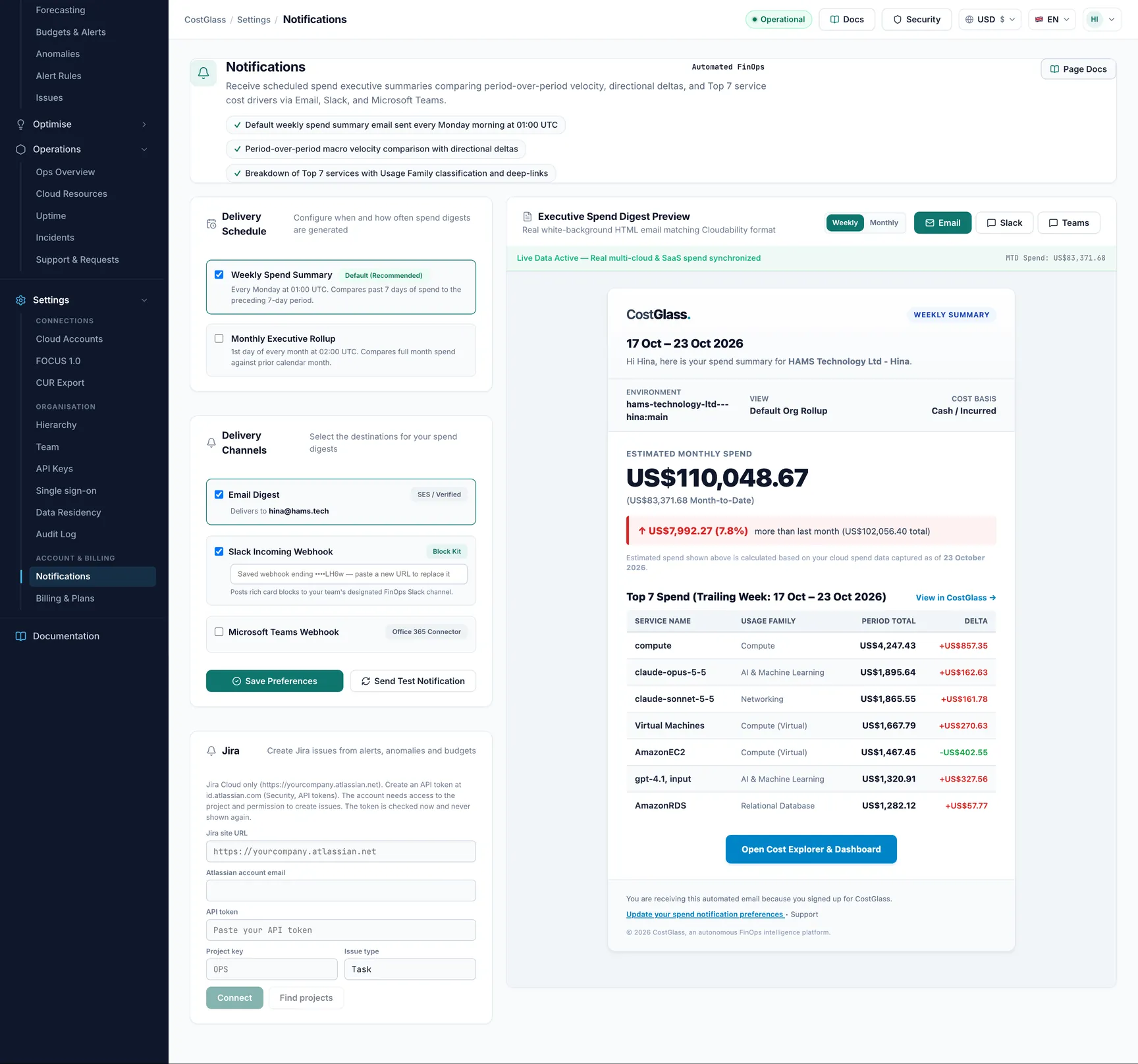
| Summary | When it is sent | What it compares |
|---|---|---|
| Weekly | Mondays, 01:00 UTC. Only people who existed on that Monday receive it, so a new account gets its first one the following Monday. | The past 7 days against the 7 days before. |
| Monthly | The 1st of the month, 01:00 UTC (the page text says 02:00 UTC; the job runs at 01:00). | The full month against the previous calendar month. |
Each summary shows estimated monthly spend, month to date, the change against last month and the top seven services. If your organisation has no recorded spend yet the page says so and nothing is sent. If sending fails, the test reports the failure instead of pretending it worked.
Slack and Microsoft Teams webhooks
Slack
- In Slack, create an app (or use an existing one) and turn on Incoming Webhooks.
- Add a webhook to the channel that should receive the summary and copy its URL.
- Paste it into Slack Incoming Webhook in CostGlass. It must look like
https://hooks.slack.com/services/....
Microsoft Teams
- In Teams, add an incoming webhook or a Workflows webhook to the channel and copy the URL.
- Paste it into Microsoft Teams Webhook. Accepted addresses end in
.webhook.office.com, or are Workflows addresses (.logic.azure.com,.api.powerplatform.com) oroutlook.office.com.
Connect Jira Cloud
Once connected, you can pick Jira as a channel on anomaly notification rules and cost alerts. Each event creates one issue, and the same event never creates two.
id.atlassian.com, open Security, then API tokens, and create one. Copy it.https://yourcompany.atlassian.net), Atlassian account email and API token.- Only Jira Cloud sites on
atlassian.netover https are accepted. - The token is stored in a secrets vault and only its last four characters are ever shown. Leave API token blank when editing to keep it.
- The account must be able to create issues in the project.
- Edit changes the project or token. Disconnect stops new issues; existing issues stay in Jira.
- The card shows Connected or Needs attention and the last error.
Report and view digests in Slack or Teams
When you schedule a saved report (in the report library) or a saved Cost Explorer view, the schedule dialog has Also post a summary to chat (optional). Click Slack or Microsoft Teams to add a channel (up to five), give it a label and paste its webhook. The post is a short summary: total, change against the previous period, biggest movers, top items and a link back. A schedule needs at least one email recipient or one chat channel.