Tag Compliance
Define required AWS tags, measure compliance, and fix missing tags with Quick Tag, batch apply or a CLI script.
Tag Compliance
Set the tags every AWS resource must have, see which resources are missing them, and fix the gaps.
- You define a list of required tag keys. CostGlass checks every discovered AWS resource against it.
- Each resource is Compliant (has all required tags), Partial (has some) or Untagged (has none of them).
- The compliance score is the share of resources that have all the required tags.
- Owners and admins can tag from the page, but CostGlass connects read-only by default, so most of the time it gives you an AWS command to run and you confirm afterwards.
- This page covers AWS resources only. For other clouds, see Tag Explorer and Virtual tagging.
- An AWS account connected to CostGlass, with resources discovered (see Cloud Resources).
- To change the policy or apply tags: the Owner or Admin role.
- To tag from the page directly: a CostGlass connection whose role is allowed to tag resources. Otherwise you will use the command CostGlass generates.
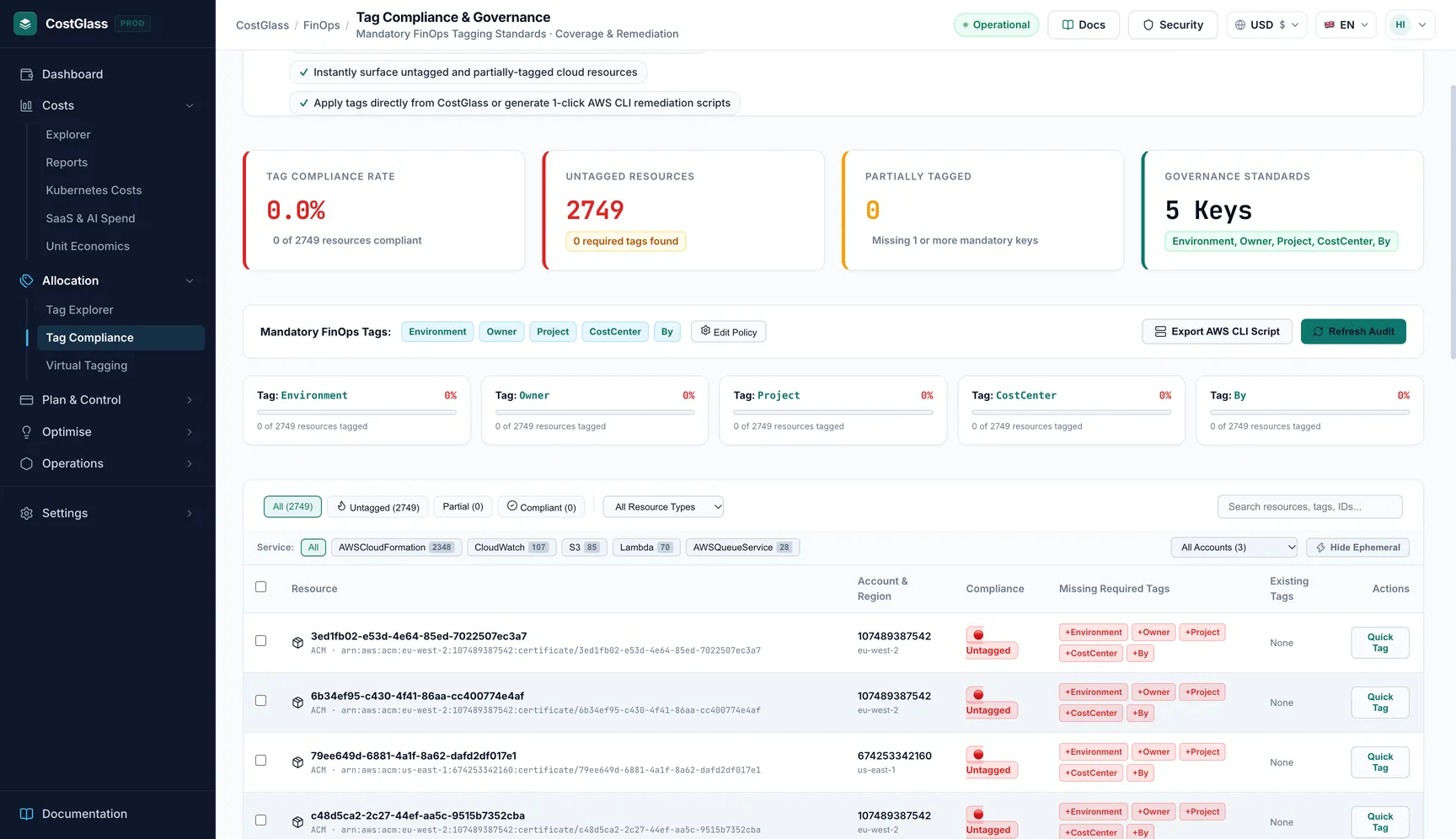
How compliance is worked out
- CostGlass takes the AWS resources it has discovered for your organisation (and only the accounts you can access).
- For each resource it looks at your required tag keys. Matching ignores case, so
ownersatisfies a requiredOwner. - A required tag counts as present only if it has a value that is not blank.
- The resource is Compliant if every required tag is present, Partial if at least one is present but not all, and Untagged if none are.
The results are kept for 15 minutes so the page loads fast. Click Refresh Audit to bypass that and run it again, for example right after you change tags.
Set your required tags (the policy)
The policy is the list of tag keys every resource must have. A new organisation starts with Environment, Owner, Project and CostCenter.
BusinessUnit, ManagedBy) and add it.How to read the page
The four cards
| Card | Meaning |
|---|---|
| Tag Compliance Rate | The percentage of resources that are fully compliant, with "X of Y resources compliant" underneath. Green at 80% or more, amber from 40%, red below 40%. |
| Untagged Resources | Resources with none of the required tags. |
| Partially Tagged | Resources missing one or more mandatory keys. |
| Governance Standards | How many keys are required, and their names. |
Coverage per tag
Below the policy bar there is one small card per required tag, for example Tag: Owner with a percentage and a bar: the share of resources that have that tag. This tells you which tag is the hardest to get. Green is 80% or more, amber is above zero, red is zero.
The resource table
| Column | Meaning |
|---|---|
| Resource | Name and type of the resource. |
| Account & Region | Where it lives. |
| Compliance | Compliant, Partial or Untagged, and the score for that resource (present required tags out of all required). |
| Missing Required Tags | The keys it still needs. "None" means it has them all. |
| Existing Tags | The tags it already has. |
| Actions | A Quick Tag button to fix that one resource. |
Filtering the list
| Filter | What it does |
|---|---|
| All / Untagged / Partial / Compliant | Status buttons. The counts are shown in brackets. |
| All Resource Types | Limit to one type, for example a database type. |
| Search resources, tags, IDs... | Free text across names, tags and ids. |
| All Accounts | Limit to one AWS account. |
| Hide Ephemeral | Hides short-lived items such as auto-scaling instances, spot nodes and log groups, which usually are not worth tagging by hand. The number next to it says how many are hidden. |
Results are paged; use the page size and the page buttons at the bottom of the table.
Fixing missing tags
Tag one resource: Quick Tag
Environment there are quick presets (prod, dev, staging). You can add a custom key and value too.Tag many at once: Batch Apply Tags
Tick the boxes on the rows you want. A bar appears with the choices below. Click Batch Apply Tags, fill in the values, then Apply Tags to N Resources.
| Button in the selection bar | What it does |
|---|---|
| Batch Apply Tags | Opens a dialog to tag all the selected resources with the same values. |
| CLI for Selected | Creates an AWS command script for only the selected resources. |
| Quick Virtual Rule | Opens Virtual tagging with a rule prefilled from the first selected resource's type, as a way to allocate them without tagging. |
| Deselect All | Unticks everything. |
| Select all N matching resources | Selects every resource that matches your filters, not just the current page. |
What happens when CostGlass cannot write to AWS
CostGlass connects to your AWS accounts read-only by default (apart from the optional Instance Scheduler). That is why most tag requests cannot be completed by CostGlass itself. When AWS refuses, or there is no role CostGlass may use for that account, nothing is marked as tagged, and you see an AWS Write Permission Notice with:
- the exact AWS CLI command for that resource, with a Copy button;
- Remediation Steps: run the command with credentials for the right AWS account and region, or give the CostGlass role tagging permission;
- a green I Ran the CLI Command (Confirm Tagged) button.
After you run the command in AWS, click I Ran the CLI Command (Confirm Tagged). That tells CostGlass the tags are now there, so the page updates. For a refreshed result straight from the cloud, use Refresh Audit.
The bulk tagging script
For a large clean-up, use Generate AWS CLI Script (top right) or Export AWS CLI Script (on the grey bar). CostGlass builds one shell script with a command per resource that is missing required tags, covering only the tags each resource is missing.
You supply the values
CostGlass cannot know what a tag value should be (which environment? whose cost centre?), so it does not invent them. Each value is a variable at the top of the script, named from the tag key: letters and digits are kept, everything else becomes an underscore, and it is upper-cased, with the prefix TAG_.
- The script refuses to run while any variable is empty.
- Values must not contain commas.
- The same value goes on every resource that script touches. If different resources need different values (for example prod and dev), edit the commands or run the script in parts.
- Commands are grouped under a heading naming the AWS account. Run each group with credentials for that account.
- Resources with no known region, or with no account and no ARN, are skipped, and the script ends with a note of how many.
Run it
export [email protected] and export TAG_ENVIRONMENT=prod in your terminal.Running a tag clean-up campaign
- Week 1, decide. Agree the required tags. Enter them in the policy. Note the starting score.
- Week 2, quick wins. Turn on Hide Ephemeral. Filter by Untagged and by a resource type. Use the bulk script for obvious cases.
- Week 3, owners. Share the filtered list by account with each team. They use Quick Tag or their own tooling.
- Week 4, lock it in. Add default tags in your infrastructure-as-code and a cloud policy so new resources start tagged. Check Tag Explorer coverage on the cost side.
Limits to know about
- AWS only. Other clouds' resources are not in this audit.
- Discovered resources only. A resource must be in CostGlass's inventory. Some types, such as ones with no ARN, may be skipped in the script.
- Results are cached for 15 minutes unless you click Refresh Audit.
- If you are limited to part of the organisation, you only see and fix resources in accounts you can access.