Giving your team access
Invite people, choose Owner, Admin or Member roles, remove users and limit what they see.
Giving your team access
Invite colleagues to your CostGlass organisation, choose what each person is allowed to do, and (if you want) limit what they can see.
- Everyone in your organisation has one of three roles: Owner, Admin or Member.
- Owners and Admins invite people and change roles. Only Owners can create, demote or remove other Owners.
- An organisation always keeps at least one Owner. CostGlass will not let you remove or demote the last one.
- Invitations only work for the email address you typed. People sign in with Google, with a password, or (if you set it up) through your company single sign-on.
- You can limit a person to one part of your organisation (a node in the hierarchy) so they only see that part's spend.
- You are signed in as an Owner or an Admin of your organisation.
- You know the work email address of the person you want to invite.
- The person does not already belong to another CostGlass organisation (an email address can belong to only one).
The three roles
A role is a label on each person that decides which actions they may take. Every person in your organisation has exactly one.
| Role | Who it suits | What it can do |
|---|---|---|
| Member | Engineers, team leads and finance analysts who need to look at cost data. | Sees the dashboards, Cost Explorer, reports and other pages for the part of the organisation they are allowed to see. Cannot change organisation-wide settings. |
| Admin | FinOps practitioners and platform leads who run the day-to-day setup. | Everything a Member can do, plus: invite Members and Admins, change roles between Member and Admin, remove Members and Admins, and manage the settings listed below. |
| Owner | The person accountable for the account, for example a CTO or Head of Infrastructure. | Everything an Admin can do, plus: create other Owners, change or remove Owners, and cancel the subscription. |
Actions that need Owner or Admin
CostGlass checks the role on its servers, not only on screen, for these actions:
- Inviting people, changing roles and removing people (this page).
- Setting up single sign-on, creating API keys and reading the audit log.
- Connecting Jira, creating cost alerts, and changing anomaly alert rules and anomaly settings.
- Creating, editing and deleting virtual tags and their rules, and changing tag policies.
- Creating or changing unit economics metrics.
- Changing uptime alert settings and starting a paid subscription (billing).
Actions that need Owner
- Promoting someone to Owner.
- Changing the role of, or removing, another Owner.
- Cancelling the subscription.
Invite a teammate
What the invited person does
- They open the invitation email. If CostGlass sent a temporary password, they sign in with it and choose a new one.
- Or they click Continue with Google on the sign-in page, using the same email address you invited.
- If your organisation uses single sign-on, they type their work email on the sign-in page and choose Continue with SSO.
- On first sign-in their status changes from Invited to Active.
An email address that CostGlass does not know is never let in just because it can sign in with Google. If someone signs in with an address that was not invited, they see a message asking them to ask an administrator for an invitation.
If the invitation is refused
- "That email already belongs to another organisation": each email address can belong to one organisation. The person needs to use a different address, or be removed from the other organisation first. CostGlass also gives this message when the address is registered in another region, and it does not say where.
- The person was removed earlier: inviting them again re-activates their record as a fresh invitation with the role you choose.
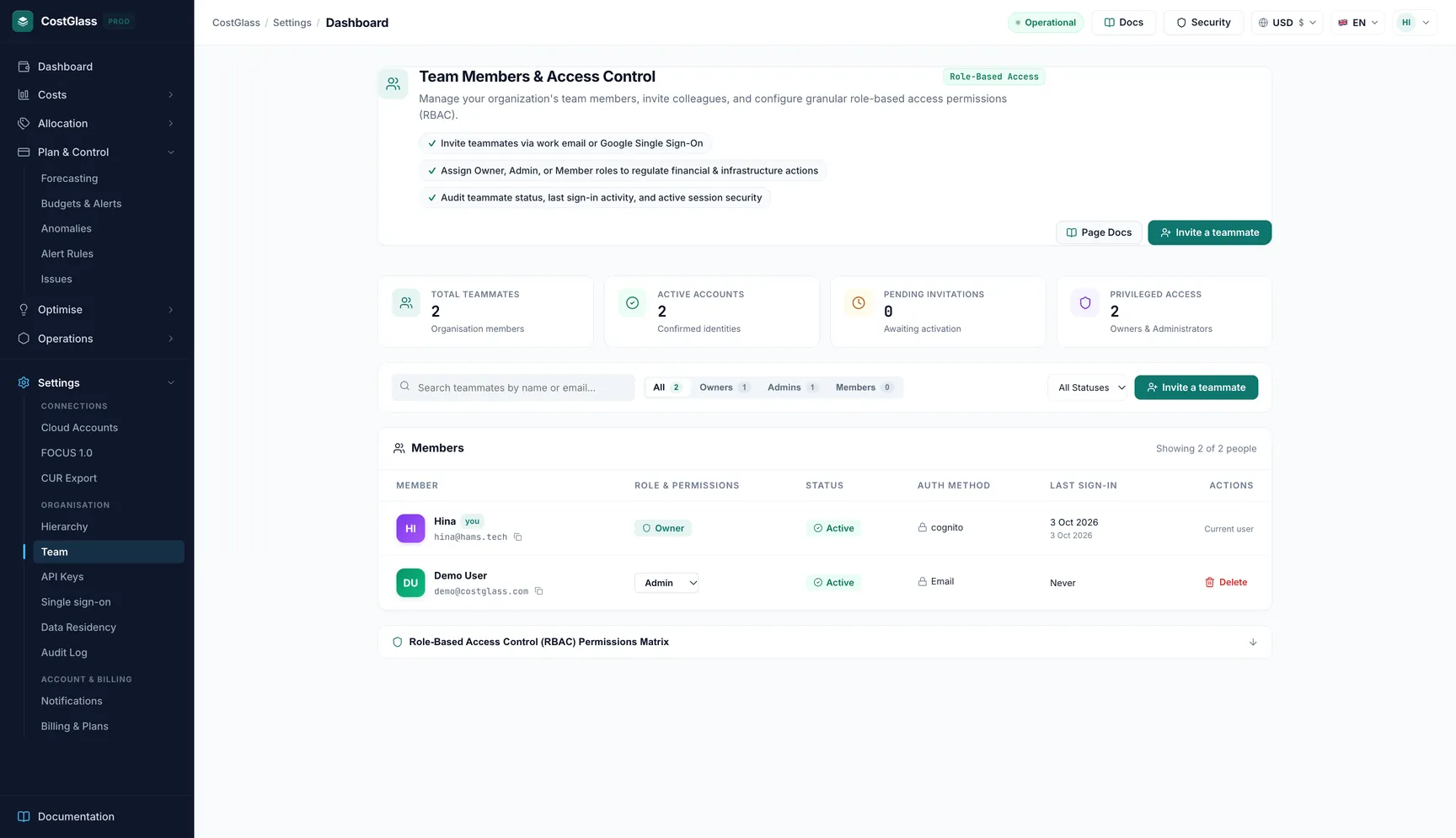
How to read the member table
| Column | What it shows |
|---|---|
| Member | Name and email. A small "you" marker shows your own row. Use the copy button to copy an email. |
| Role & Permissions | The person's role. For Owners and Admins managing the team this is a drop-down so you can change it. |
| Status | Active (has signed in), Invited (waiting for first sign-in), or Disabled. Removed people no longer appear in the list. |
| Auth Method | Google SSO (signed in with Google), Email (email and password), Enterprise SSO (your SAML provider) or OIDC. |
| Last Sign-in | When they last signed in. |
| Actions | A Remove button. Your own row says Current user and a sole Owner shows Sole owner, because neither can be removed. |
The four cards at the top count Total Teammates, Active Accounts, Pending Invitations and Privileged Access (Owners plus Admins). Use the search box to find people by name or email, and the filters to narrow by role or status.
Change a role
- Admins can switch people between Member and Admin. They cannot touch an Owner and cannot create one.
- Owners can change anyone, and the Owner option appears in the drop-down only for them.
- Last-owner rule: if there is only one Owner, that Owner cannot be demoted. Make a second person an Owner first.
Remove someone
- You cannot remove yourself.
- Only an Owner can remove an Owner, and never the last one.
- Removing a person does not delete what they created (saved views, reports and so on stay in the organisation). Their sign-in is disabled.
- Removals are written to the audit log.
Limit what someone can see (scoped access)
By default a person sees the whole organisation. You can instead bind them to one node of your organisation hierarchy, for example "Payments team". They then see only the cloud accounts under that node and everything below it. This is done on the Hierarchy page, not on the Team page.
If your organisation requires single sign-on
When an Owner or Admin switches on Require single sign-on (see Single sign-on), people whose email is on a verified company domain can no longer sign in with a password or Google. They must use your identity provider. One Owner, chosen as the break-glass account, keeps password sign-in so a problem at your provider cannot lock you out.
Single sign-on does not create accounts. Invite people here first, then they sign in through your provider.
Your own profile
Every person can open Settings → Profile (#settings:profile) to change their own display name and phone number. The page also shows your role, your organisation and plan, how you sign in and when you last signed in. Your email address is not editable there.
Settings → Profile: your name, phone number, role and sign-in method.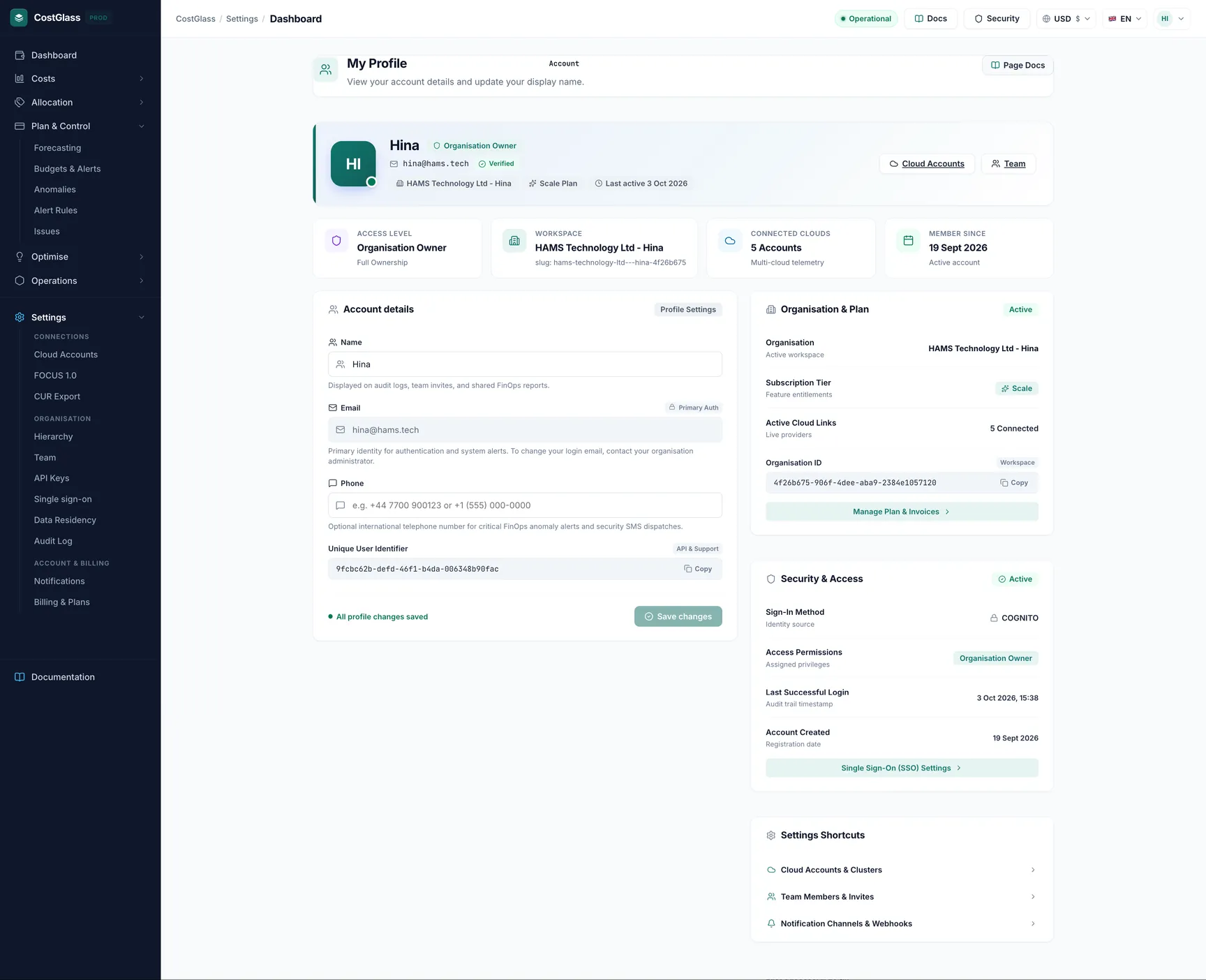
A worked example
A company has one Owner, Sam. Sam wants Priya (finance) to look at spend but change nothing, and wants a second Owner for safety.
- Sam clicks Invite Teammate, enters Priya's email, leaves the role as Member, and clicks Send Invitation.
- Sam invites Jo (the CTO) as an Administrator. After Jo signs in, Sam changes Jo's role to Owner in the table.
- Now there are two Owners, so either could be demoted later without breaking the last-owner rule.
The names here are illustrative.