Virtual tagging
Allocate spend by team, product or environment with rules, no cloud changes, with a rule builder and CostGlass AI.
Virtual tagging
Group and allocate your cloud and SaaS spend by team, product or anything else, using rules in CostGlass. No changes to your cloud and no waiting for new bills.
- A virtual tag is a set of rules that put each billed charge into a named group, for example Team = Payments.
- Rules are applied to billed cost when you look at it. Nothing is written to your cloud or stored on the cost records, so editing a rule re-allocates all history at once.
- Rules are checked in order and the first match decides. Anything no rule matches gets the tag's default value.
- You can build a tag from accounts, services, regions, resource ids, cloud tags and even other virtual tags.
- Use the tag in Reports, in Cost Explorer (group by and filter) and to scope Budgets.
- The Growth plan or above.
- The Owner or Admin role to create or change tags.
- Billed spend from at least one connected cloud or SaaS service.
- Optional: cloud tags on AWS or Oracle Cloud resources, if you want rules based on them (see Tagging strategy).
The idea
Real cloud tags are great, but they have gaps: resources nobody tagged, bills that have no resource at all (support, tax, shared networking), clouds whose billing does not carry tags, and history you cannot change. A virtual tag is a tag that exists only in CostGlass. You give it a name such as Team and write rules such as "everything in AWS account A, plus anything whose service contains Kubernetes, is the Platform team".
- Virtual tag (key)
- The dimension you are creating, for example Team, Product or Environment.
- Value
- One of the groups inside a tag, for example Payments or Search.
- Rule
- A condition ("where") and a value to give matching charges ("then").
- Default value
- What a charge gets when no rule matches. It is called the untagged value in the app.
- Coverage
- The share of billed spend that was given a value by a rule rather than the default.
Create a virtual tag
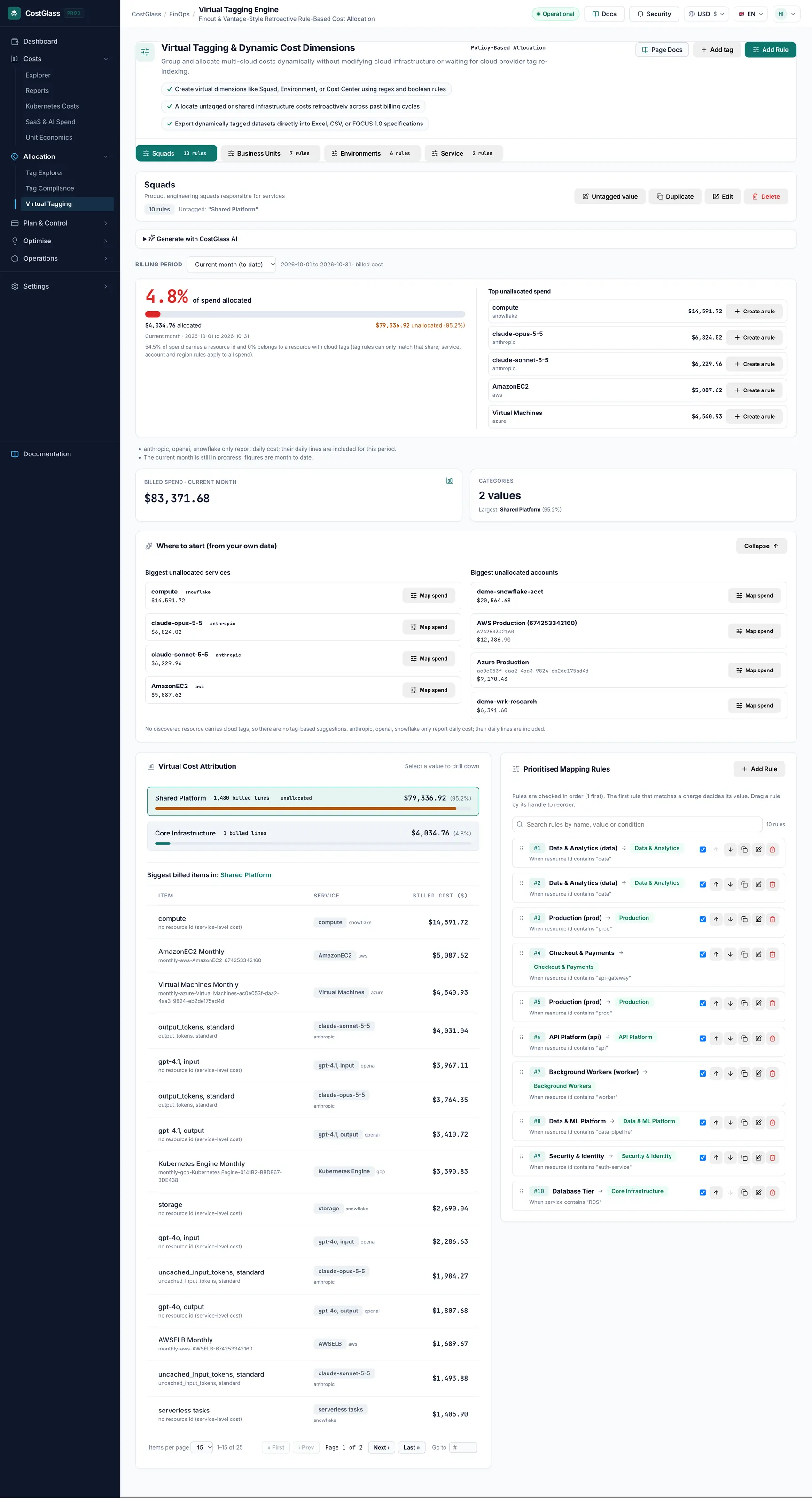
Each virtual tag is a tab under the page header, with a badge showing its number of rules. The buttons next to the tag's name are Untagged value, Duplicate, Edit and a delete button. A "dynamic" badge means the default value is taken from something rather than fixed text.
Templates
Templates create a working tag in one click. A template is greyed out, with a reason, when your data cannot support it.
| Template | What it gives you | Needs |
|---|---|---|
| Provider | Spend grouped by cloud or SaaS provider. | Nothing special |
| Service Category | Spend grouped by the provider's own category (Compute, Storage, Databases ...). | Nothing special |
| Cloud Account | Spend grouped by account, subscription or project. | Nothing special |
| Region | Spend grouped by region. | Nothing special |
| Taggable Spend | Separates usage charges (which can be tagged) from charges that cannot (tax, credits and so on). | Billed usage charges |
| Environment from tag | Takes the value from your own env or environment cloud tag. | A resource with that tag |
| Team from tag | Takes the value from your own team cloud tag. | A resource with that tag |
You can only create a template once. If you already have a tag with that identifier, the template shows as already existing.
The rule builder: Where and Then
A rule has two halves. Where says which charges it applies to. Then says what value those charges get. The dialog writes a plain-English summary of your rule as you build it, for example "When service contains "Kubernetes" then Team = Platform", so you can check it reads correctly.
Rule basics
| Setting | What it does | Default / options |
|---|---|---|
| Rule name | A label for the rule list. | Required |
| Position (1 = checked first) | Where the rule sits in the order. See "Order and first match" below. | New rules go last |
Where: conditions
Each condition has a field, an operator and a value. The pickers offer the real values found in your own spend and inventory, and you can type your own where it makes sense.
| Field | What it matches |
|---|---|
| Service | The service name on the bill, for example Amazon EC2. |
| Account | The account, subscription, project or similar. |
| Region | The region of the charge. |
| Resource ID | The id or name of the resource the charge was for. |
| Cloud provider | AWS, Azure, Google Cloud and so on. |
| Service category | The provider's category for the service, where it supplies one. |
| Charge category | The kind of charge: usage, purchase, tax, credit or adjustment. |
| Cloud tag | A tag on the resource (latest tags, not tags at bill time). You also name the tag key. |
| Another virtual tag | The value another virtual tag gives the charge. You also name that tag. |
| Operator | Meaning | Notes |
|---|---|---|
| is | Equals the value. | |
| is not | Does not equal it. | A charge with no value for the field counts as "is not" anything. |
| contains | Contains the text. | |
| does not contain | Does not contain it. | |
| starts with | Begins with the text. | Not available for cloud tags or virtual tags. |
| matches regex | Matches a regular expression. | Not for cloud tags, virtual tags, provider, service category or charge category. An invalid expression is refused. |
| exists | The field has a value. For a cloud tag: the tag is present. | Needs no value. Not available for virtual tags. |
| does not exist | The field is empty. For a cloud tag: the tag is absent. | Needs no value. Not available for virtual tags. |
| is one of | Equals any of a list of values. | Up to 100 values. |
| is not one of | Equals none of them. | Up to 100 values. |
All comparisons ignore case. Values are limited to 100 characters.
Combining conditions: Add condition and Add group
Several conditions in a rule are joined with AND: all must be true. Click Add group to make a group, then choose any (OR) or all (AND) for it ("Match … of these"). Groups can contain groups, up to three levels, and a rule can have up to 25 conditions.
"Platform team": Account is 1234… AND a group of any of: Service contains Kubernetes, Service contains CloudWatch. That means: the account, and either of those services.
Then: the value
Choose how the value is set:
- A fixed value: type it, up to 100 characters, for example Payments.
- Take the value from… (a dynamic value): copy it from the charge instead of typing it. Under Source choose A cloud tag on the resource (then give the tag key), A field of the charge (service, account, region, resource, cloud provider, service category or charge category), or Another virtual tag. This lets one rule cover many values: "team = whatever the team cloud tag says".
- An optional Label names the rule in the list when the value is dynamic.
Only active between dates
Open Only active between dates (optional) and set Active from and Active until (inclusive). The rule then applies only to charges whose period start is inside that window. Use it for reorganisations: a rule for the old team structure ends on the last day of the quarter, and a new rule starts the day after.
Live impact
Before you save, the dialog asks the server what the conditions would catch and shows, for example, "Catches $1,200 (14% of spend) across 3,000 billed lines", with the biggest matches. It also shows how many of your resources have a cloud tag you are matching on. If the rule catches nothing, it says so, which usually means a typo or a tag that does not exist.
Order and first match
Rules are checked from top to bottom (position 1 first). The first rule that matches a charge decides its value, and later rules are not considered for that charge. Put specific rules above general ones.
- Drag a rule by its handle to reorder, or use the move up and move down buttons.
- You cannot reorder while a search filter is hiding some rules.
- Each rule row has an on/off switch (pause or resume), Duplicate rule (the copy goes last), Edit rule and Delete rule.
- A rule that cannot be applied to billed cost (for example an invalid pattern) is skipped and shown with the reason, and the page notes it. Paused rules and rules outside their date window do nothing.
Rule 1: Service contains "Support" then Team = Shared. Rule 2: Account is production then Team = Payments. A production support charge goes to Shared, because rule 1 matched first. Swap them and it goes to Payments.
The default value
Click Untagged value to change what unmatched spend is called. It can be fixed text (such as "Unallocated") or dynamic, taken from a cloud tag, a field of the charge or another virtual tag, with a Fallback when empty value. In the breakdown, the default row carries an unallocated badge.
team cloud tag, and only write rules for the exceptions.Tags built on tags
A rule can use another virtual tag as a condition (field Another virtual tag) or as the source of its value. For example a Department tag can group the values of a Team tag. Limits: a tag cannot depend on itself, directly or through others; the chain can be at most three levels deep. You cannot delete or rename a tag that other tags depend on, and the error names the dependants.
Coverage and the allocation view
Billing period
Use Billing period to choose Current month (to date), Last month, Last 3 complete months or Last 6 complete months.
Coverage meter
The large percentage is how much of the period's billed spend your rules allocate. Under it you see the amount allocated and unallocated. It may also show how many points coverage changed against the previous period, and how much of the spend carries a resource id or belongs to a tagged resource, which limits what cloud-tag rules can match.
Top unallocated spend lists the biggest services that fell to the default value, each with a button that opens the rule builder with that service filled in. Work down the list and the meter climbs fastest.
Virtual Cost Attribution
Cards show the billed spend and the number of values. Virtual Cost Attribution lists each value with its amount and share. Click a value to drill down to the services and items behind it (Item, Service, Billed cost).
Where to start (from your own data)
A panel suggests rules built only from your own data: cloud tags that exist on your resources (with their values), your biggest services and your accounts. Each has a button that opens a prefilled rule. Nothing is suggested that is not in your data.
Generate with CostGlass AI
Owners and admins see a collapsible Generate with CostGlass AI panel. It has two tabs.
| Tab | What it does |
|---|---|
| Describe a rule | Type what the rule should do in your own words (up to 500 characters) and click Generate rule. You get a proposed rule with the impact on your spend. Use this rule opens it in the rule builder; Try again asks again. |
| Suggest a tag | Choose what you want to allocate spend by (environment, application, team or customer) and click Suggest a tag. You get a whole proposed tag with rules; untick any you do not want and accept. |
- Proposals use only values that exist in your own billed cost and inventory. If a request names things that are not in your data, you are asked to rephrase.
- Nothing is saved until you accept: a single rule opens in the builder for you to review, and an accepted tag is re-checked before it is created.
- Each request counts against your organisation's daily CostGlass AI allowance. When it is used up the panel says so, and it resets at 00:00 UTC.
Where virtual tags are used
| Place | How to use the tag |
|---|---|
| Reports | Choose the dimension Virtual Tag / Squad Allocation and pick the tag. |
| Cost Explorer | In Group by, choose Virtual tag: [name]. You can also filter to, or exclude, values of a virtual tag. |
| Budgets | When creating a budget, choose a Virtual tag and a Tag value to budget a team or product. |
| Tag Compliance | Select resources and click Quick Virtual Rule to start a rule from them. |
Best practices
- Start with the template that matches how finance reports (account, or team from tag), then refine.
- Build a Team tag in layers. First, rules that take the value from your
teamcloud tag. Then rules by account for clouds or accounts with no tags. Then rules by service for shared platform costs. Finish with a clear default such as "Unallocated". - Handle shared costs deliberately. Give support, networking and shared platforms their own value (for example "Shared") rather than hiding them in one team. You can see their size and then decide how to share them in your own process.
- Keep the rule count low. A tag can have at most 50 rules. A few well-chosen rules, with is one of lists and dynamic values, beat many one-off ones.
- Put the most specific rules first. Use Duplicate to try a variation, and the pause switch to test without deleting.
- Use the date windows for reorganisations instead of deleting old rules, so history stays correct.
- Review "Top unallocated spend" monthly. New services appear all the time.
- Create a tag called Team with the untagged value "Unallocated".
- Rule 1, "Team from cloud tag": where Cloud tag team exists, then take the value from the cloud tag
team. - Rule 2, "Data platform": where Account is one of your two data accounts, then Team = Data.
- Rule 3, "Shared services": where Service is one of support and networking services, then Team = Shared.
- Check coverage. Open Top unallocated spend, add rules for the biggest remaining services, and repeat.
Limits and things to know
| Limit | Detail |
|---|---|
| Rules per tag | At most 50. |
| Conditions per rule | At most 25, in groups nested up to three levels. |
| Tags built on tags | No cycles; chains up to three levels deep. |
| Cloud tag rules use latest tags | The tags on a resource now, not the tags it had at bill time. A charge with no resource id cannot be matched on a cloud tag. |
| Cloud tag availability | Cloud tags reach CostGlass for AWS and Oracle Cloud. Rules on service, account and region work for every cloud. |
| Not used elsewhere | Anomaly detection and dashboard widgets do not use virtual tags. |
| Plan | Growth and above. The menu entry is visible but locked on lower plans. |
| Permissions | Only owners and admins create, edit or delete tags and rules. |