Welcome to CostGlass
What CostGlass does, who it is for, how your data gets in, the plans and regions, and a plain-English glossary.
Welcome to CostGlass
CostGlass shows you what your cloud, AI and software vendors cost, explains why it changed, and helps you spend less, all from one place.
- CostGlass brings the bills from AWS, Azure, Google Cloud, Oracle Cloud, Alibaba Cloud, DigitalOcean, Linode, Cloudflare, Kubernetes clusters and AI/SaaS vendors into one dashboard, in one currency of your choice.
- It is read-only by default: it reads billing and inventory data and never changes your cloud. The one optional exception is the AWS Instance Scheduler, which can start and stop the instances you schedule.
- Plans are Free, Starter, Growth, Scale and Enterprise. Higher plans unlock more connections and more features, such as Kubernetes costs, commitments and uptime monitoring.
- Your organisation lives in one data region, chosen at sign-up. It cannot be changed later.
- The glossary at the bottom of this page explains every term used across the product in plain English.
What CostGlass does
Cloud bills are long, technical and arrive after the money is spent. CostGlass reads them for you, keeps a clean history, and turns them into answers. This practice of understanding and controlling cloud spend is often called FinOps(financial operations). You do not need to know FinOps to use CostGlass: every page explains itself, and this guide explains the vocabulary.
| The question you have | Where CostGlass answers it |
|---|---|
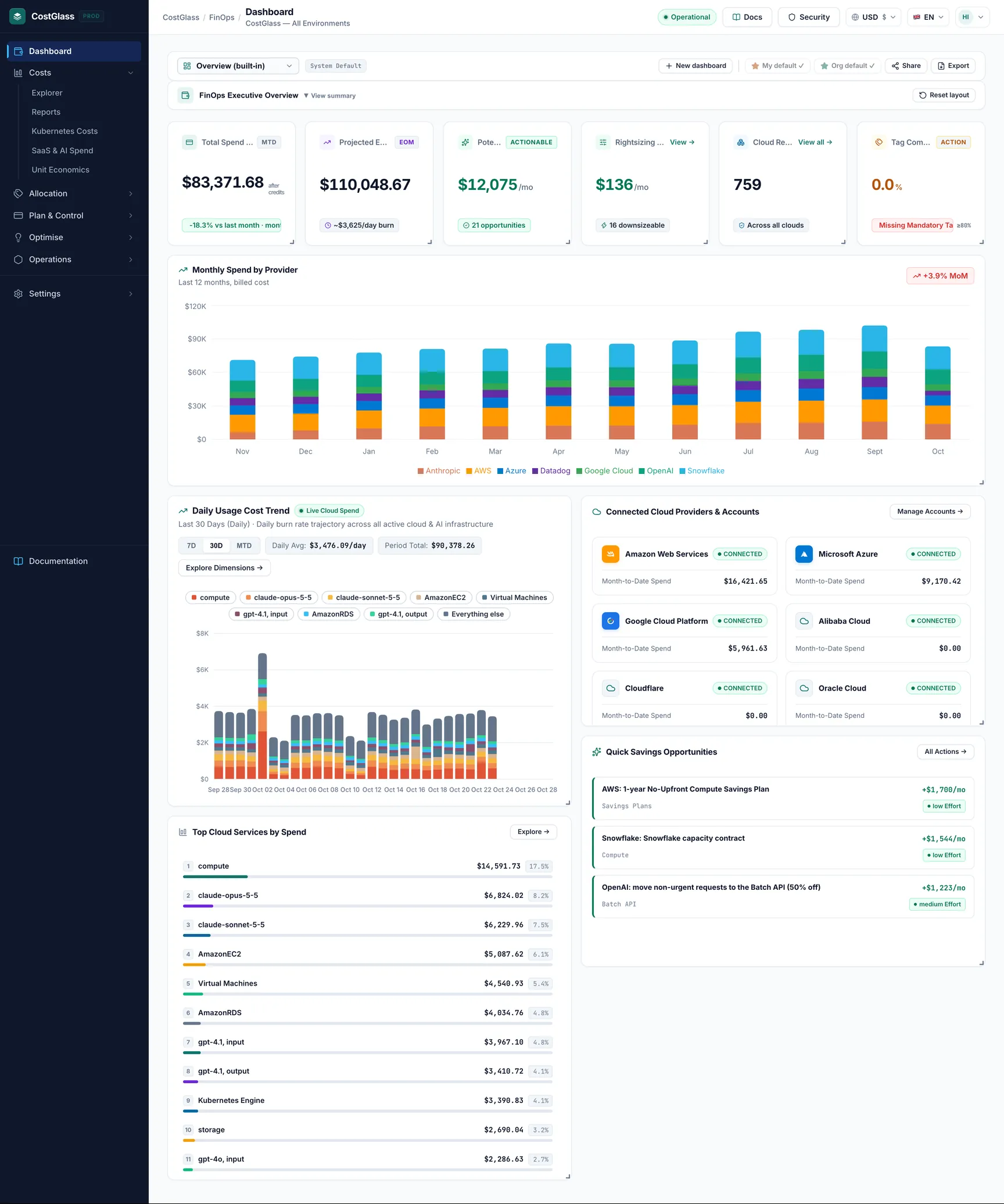
| How much have we spent this month, and where is it going? | Dashboard and Cost Explorer |
| What will the month cost in the end? | Forecasting and the Projected Month-End widget |
| Why did a cost suddenly jump? | Anomalies |
| Are we on budget? | Budgets |
| What can we cut? | Savings, Rightsizing, Commitments and the Instance Scheduler |
| Which team or product owns this spend? | Tags, Virtual Tagging and the organisation hierarchy |
| What resources do we actually have running? | Cloud Resources |
| Is our service up, and who do we ask for help? | Uptime, incidents and support requests |
Who it is for
- Engineering leads and platform teams who want to see which services and clusters drive the bill and fix waste.
- Finance and FinOps practitioners who need trustworthy month-end numbers, budgets, forecasts and reports they can export.
- Managers and executives who want a single page that says whether spend is on track.
- Small and mid-sized companies that do not have a dedicated FinOps team. The Scale and Enterprise plans include time from CostGlass engineers to help act on what the tool finds.
Everyone in your organisation has a role: owner, admin or member. Owners and admins manage connections, budgets, alert rules and teammates. Members can look at data. See Team and access.
How your data gets in
You connect each cloud or vendor once, using the access method that provider offers for third parties. CostGlass then pulls fresh data automatically, roughly every six hours. The steps for each cloud are in the connection guides; here is the overview.
| Source | How CostGlass is given access | What it can do |
|---|---|---|
| AWS | A role created by a CloudFormation template you deploy, plus an AWS Cost and Usage Report delivered to a storage bucket you own. | Read costs and inventory. The optional Instance Scheduler adds start and stop permissions. |
| Microsoft Azure | You approve the CostGlass app for your directory, then give it the Reader and Cost Management Reader roles. | Read only. |
| Google Cloud | A billing export to BigQuery, with read roles granted to a CostGlass service account. | Read only. |
| Oracle Cloud, Alibaba Cloud | A read-only user (Oracle) or role (Alibaba) created by a stack you apply in your own account. | Read only. |
| DigitalOcean, Linode, Cloudflare | An API token that you create and paste in. CostGlass tests it before saving it. | Read only. |
| Kubernetes clusters | A small agent you install in the cluster with Helm. It pushes cost data out; nothing connects in. | Reports cost and health data. |
| OpenAI, Anthropic, Datadog, Snowflake | An admin or read key (or, for Snowflake, a key pair) that you create. CostGlass tests it before saving it. | Read cost and usage reports. |
Credentials you provide (tokens, keys, role details) are held in a secrets store, not in plain text. For the full security picture see How CostGlass accesses your data.
Plans
Your plan is shown in Settings → Billing & Plans, where you can upgrade, add a card and download invoices. Paid plans start with a 14-day trial. Prices below are the monthly prices in US dollars shown on that page; Enterprise is quoted individually.
| Plan | Monthly price | Cloud connections | What it adds |
|---|---|---|---|
| Free | $0 | 1 | Cost visibility for one cloud account, anomaly detection, savings recommendations, budgets, alerts. |
| Starter | $99 | 3 | More accounts, longer history and forecasting, tag explorer and compliance, email and Slack alert rules. |
| Growth | $499 | 10 | Kubernetes costs, commitments, virtual tags, the Instance Scheduler, uptime monitoring and the support-request desk. |
| Scale | $1,499 | 25 | Everything in Growth, plus single sign-on, AI-written anomaly explanations and hours from CostGlass engineers. |
| Enterprise | Custom | Unlimited | Everything in Scale, with options such as a dedicated deployment in a separate cloud account. |
What greyed-out menu items mean
Menu items your plan does not include are shown greyed out with a padlock. Click one to see which plan unlocks it. Today these are Kubernetes Costs, Virtual Tagging, Commitments, Instance Scheduler and Uptime (Growth and above) and Single sign-on (Scale and above). The server enforces plan limits too, so a greyed-out page is not reachable by typing its address.
Connection limits
The number of cloud connections you can hold depends on your plan (the numbers above). Trying to add one more shows an upgrade prompt. The limit the app enforces is the one shown when you connect an account, so if a plan card elsewhere quotes a different number, trust the app.
Regions: where your data lives
CostGlass runs in separate regional cells. Each cell has its own database, API and sign-in service, so your organisation's data is stored and processed in one region only. At sign-up you pick the region on the Where should your data live? screen. The regions that are open today are Virginia (US) and London (UK); the screen lists exactly what is available and marks the default.
- Each region has its own website address, such as
us.costglass.comoruk.costglass.com. After signing in you work on your region's address. costglass.comitself is the public website. It never shows your data. To sign in, choose your region on the sign-in screen and you are sent to the right place.- The region is fixed when the organisation is created. To use another region, create a separate organisation there.
- Each region keeps its own users. An email address that already belongs to an organisation in one region cannot sign up or be invited in another.
More detail, including retention settings, is in Data residency.
How to learn CostGlass
Glossary: the words used across CostGlass
Short, plain definitions. Each one links to the guide that goes deeper where there is one.
- Provider
- The company that sends you a bill or runs your infrastructure: AWS, Azure, Google Cloud, Oracle Cloud, Alibaba Cloud, DigitalOcean, Linode, Cloudflare, or an AI/SaaS vendor such as OpenAI, Anthropic, Datadog or Snowflake. Pages show a coloured badge per provider.
- Cloud account / connection
- One entry in Settings → Cloud Accounts: the access you gave CostGlass to one provider. Connections count towards your plan's limit. See Manage accounts.
- Sub-account
- A smaller account inside a connection. For example, one member account in an AWS Organization, one Azure subscription or one Google Cloud project. Cost Explorer can group spend by it.
- Organisation
- Your company's workspace in CostGlass: its users, connections, budgets, settings and plan. Everything you see belongs to one organisation, in one region.
- Organisation hierarchy node
- A box in a tree you draw under Settings → Hierarchy, for example a business unit or team, onto which you map cloud accounts. A user can be limited to a node so they only see that part of the spend. See Organisation hierarchy.
- Month-to-date (MTD)
- Spend from the first of the current month up to the latest day of data. It is always partial until the month ends, so comparisons that use it are labelled like-for-like.
- Unblended (Real Cost)
- Cost exactly as the provider billed it, on the day it was charged. This is the default. If you pay an upfront fee for a commitment, that whole fee shows on the day it was paid.
- Amortised cost
- Cost with upfront and commitment fees spread across the period they cover. It is smoother and better for comparing teams or months. Cost Explorer has a selector for it.
- Credits
- Promotional credits, refunds and similar adjustments the provider applies. By default figures are net of credits (what you were actually invoiced). Cost Explorer and Reports can show gross usage or the credits alone.
- FOCUS
- The FinOps Open Cost and Usage Specification: an open standard that gives every provider's billing data the same column names. CostGlass stores all spend in this shape, which is why one page can compare clouds. The FOCUS 1.0 page under Settings → Connections exports it as a CSV.
- CUR
- The AWS Cost and Usage Report: AWS's most detailed billing file, delivered to a storage bucket in your account. CostGlass reads it for AWS costs and to discover resources from billing lines.
- Anomaly
- A day when a service cost clearly more than its usual pattern, with an explanation and a severity. See Anomaly detection.
- Budget
- A spending limit you set for a month, optionally narrowed to a cloud, account, service or tag value, with alerts as you approach it. See Budgets.
- Forecast
- A projection of where spend will end up, based on your stored history. A projection is not a promise. See Forecasting.
- Savings recommendation
- A specific action that should reduce your bill, with the monthly saving and how that figure was reached (measured, list price, vendor estimate or a stated estimate). See Savings.
- Rightsizing
- Moving a resource to a smaller or larger size because its measured use does not match what you pay for. See Rightsizing.
- Commitment
- A discount you earn by promising to use a certain amount of a cloud for one or three years, such as a Savings Plan or Reserved Instance. CostGlass tracks coverage, utilisation and expiry but never buys one for you. See Commitments.
- Tag
- A label (key and value, such as
team=payments) attached to a cloud resource. Tags are how spend is assigned to owners. See Tagging strategy. - Virtual tag
- A tag defined inside CostGlass by rules, so you can assign spend to a team or product without changing anything in the cloud. See Virtual Tagging.
- Run-rate
- What a cost would be over a full period if the current level continued, for example today's daily spend times the days in the month. Kubernetes costs are shown as a monthly run-rate projected from the latest measurement.
- Currency display
- Costs are stored in the provider's own currency and in US dollars. The currency selector in the top bar (USD, EUR or GBP) only changes how amounts are shown, converting from US dollars at a live exchange rate. Your choice is remembered in your browser. Small differences from the rate your finance team uses are normal.