Explorador de etiquetas
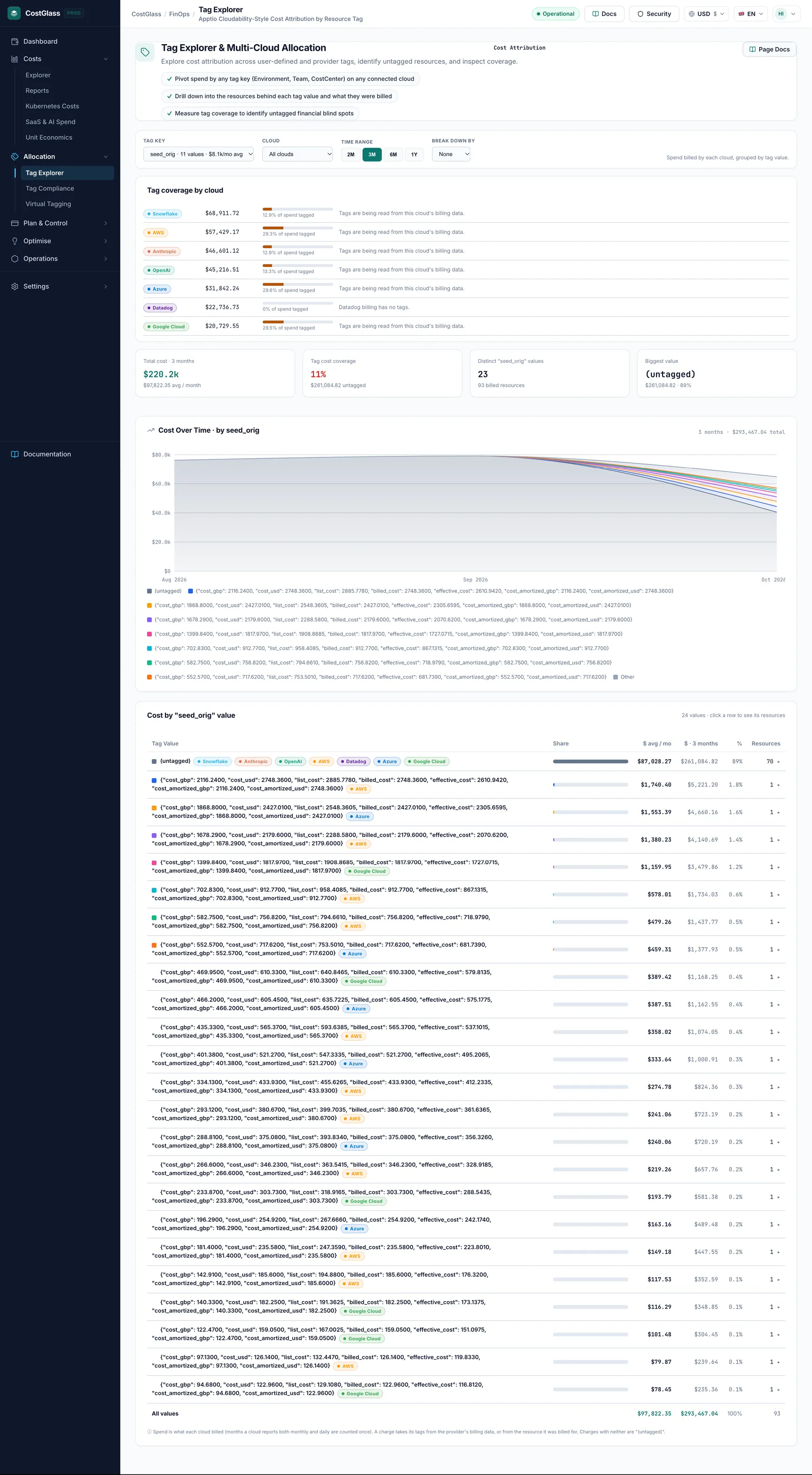
Group billed spend by the value of a tag, see tag coverage per cloud and drill into resources.
Explorador de etiquetas
Vea lo que facturó cada nube, agrupado por el valor de una etiqueta, y descubra qué parte de su gasto no tiene ninguna etiqueta.
- Pick one tag key, such as team, and Tag Explorer shows spend for each value of it, month by month and in a table. Choose No tag to group by cloud, service, region or account instead.
- Todo es un costo facturado, no una estimación. No hay nada modelado.
- The "(untagged)" row is spend that carries no value for that key. Su tamaño es la cobertura de su etiqueta.
- Choose any dates with the same date selector as Cost Explorer. Click a value to see the resources behind it.
- Required tags come from your tag policy (set in Tag Compliance), and spellings of one value ("Data-Platform", "data_platform") can be merged once and remembered, without changing anything in your cloud.
- Las etiquetas llegan hoy a CostGlass para AWS y Oracle Cloud. A panel at the bottom of the page says what is available per cloud.
- Al menos una nube conectada con el gasto facturado en el período que elijas.
- Etiquetas en sus recursos. En AWS, las etiquetas deben activarse como etiquetas de asignación de costos y estar en su Informe de uso y costos. Consulte la guía de estrategia de etiquetado.
como funciona
Cada cargo en tus facturas toma sus etiquetas del primer lugar que las tiene:
- The charge itself, when the cloud's billing data carries tags (Oracle's cost report does).
- Otherwise the tags on the resource the charge was billed for, taken from CostGlass's resource inventory (this is how AWS Cost and Usage Report charges get their tags).
Un cargo que no tiene ninguno de los dos se muestra como (sin etiquetar). Tag keys are matched without regard to case, so Equipo y equipo are the same key here.
Los controles
| Control | que hace | Opciones/predeterminado |
|---|---|---|
| Date selector | The period to analyse. It is the same selector as in Cost Explorer: presets or a custom From and To date. | Last 6 Months (default), Last 7 or 30 Days, Current Month, Last Month, 3M, 12M, Year to Date, Custom |
| Group by tag | The tag to group by. It is optional: choose No tag to group by the Then by option alone. Each entry shows how much of the spend in view carries that key, and your required tags are always listed. | No tag, or a key found in the period (the first key is chosen at first) |
| Then by | With a tag chosen, a second grouping inside each tag value, shown when you expand a row. With No tag it is the grouping itself, so Provider shows spend per cloud. | Provider (default), Service, Region, Account, and None when a tag is chosen |
| Buscar | Matches resource ids, service names and tags (for example team=data-platform). | Empty |
Selecting a different tag, grouping or search updates the chart, the cards, the table and the resource list together. Chart bars are always whole months. Clouds that only report monthly totals are shown for the whole month even when your dates start or end part-way through one, and the page says so.
Explora tu gasto por etiqueta
equipo (or leave it on No tag). You can also click a key in Tag coverage by key.Cómo leer la página
Las cuatro cartas
| Card | Significado |
|---|---|
| Spend in view | Billed spend in the period, and the number of distinct billed resources. |
| Tagged with [key] | The share of that spend that carries a value for the chosen key, and how many different values exist. |
| Missing [key] tag | Spend that carries no value for the key, so it cannot be shown back to an owner. |
| Fully tagged spend | The share of spend that has every tag in your tag policy. If no required tags are set the card says so and links to Tag Compliance. |
Monthly cost by tag value
A stacked bar chart by month. Los ocho valores más grandes obtienen cada uno un color; todo lo demás está doblado en gris Otro segment, and Sin etiquetar is red. Hover a bar to see each value's amount for that month. Tag coverage by key beside it shows, for every key, the share of spend carrying it and which keys are Required.
Cost by "[key]" value
| Columna | Significado |
|---|---|
| [key] | The value. A "merged" badge means other spellings are included (see Tag hygiene below). |
| Recursos | Number of distinct billed resources with this value. |
| By provider | A bar coloured by cloud showing where the value is spent. |
| Coste | Total billed spend over the period, in your display currency. |
| Compartir | Share of the spend in view. |
| vs previous | Change against the previous period of the same length. Only complete calendar months are compared, so a month still in progress is left out. When the range has no complete month the column shows a dash. |
Profundizando en un valor
Expanding a row shows the split by provider, the second grouping you chose in Then by, the largest resources behind the value and, for a merged value, the spellings merged into it. The Resources list at the bottom of the page shows the most expensive resources in view with their tags; click a tag to filter the page by it. A required tag a resource lacks is shown as a dashed red chip, for example cost-center missing. Show more loads the next 15.
Required tags
The tags marked Required come from your tag policy, the same one you edit in Cumplimiento de etiquetas. They drive theFully tagged spend card, the box at the bottom of the hygiene panel that says how many resources, and how much spend, are missing a required tag. If no policy has been set, no tag is marked required.
Tag hygiene and merging spellings
Teams rarely spell a tag value the same way everywhere: plataforma de datos, Data-Platform y data_platform are one team but three rows.Tag hygiene finds values that differ only by capital letters, spaces, underscores or hyphens and shows what each is costing you.
- Click Merge into "…" (the spelling with the most spend is suggested) and confirm.
- From then on those spellings are shown together as one value, with their cost added up, on every visit and for everyone in your organisation.
- To undo it, expand the merged row and click Unmerge next to a spelling.
Cobertura de etiquetas por nube
Open Tag coverage by cloud at the bottom of the page. For each cloud it shows the billed amount, the share that could be tagged, and a note. If a cloud shows 0% with a note saying tags are not read, that is a limit of the billing data, not something you did wrong (for example "Azure's cost export does not carry resource ids or tags yet" or "Cloudflare billing carries no tags"). Ver Estrategia de etiquetado for the full list of which clouds' tags reach CostGlass.
Trabajar con gastos sin etiquetar
To see the untagged spend, expand the Sin etiquetar row to see which resources have no value for this key. Luego, etiquételos en su nube (los propietarios de AWS pueden usar Cumplimiento de etiquetas) o asignarlos con un etiqueta virtual.
You choose equipo over the last 6 months. Coverage shows 62%, and "(untagged)" is the second biggest row. Lo expande y ve dos grandes recursos de base de datos y un conjunto de depósitos de almacenamiento. Les pides a sus propietarios que agreguen la etiqueta y el próximo mes la cobertura pasa a ser verde.
Si la página está vacía
- "No tags found on your billed spend in this period": El gasto existe pero ninguno lleva una etiqueta. Open Tag coverage by cloud for the reason per cloud.
- "No billed spend was found for these dates": Pruebe con un alcance más largo o conecte una nube.
- "Nothing matches these filters": clear a filter or widen the dates.
- "No se pudieron cargar las etiquetas": Inténtalo de nuevo en un momento.
Bueno saberlo
- El dinero se muestra en la moneda de visualización seleccionada. Los informes de gasto en la nube tanto mensuales como diarios se cuentan una vez.
- Export view downloads the value table as a CSV file.
- Si está limitado a parte de la organización (ver jerarquía organizacional), solo verás el gasto de las cuentas a las que puedes acceder.
- The Cost Explorer's Tag: … grouping is separate. Lee datos en vivo de AWS Cost Explorer y necesita una conexión de AWS basada en roles.