Explorateur de balises
Group billed spend by the value of a tag, see tag coverage per cloud and drill into resources.
Explorateur de balises
Découvrez ce que chaque cloud a facturé, regroupé par valeur d'une balise, et découvrez quelle part de vos dépenses n'a aucune balise.
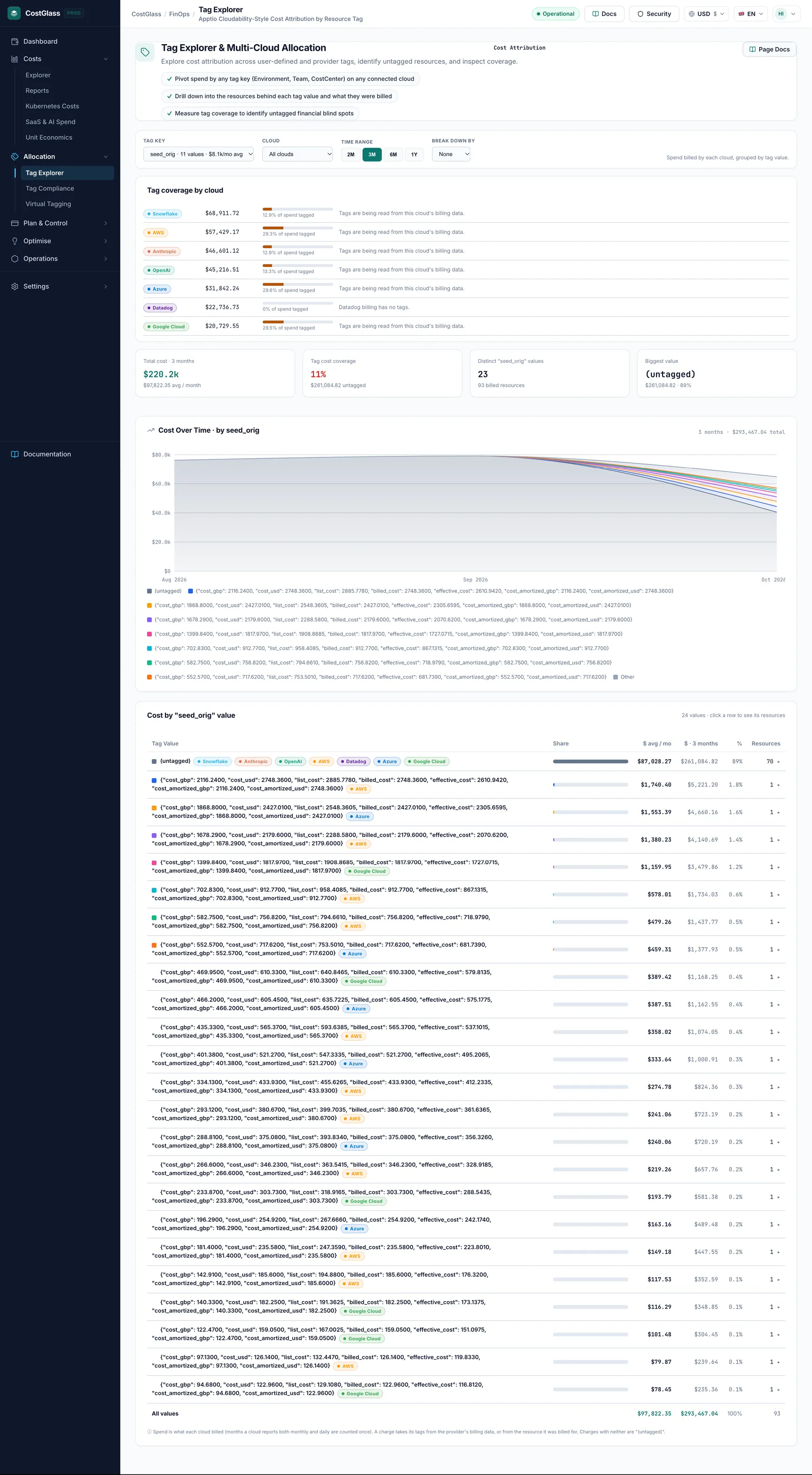
- Pick one tag key, such as team, and Tag Explorer shows spend for each value of it, month by month and in a table. Choose No tag to group by cloud, service, region or account instead.
- Tout est facturé au prix coûtant, pas une estimation. Rien n'est modélisé.
- The "(untagged)" row is spend that carries no value for that key. Sa taille correspond à la couverture de votre balise.
- Choose any dates with the same date selector as Cost Explorer. Click a value to see the resources behind it.
- Required tags come from your tag policy (set in Tag Compliance), and spellings of one value ("Data-Platform", "data_platform") can be merged once and remembered, without changing anything in your cloud.
- Les balises arrivent aujourd'hui à CostGlass pour AWS et Oracle Cloud. A panel at the bottom of the page says what is available per cloud.
- Au moins un cloud connecté aux dépenses facturées au cours de la période que vous choisissez.
- Balises sur vos ressources. Sur AWS, les balises doivent être activées en tant que balises de répartition des coûts et figurer dans votre rapport de coût et d'utilisation. Consultez le guide de stratégie de balisage.
Comment ça marche
Chaque frais sur vos factures prend ses étiquettes du premier endroit qui les contient :
- The charge itself, when the cloud's billing data carries tags (Oracle's cost report does).
- Otherwise the tags on the resource the charge was billed for, taken from CostGlass's resource inventory (this is how AWS Cost and Usage Report charges get their tags).
Une charge sans aucun des deux est indiquée comme (non étiqueté). Tag keys are matched without regard to case, so Équipe et équipe are the same key here.
Les contrôles
| Contrôle | Ce que ça fait | Options / par défaut |
|---|---|---|
| Date selector | The period to analyse. It is the same selector as in Cost Explorer: presets or a custom From and To date. | Last 6 Months (default), Last 7 or 30 Days, Current Month, Last Month, 3M, 12M, Year to Date, Custom |
| Group by tag | The tag to group by. It is optional: choose No tag to group by the Then by option alone. Each entry shows how much of the spend in view carries that key, and your required tags are always listed. | No tag, or a key found in the period (the first key is chosen at first) |
| Then by | With a tag chosen, a second grouping inside each tag value, shown when you expand a row. With No tag it is the grouping itself, so Provider shows spend per cloud. | Provider (default), Service, Region, Account, and None when a tag is chosen |
| Recherche | Matches resource ids, service names and tags (for example team=data-platform). | Empty |
Selecting a different tag, grouping or search updates the chart, the cards, the table and the resource list together. Chart bars are always whole months. Clouds that only report monthly totals are shown for the whole month even when your dates start or end part-way through one, and the page says so.
Explorez vos dépenses par tag
équipe (or leave it on No tag). You can also click a key in Tag coverage by key.Comment lire la page
Les quatre cartes
| Card | Signification |
|---|---|
| Spend in view | Billed spend in the period, and the number of distinct billed resources. |
| Tagged with [key] | The share of that spend that carries a value for the chosen key, and how many different values exist. |
| Missing [key] tag | Spend that carries no value for the key, so it cannot be shown back to an owner. |
| Fully tagged spend | The share of spend that has every tag in your tag policy. If no required tags are set the card says so and links to Tag Compliance. |
Monthly cost by tag value
A stacked bar chart by month. Les huit plus grandes valeurs reçoivent chacune une couleur ; tout le reste est plié en gris Autre segment, and Sans étiquette is red. Hover a bar to see each value's amount for that month. Tag coverage by key beside it shows, for every key, the share of spend carrying it and which keys are Required.
Cost by "[key]" value
| Colonne | Signification |
|---|---|
| [key] | The value. A "merged" badge means other spellings are included (see Tag hygiene below). |
| Ressources | Number of distinct billed resources with this value. |
| By provider | A bar coloured by cloud showing where the value is spent. |
| Coût | Total billed spend over the period, in your display currency. |
| Partager | Share of the spend in view. |
| vs previous | Change against the previous period of the same length. Only complete calendar months are compared, so a month still in progress is left out. When the range has no complete month the column shows a dash. |
Exploration d'une valeur
Expanding a row shows the split by provider, the second grouping you chose in Then by, the largest resources behind the value and, for a merged value, the spellings merged into it. The Resources list at the bottom of the page shows the most expensive resources in view with their tags; click a tag to filter the page by it. A required tag a resource lacks is shown as a dashed red chip, for example cost-center missing. Show more loads the next 15.
Required tags
The tags marked Required come from your tag policy, the same one you edit in Conformité des balises. They drive theFully tagged spend card, the box at the bottom of the hygiene panel that says how many resources, and how much spend, are missing a required tag. If no policy has been set, no tag is marked required.
Tag hygiene and merging spellings
Teams rarely spell a tag value the same way everywhere: plateforme de données, Data-Platform et data_platform are one team but three rows.Tag hygiene finds values that differ only by capital letters, spaces, underscores or hyphens and shows what each is costing you.
- Click Merge into "…" (the spelling with the most spend is suggested) and confirm.
- From then on those spellings are shown together as one value, with their cost added up, on every visit and for everyone in your organisation.
- To undo it, expand the merged row and click Unmerge next to a spelling.
Couverture des balises par cloud
Open Tag coverage by cloud at the bottom of the page. For each cloud it shows the billed amount, the share that could be tagged, and a note. If a cloud shows 0% with a note saying tags are not read, that is a limit of the billing data, not something you did wrong (for example "Azure's cost export does not carry resource ids or tags yet" or "Cloudflare billing carries no tags"). Voir Stratégie de marquage for the full list of which clouds' tags reach CostGlass.
Travailler avec des dépenses non marquées
To see the untagged spend, expand the Sans étiquette row to see which resources have no value for this key. Ensuite, soit marquez-les dans votre cloud (les propriétaires d'AWS peuvent utiliser Conformité des balises) ou attribuez-les avec un étiquette virtuelle.
You choose équipe over the last 6 months. Coverage shows 62%, and "(untagged)" is the second biggest row. Vous le développez et voyez deux grandes ressources de base de données et un ensemble de compartiments de stockage. Vous demandez à leurs propriétaires d’ajouter l’étiquette et le mois suivant, la couverture passe au vert.
Si la page est vide
- "No tags found on your billed spend in this period": les dépenses existent mais aucune d’entre elles ne porte d’étiquette. Open Tag coverage by cloud for the reason per cloud.
- "No billed spend was found for these dates": essayez une portée plus longue ou connectez un cloud.
- "Nothing matches these filters": clear a filter or widen the dates.
- "Impossible de charger vos balises": réessayez dans un instant.
Bon à savoir
- L'argent est affiché dans la devise d'affichage sélectionnée. Dépenser un rapport cloud mensuellement et quotidiennement est compté une fois.
- Export view downloads the value table as a CSV file.
- Si vous êtes limité à une partie de l'organisation (voir hiérarchie de l'organisation), vous ne voyez que les dépenses pour les comptes auxquels vous pouvez accéder.
- The Cost Explorer's Tag: … grouping is separate. Il lit les données AWS Cost Explorer en direct et nécessite une connexion AWS basée sur les rôles.